
The npm package is published, but it was absent from the production verified-node catalog read on 2026-10-19. npm publication does not establish n8n Cloud verification. This page describes the new public npm release from 2026-10-19, including service-name aliases and native credential help. npm publication does not automatically update Cloud verification. Package documentation remains English to meet n8n verification rules; Chinese customer instructions live separately.
Install and find the node
- On self-hosted n8n, an owner/admin follows n8n’s installation guide, opens Settings → Community nodes → Install, and enters
@acedatacloud/n8n-nodes-gpt-image@0.1.2. Install only in an instance you trust and administer. - On Cloud, use the verified-node picker. If absent, do not change security settings or create a duplicate listing.
- Add Manual Trigger, or use your existing trigger. Select its next +, search GPT Image, and choose GPT Image by Ace Data Cloud; older versions use by AceDataCloud. Workflow node identifiers stay the same. This is an action/query node, not a trigger.
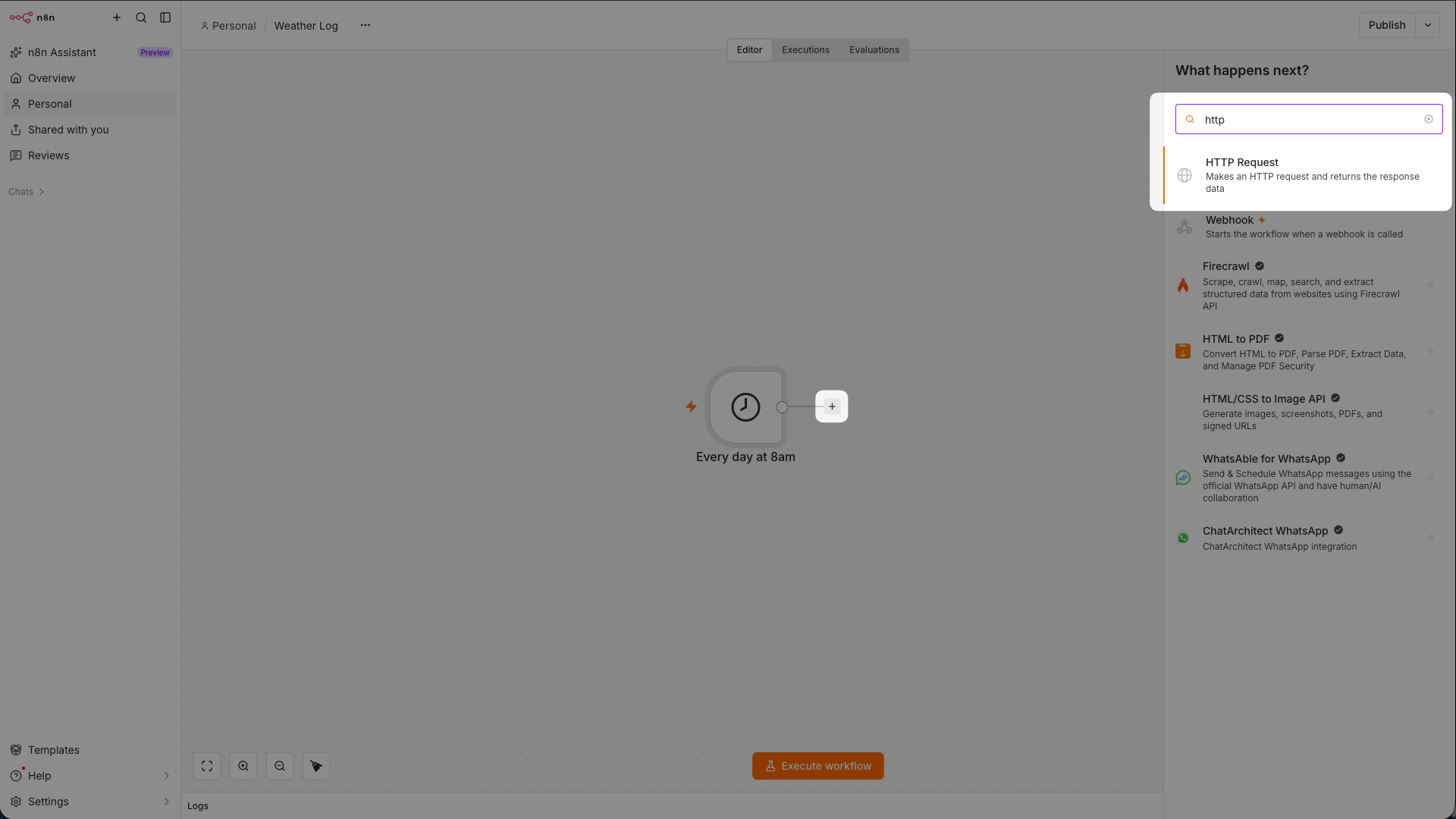 Unchanged official tutorial image, referenced 2026-10-18; capture date and exact version are not declared. It shows HTTP Request search layout, not this service’s installation or output. Official source.
Register and prepare a dedicated API key
- Open Ace Data Cloud Applications, register or sign in, and choose Initialize General Application if General application is missing.
- Copy its API Key, or use Keys / Manage Keys → Create for a separately named n8n key. General keys use services available to your account; dedicated applications are limited to their service.
- Check Expiration Time, Set Usage Limitation, Allowed APIs, GPT Image model/service access, balance and current pricing. Task-read access does not grant creation permission; any trial allowance is whatever your account displays now.
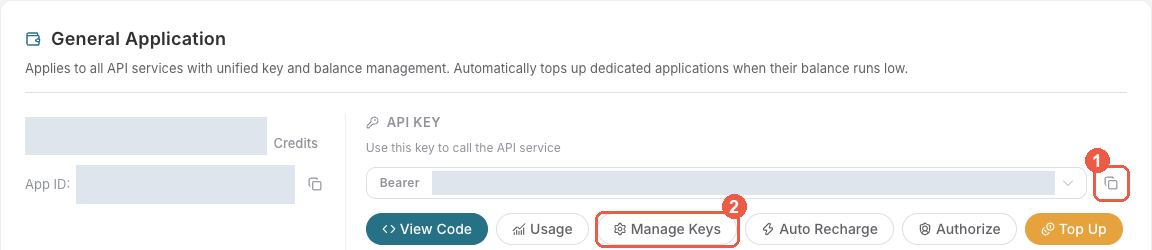
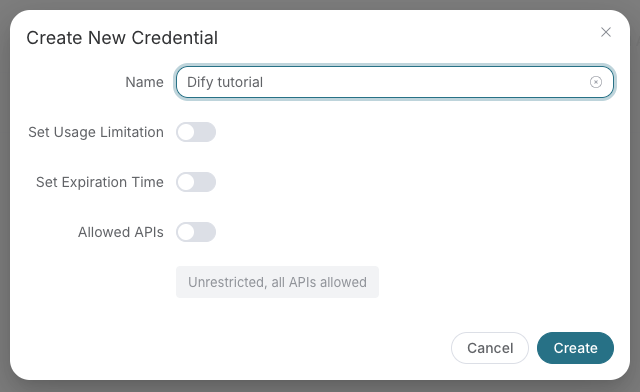 These are real platform references pinned to a source commit, referenced 2026-10-18. They are not n8n execution screenshots or proof of your account’s access/balance. Keep real tokens out of prompts, screenshots and shared workflows.
Save the native credential
Open the GPT Image node and create GPT Image by Ace Data Cloud API; older versions use by AceDataCloud API. Paste only the raw token into API Token, withoutBearer , quotation marks or spaces. A platform-... account-management token cannot authorize generation/task retrieval.
Save and select this credential on each node that needs access. The current credential test queries an empty task batch and does not create media; passing it does not establish model entitlement or access to a specific task. The key stays in n8n credential storage and is omitted from the downloaded example.
Retrieve your existing task first
- Download the query-only workflow and choose Import from URL/File. It starts inactive and contains a trigger, note and GPT Image task reader, with no generation or model node.
- Choose Resource → Task, Operation → Get, select your credential, and replace Task ID with an existing ID from this service that you may read. An ID is not a prompt or media URL. Do not execute the placeholder.
- Run that reader once. Continue only when
finishedandsuccessfulare true; final media links are indata. For processing tasks, retrieve the same ID later. Preserve failures/cancellations/auth errors instead of creating a replacement task.
Create once and wait for the result
After checking the read path, use the source package’s creation/polling examples. Select Resource → Image, Operation → Generate and a matching model.gpt-image-2 is an existing example value; check current entitlement and price before running.
Each input item may create a task. Check budget before batching. Run creation once and leave Retry On Fail off. Save taskId, poll the same ID with a delay, and bound waiting with explicit timeout/failure handling. An acknowledgment is not final media, and a workflow timeout does not cancel a server task. Inspect the original ID and usage before manually retrying an ambiguous request.
New creation requires a separate budget; this guide has not submitted a paid request for you. Consumption is in Credits, not USD. Use the matching single usage record, not token counts or example duration, to establish the actual charge.
Troubleshooting
Source and support · Back to n8n overview. Include package/n8n version, operation and a redacted error when reporting an issue. Omit API keys and private inputs.