

1. Obtain an API Key
Open the Ace Data Cloud application list, enter an available application, and copy the API Key.
2. Configure Cline
Install and open Cline in VS Code, then enter the Provider configuration through the settings button in the Cline panel and fill in: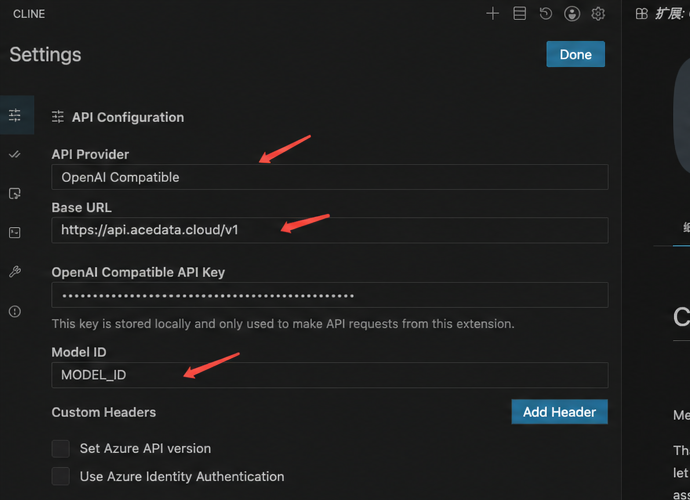
Model ID is the model name used by the model parameter in API requests. It is not the UUID of a service or API, and it cannot be abbreviated manually. You can first check it in the model catalog; if precise validation is needed, use the current API Key to request GET https://api.acedata.cloud/v1/models, and copy the id value of the target model from the response’s data array.
Keep the remaining model capability settings at their defaults for now; when images or a larger context are needed, adjust them according to the actual capabilities of the selected model.
3. Verify
After saving, create a new task and sendReply only OK. Then have Cline read a test file to confirm that the model supports tool calling; call records can be viewed in usage history.
A 401 usually indicates an incorrect Key; a 404 usually indicates that the Base URL is incorrect, or that the entered Model ID does not exactly match the id in the catalog. If the model can chat but cannot operate files, check the model’s tool-calling capability.