

1. Obtain the API Key
Open the Ace Data Cloud application list, enter an available application, and copy the API Key.
2. Configuration
Roo Code officially provides an OpenAI-compatible Provider and requires the model to support native OpenAI tools/function calling.- Open Roo Code settings in VS Code.
- Set API Provider to OpenAI Compatible.
- Fill in:
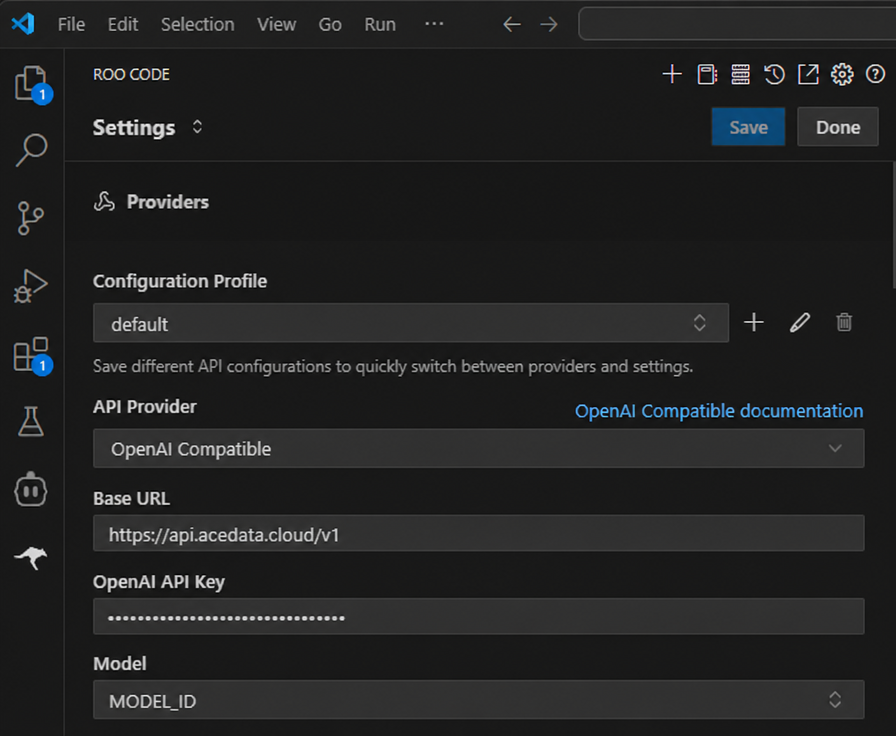 Then set the context, max output, image, and computer-use options according to the model’s actual capabilities. Finally, save the configuration and reload VS Code.
3. Verification
First sendReply only OK, then have Roo Code read a test file. If regular chat succeeds but Agent tools fail, switch to a model that supports native tool calling, and confirm that the compatible endpoint can correctly stream tool parameters and results.