

@claude in a PR or Issue, and Claude will automatically analyze the code, create PRs, implement features, and fix bugs.
This document mainly introduces how to configure and use Claude Code GitHub Actions through AceData Cloud’s proxy service.
Application Process
To use Claude Messages service page, first open the Ace Data Cloud Console and copy your API Token.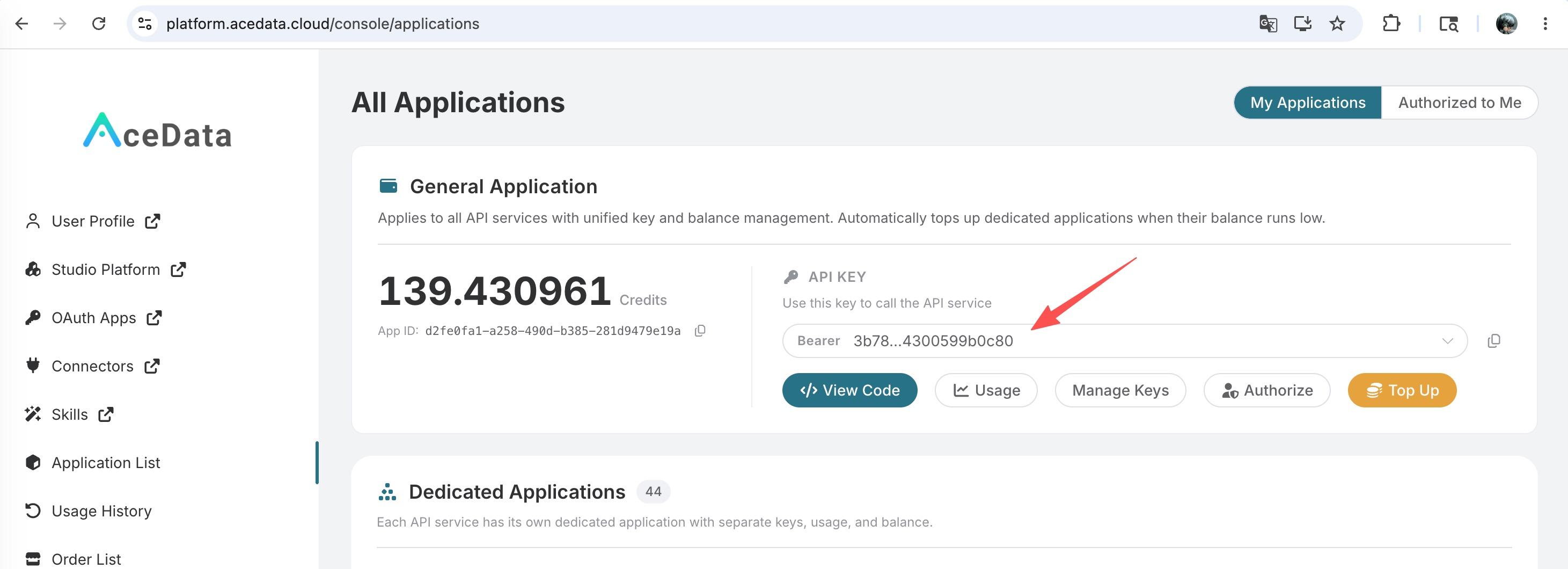 If you are not logged in, you will be redirected to sign in and brought back to this page automatically.
A single API Token works across every service on the platform — no need to subscribe per service. New accounts receive free starter credit; when it runs low you can top up your shared balance in the console.
If you are not logged in, you will be redirected to sign in and brought back to this page automatically.
A single API Token works across every service on the platform — no need to subscribe per service. New accounts receive free starter credit; when it runs low you can top up your shared balance in the console.
📘 Full documentation: Claude Messages service page →
Features
- Instant PR Creation: Describe your needs, and Claude will automatically create a complete Pull Request.
- Automatic Code Implementation: In an Issue,
@claudewill turn the Issue into runnable code. - Adherence to Project Standards: Automatically reads
CLAUDE.mdto follow your coding style and project standards. - Safe and Reliable: Code runs on GitHub’s Runner, ensuring data security.
Configuration Steps
Step One: Install Claude GitHub App
Go to https://github.com/apps/claude to install the Claude GitHub App to your repository.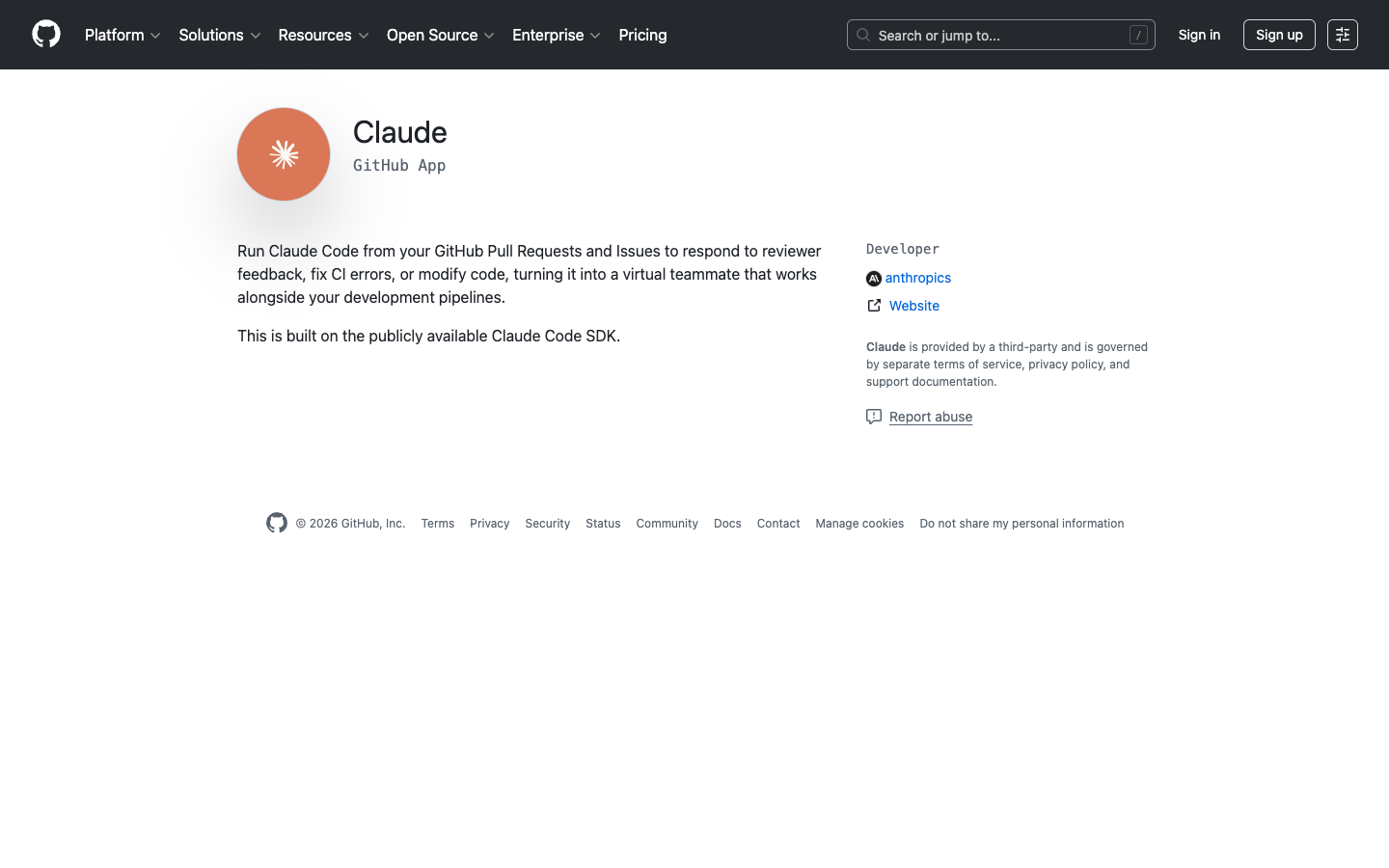 This App requires the following repository permissions:
Step Two: Add API Key
Add the AceData Cloud API key as a repository Secret:- Go to the repository Settings → Secrets and variables → Actions
- Click New repository secret
- Name it
ANTHROPIC_API_KEY, and enter the API token you obtained from AceData Cloud in the Value field. - Click Add secret to save.
Tip: The API token can be viewed in the AceData Cloud Console.
Step Three: Create Workflow File
Create a.github/workflows/claude.yml file in the repository:
Usage
Using in Issue or PR Comments
After configuration, in any Issue or PR comment,@claude, and Claude will automatically respond:
Automatic Code Review
Create a Workflow that automatically performs code reviews when a PR is opened:Scheduled Task Automation
Create an automated task that runs on a schedule:Action Parameter Description
Common claude_args Parameters
Best Practices
Configure CLAUDE.md
Create aCLAUDE.md file in the root directory of the repository to define coding style guidelines, review standards, and project specifications; Claude will automatically follow these rules.
Security Considerations
- Never write API keys directly in Workflow files.
- Always use GitHub Secrets (e.g.,
${{ secrets.ANTHROPIC_API_KEY }}). - Limit Action permissions to the minimum necessary scope.
- Manually review Claude’s suggestions before merging.
Cost Control
- Use explicit
@claudecommands to reduce unnecessary API calls. - Set reasonable
--max-turnslimits on dialogue turns. - Set timeout limits at the Workflow level.
- Use GitHub’s concurrency control to limit the number of parallel runs.
Frequently Asked Questions
Why is Claude not responding to the @claude command?
- Confirm that the Claude GitHub App is correctly installed.
- Check if the Workflow is enabled.
- Ensure the API key is set as a repository Secret.
- Make sure to use
@claudein the comment (not/claude).
Authentication Error?
- Confirm that the API key is valid and has sufficient permissions.
- Check if the Secret name is correct (
ANTHROPIC_API_KEY). - If using
ANTHROPIC_BASE_URL, confirm that the URL is correct.
How to Check Remaining Quota?
Log in to the AceData Cloud Console to view the current account’s remaining quota and usage.Learn More
- 📖 Claude Code GitHub Actions Official Documentation
- 📂 claude-code-action Repository
- 📋 Workflow Examples
- 🔧 AceData Cloud Claude Code Service
- 💬 If you have any questions, feel free to contact us through the platform’s customer service.