1. Obtain an API Key
Open the Ace Data Cloud application list, enter an available application, and copy the API Key.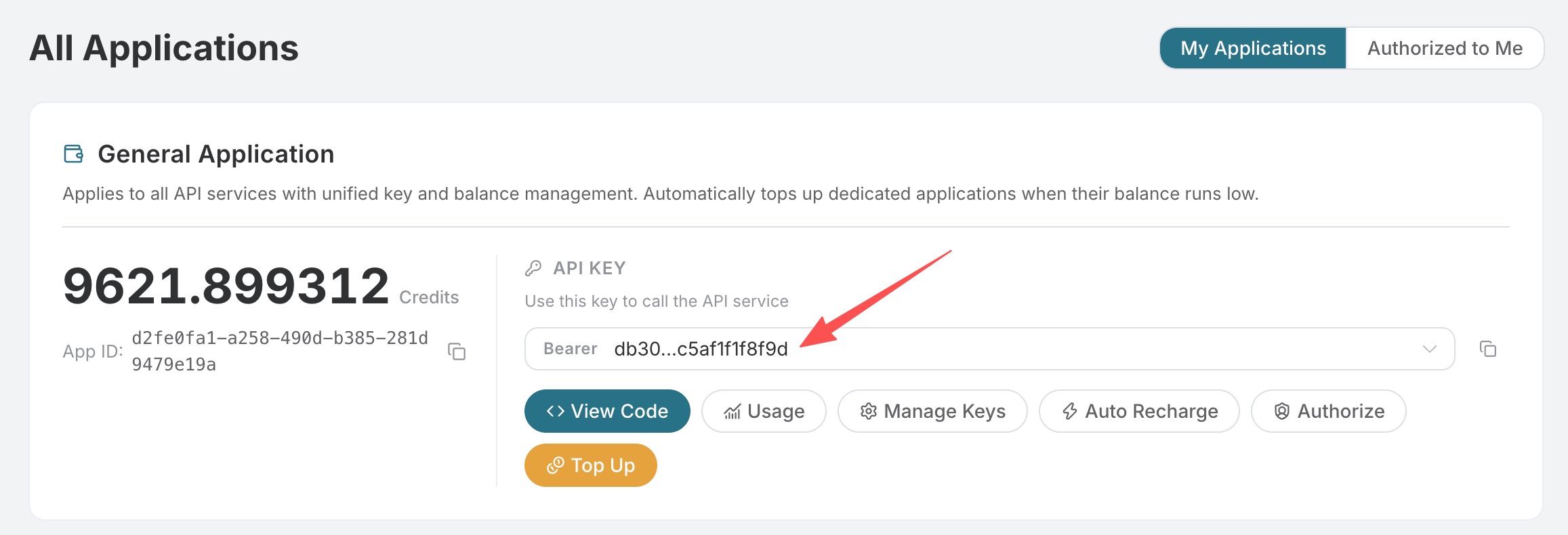
2. Edit Using an Image URL
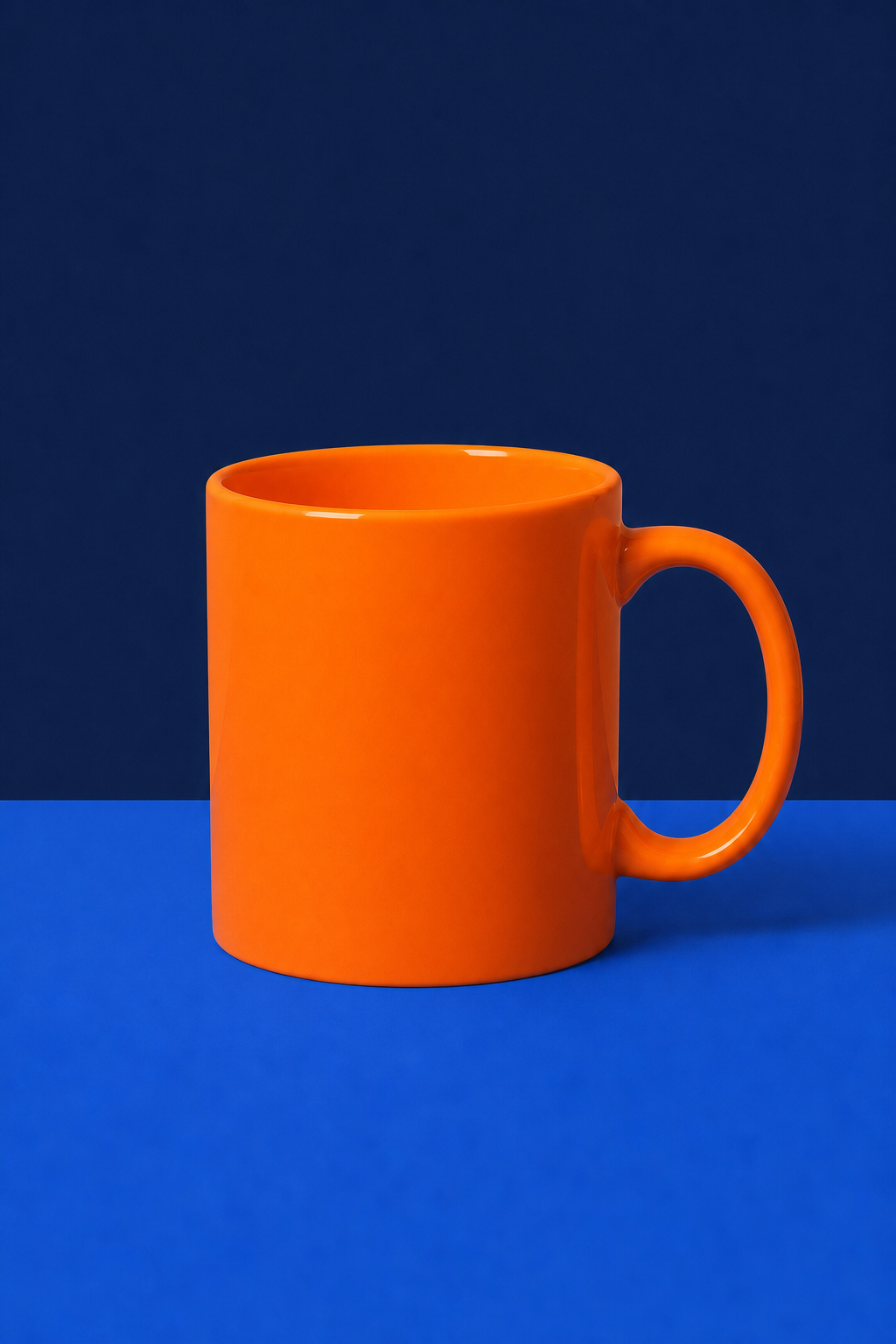
Original image:
3. Upload a Local Image
Usemultipart/form-data:
image repeatedly. The GPT Image series supports up to 16 reference images. image in a JSON request can be a single URL or an array of URLs; local files are uploaded using multipart.
Models and Billing Methods
The displayed price for the official API channel is an estimate before the request; the final amount is based on the actual Token usage in the response and usage records.
4. Use a Mask for Local Editing
The official Images Edit endpoint usesmask to specify the area allowed to be modified. Ace Data Cloud’s :official models follow the same multipart contract:
maskmust be a PNG with an Alpha channel and must not exceed 4MB;- The mask dimensions must exactly match the first
image; - Transparent pixels with an Alpha value of
0indicate areas allowed to be edited, while non-transparent pixels indicate areas that should be retained; - RGB images that are only black and white but have no transparency channel cannot be used as valid masks;
- The prompt should describe the complete desired image while clearly specifying the local modifications and the content that needs to remain unchanged.
images.edit invocation method from the official OpenAI Python SDK; simply point base_url to Ace Data Cloud:
mask, the original image and mask must be uploaded separately in the same multipart request through image=@input.png and mask=@mask.png. Do not pass a URL original image together with a local mask file; pure URL editing requests do not support adding a local mask file. The mask constrains the editing area, but the generation model may still naturally blend the edges; when strict boundaries are needed, use clear Alpha edges and repeatedly specify in the prompt which content must remain unchanged.
The invocation methods above are consistent with the mask examples in the OpenAI Image Edit API and the official GPT Image Cookbook.
5. Common Parameters
The size rules are consistent with the generation API: width and height must be multiples of 16, the longer side must not exceed 3840, total pixels must be 655,360–8,294,400, and the aspect ratio must not exceed 3:1. When
size is omitted or auto is used, the model will select the canvas based on the prompt and the first reference image.
gpt-image-2, gpt-image-2.5-flare, gpt-image-2.5-sunburst, and gpt-image-2:reverse are billed by the number of successfully generated images; gpt-image-2:official, gpt-image-2.5-flare:official, and gpt-image-2.5-sunburst:official are billed based on the actual Tokens for text input, reference image input, and image output, with final usage records prevailing.
6. Asynchronous Callbacks and Troubleshooting
For long-running tasks, add the following to the request:{"task_id": "..."}; the final result is returned through a callback upon completion. Synchronous requests return created and data.
Error responses include
trace_id. Provide this ID when reporting issues; do not provide the API Key.
For complete fields and real-time enumerations, refer to the OpenAI Images Edits API page. For generating images from plain text, see GPT Image 2 / 2.5 Image Generation.