

messages field. To complete a continuous conversation, we need to pass all the historical context, while also needing to handle the issue of token limits being exceeded.
The AI Q&A API provided by AceDataCloud has been optimized for the above situation. While ensuring that the Q&A effect remains unchanged, it encapsulates the implementation of continuous conversations, so there is no need to worry about passing messages during integration, nor about the issue of token limits being exceeded (which is handled automatically within the API). It also provides functions for querying and modifying conversations, greatly simplifying the overall integration.
This document will introduce the integration instructions for the AI Q&A API.
Application Process
To use the AI Q&A API, first go to the Ace Data Cloud Console to obtain your API Token for backup.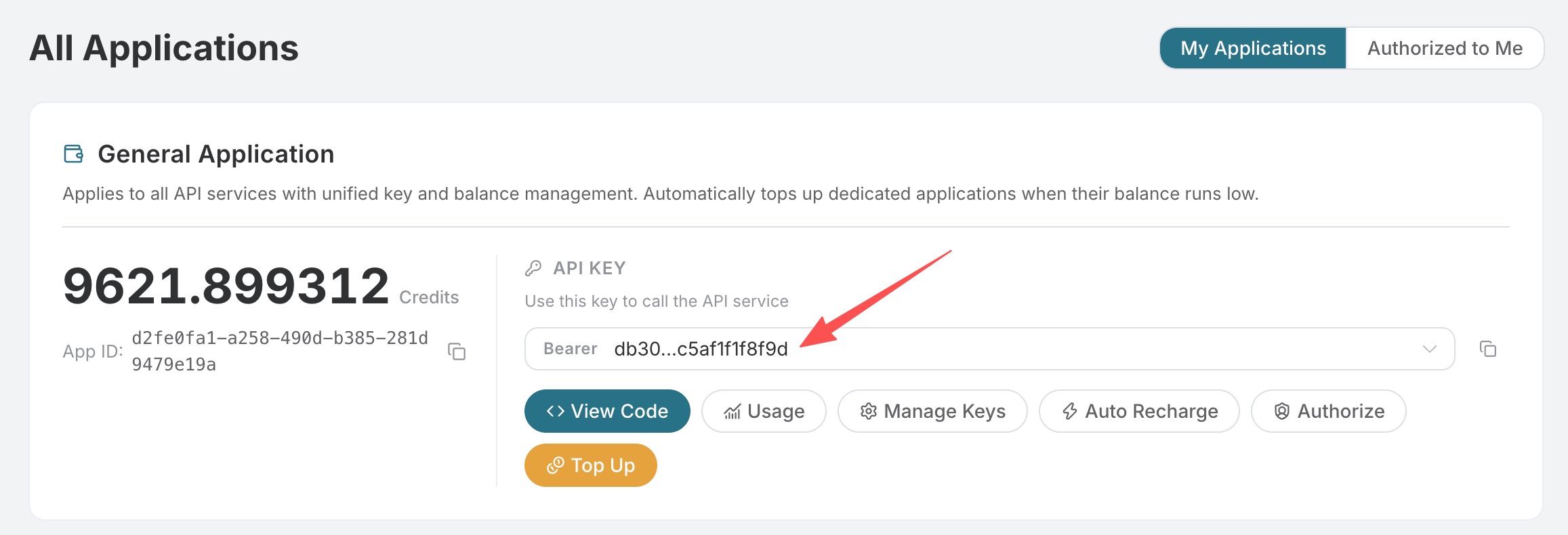 If you are not logged in or registered, you will be automatically redirected to the login page to invite you to register and log in. After completing this, you will be automatically returned to the current page.
One API Token can call all services on the platform, without needing to apply separately for each service. The first application will grant a free quota for a free experience; when the quota is insufficient, you can recharge the general balance in the console.
If you are not logged in or registered, you will be automatically redirected to the login page to invite you to register and log in. After completing this, you will be automatically returned to the current page.
One API Token can call all services on the platform, without needing to apply separately for each service. The first application will grant a free quota for a free experience; when the quota is insufficient, you can recharge the general balance in the console.
📘 Complete Documentation: AI Q&A API →
Basic Usage
First, understand the basic usage, which is to input a question and receive an answer. You only need to simply pass aquestion field and specify the corresponding model.
For example, asking: “What’s your name?”, we can then fill in the corresponding content on the interface, as shown in the figure:
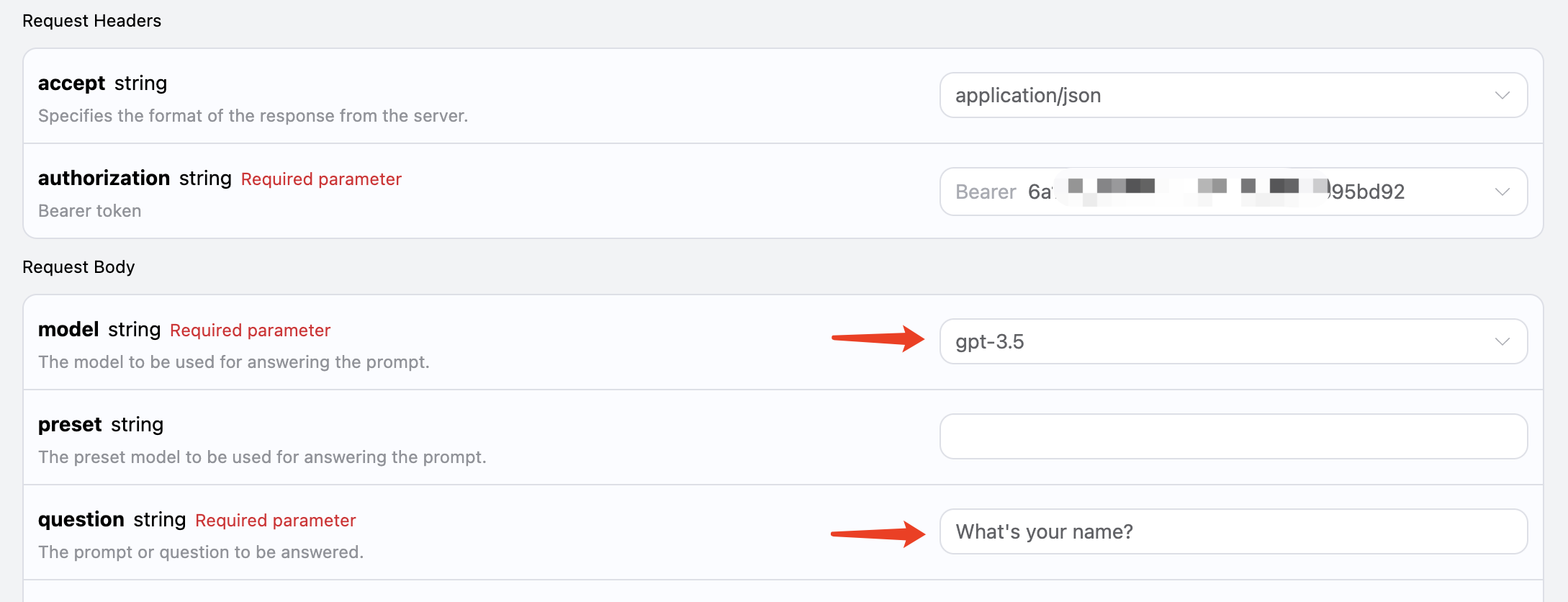 Here we can see that we have set the Request Headers, including:
accept: the format of the response result you want to receive, here filled in asapplication/json, which is JSON format.authorization: the key to call the API, which can be directly selected after application.
model: the choice of model, such as the mainstream GPT 3.5, GPT 4, etc.question: the question to be asked, which can be any plain text.
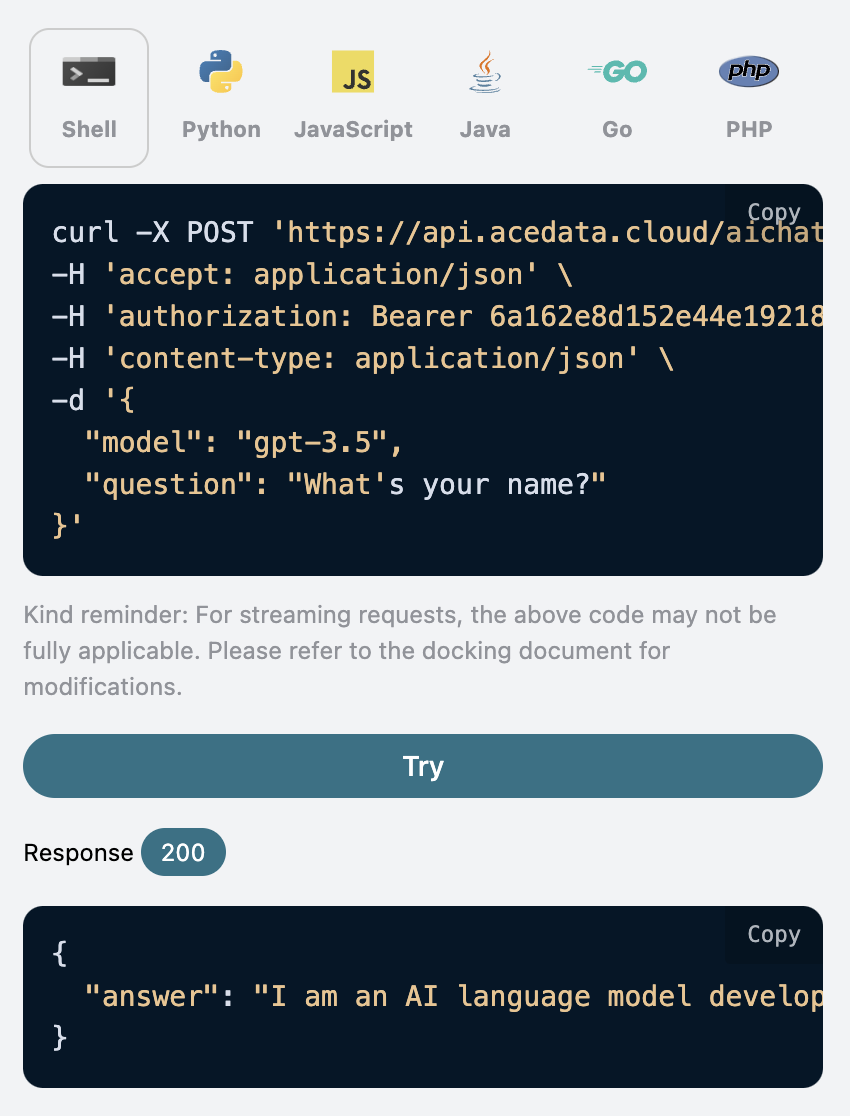
answer field, which is the answer to the question. We can input any question and receive any answer.
If you do not need any support for multi-turn conversations, this API can greatly facilitate your integration.
Additionally, if you want to generate the corresponding integration code, you can directly copy the generated code, for example, the CURL code is as follows:
Multi-Turn Conversations
If you want to integrate multi-turn conversation functionality, you need to pass an additional parameterstateful, with its value set to true. Each subsequent request must carry this parameter. After passing the stateful parameter, the API will additionally return an id parameter, representing the current conversation ID. Subsequently, we only need to pass this ID as a parameter to easily achieve multi-turn conversations.
Now let’s demonstrate the specific operation.
In the first request, set the stateful parameter to true, and normally pass the model and question parameters, as shown in the figure:
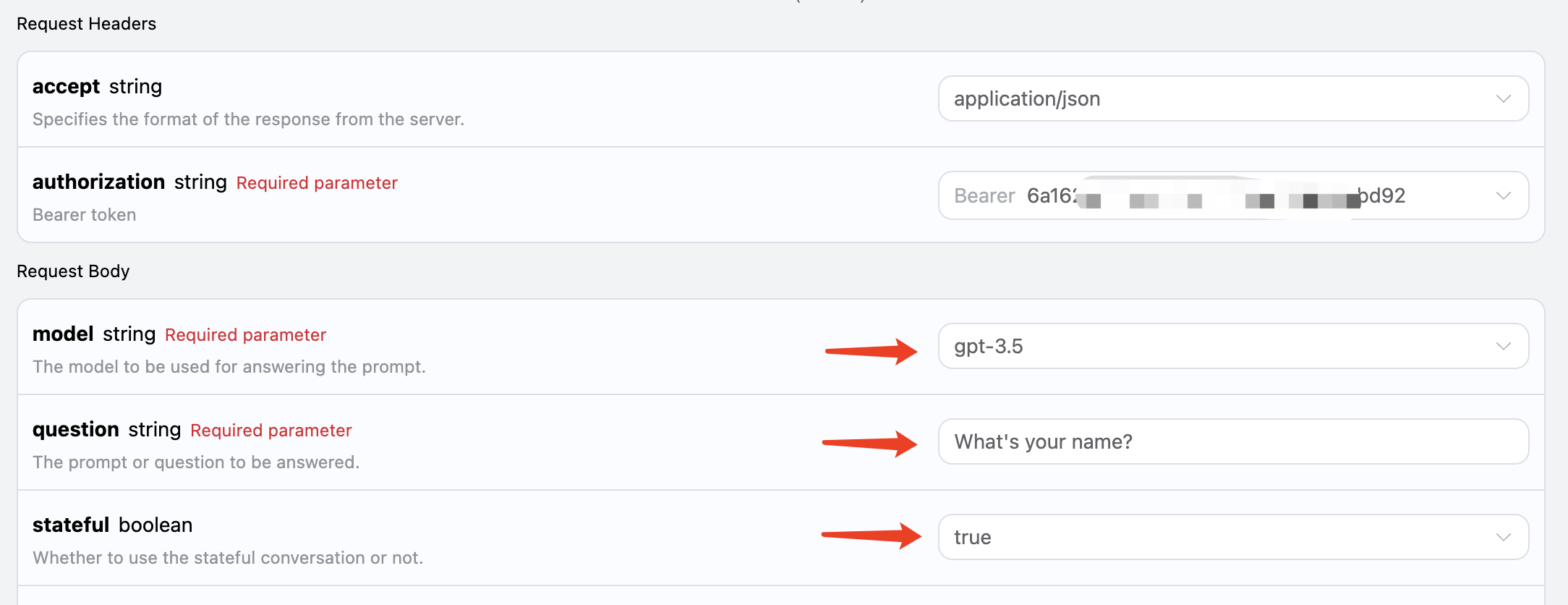 The corresponding code is as follows:
id field returned from the first request as a parameter, while still setting the stateful parameter to true, asking “What I asked you just now?”, as shown in the figure:
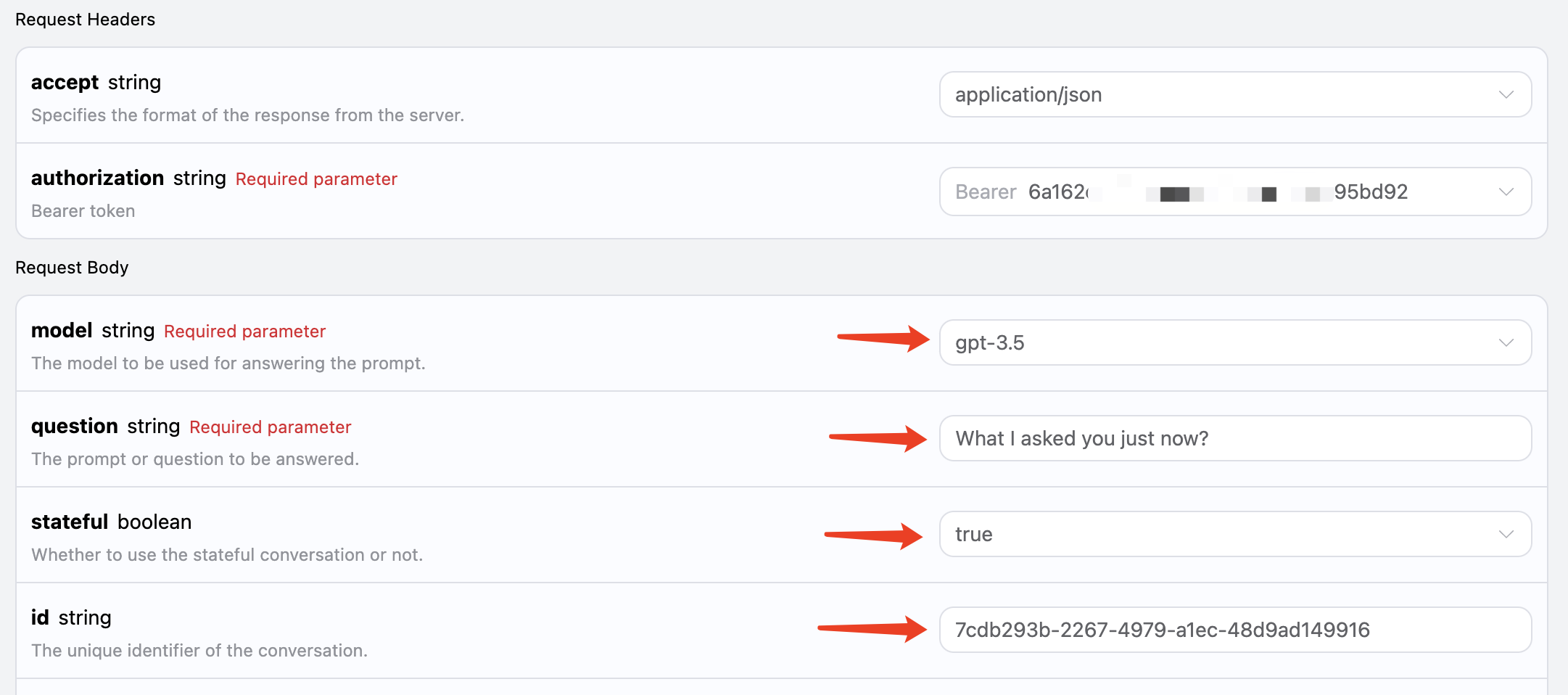 The corresponding code is as follows:
Streaming Response
This interface also supports streaming responses, which is very useful for web integration, allowing the webpage to achieve a word-by-word display effect. If you want to return responses in a streaming manner, you can change theaccept parameter in the request header to application/x-ndjson.
Modify as shown in the figure, but the calling code needs to have corresponding changes to support streaming responses.
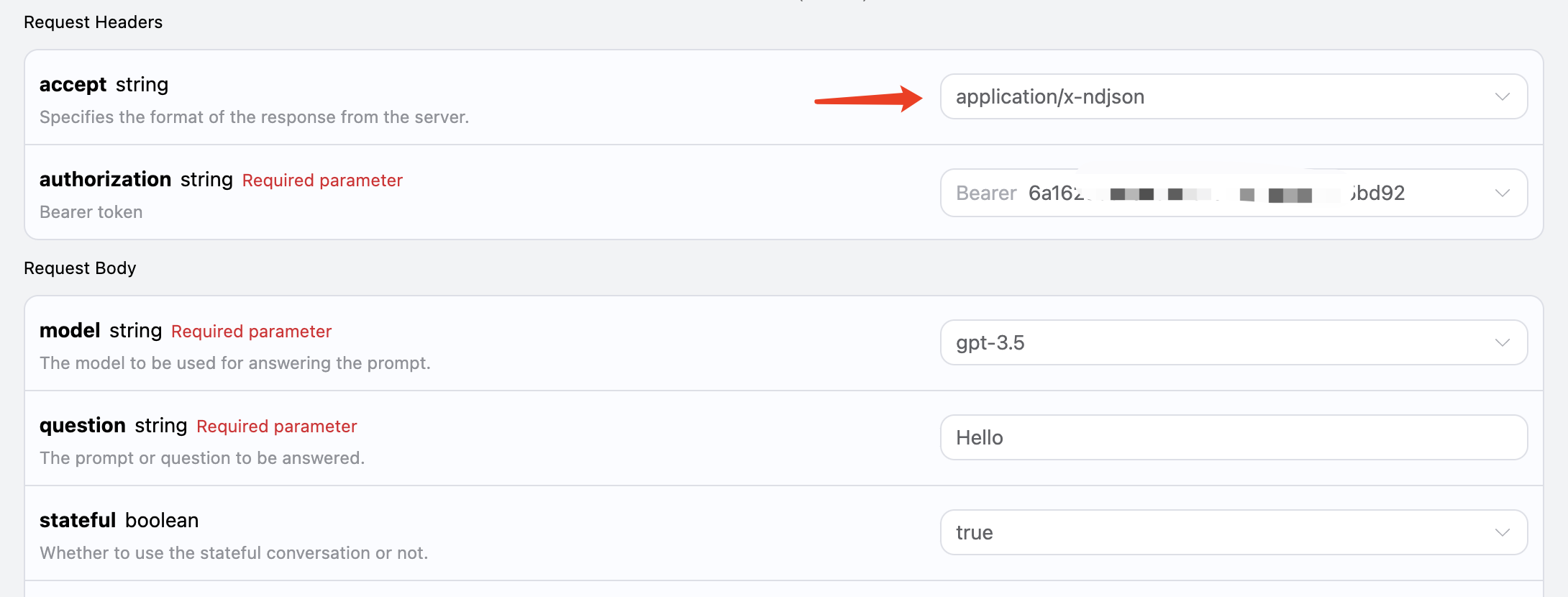 After changing
 accept to application/x-ndjson, the API will return the corresponding JSON data line by line. At the code level, we need to make corresponding modifications to obtain the results line by line.
Python sample calling code:
answer in the response is the latest answer content, while delta_answer is the newly added answer content, which you can use to integrate into your system.
JavaScript is also supported, for example, the streaming call code for Node.js is as follows:
Model Preset
We know that OpenAI related APIs have a corresponding concept ofsystem_prompt, which is to set a preset for the entire model, such as what its name is, etc. This AI Q&A API also exposes this parameter, called preset, which allows us to add presets to the model. Let’s experience it with an example:
Here we additionally add the preset field, with the content being You are a professional artist, as shown in the figure:
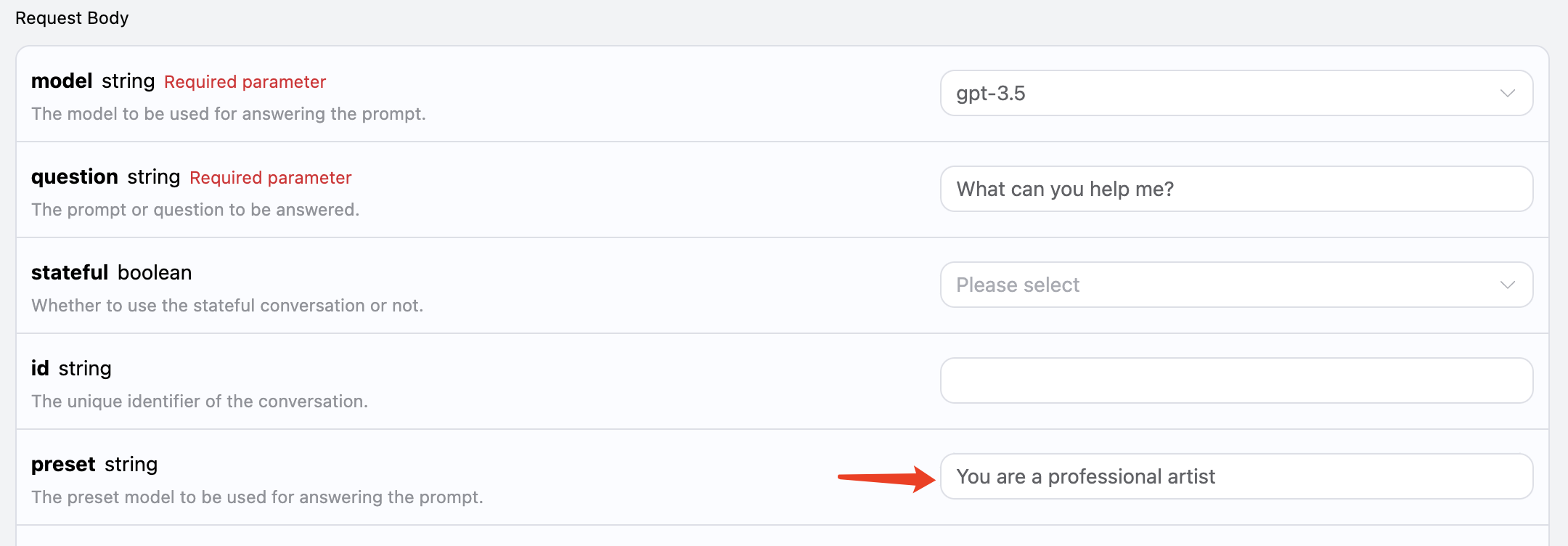 The corresponding code is as follows:
Image Recognition
This AI also supports adding attachments for image recognition, by passing the corresponding image link throughreferences. For example, I have an image of an apple, as shown in the figure:
 The link to this image is https://cdn.acedata.cloud/ht05g0.png, we can directly pass it as the
 references parameter. It is also important to note that the model must be selected to support visual recognition, and currently, the supported model is gpt-4-vision, so the input is as follows:
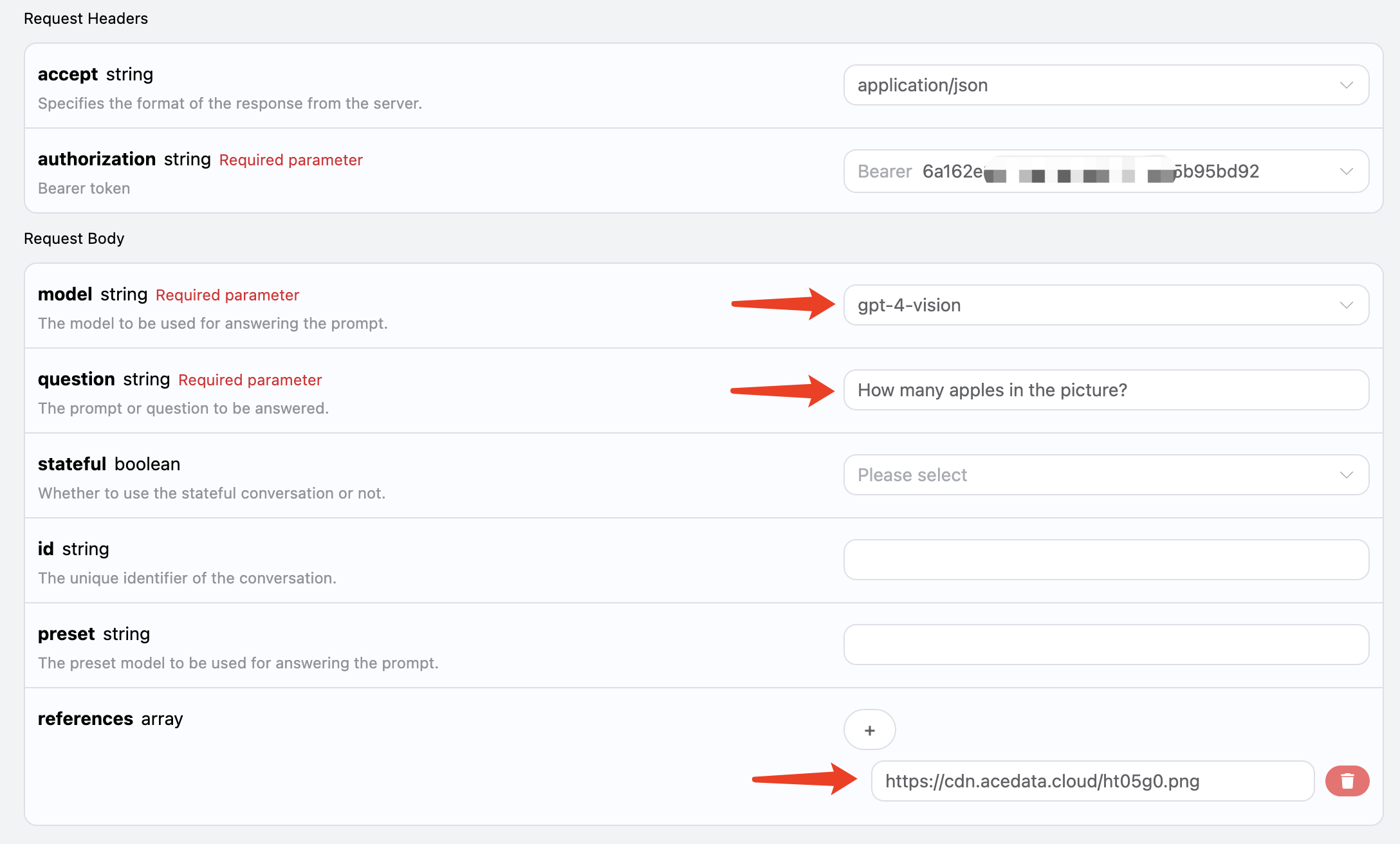 The corresponding code is as follows:
Online Q&A
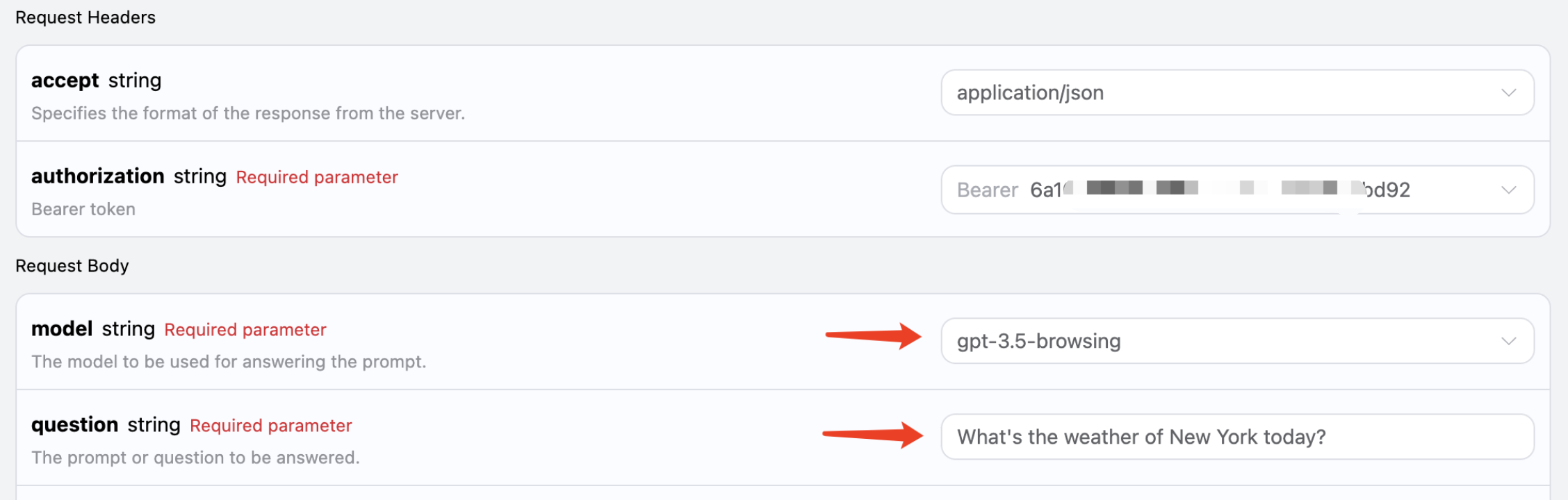
This API also supports online models, including GPT-3.5 and GPT-4, both of which can support a process of automatically searching the internet and summarizing. We can choose the model asgpt-3.5-browsing to experience it, as shown in the figure:
 The code is as follows:
If you have higher requirements for the quality of the model’s answers, you can change the model to gpt-4-browsing, and the answer quality will be better.