

In the escalating battle between web crawlers and anti-crawling measures, the risk control detection of major websites and apps has become increasingly robust, one of which is IP banning. To address the issue of IP bans, an effective method is to set up proxies. After setting up a proxy, the crawler can use the proxy’s IP to disguise its real IP address, thereby bypassing anti-crawling restrictions. However, the quality of proxies varies; for instance, most free proxies available on the market are either unusable or banned, and some paid ordinary proxies have also been added to the risk control blacklists of major websites and apps. Therefore, the number of high-quality proxies available for data crawling is decreasing. Currently, the main types of high-quality proxies on the market include dedicated proxies, ADSL proxies, and mobile cellular proxies. This proxy service is based on a rotating proxy service using mobile cellular networks (4G, 5G). This document will introduce the application and usage methods for this service.

Mobile Cellular Proxy

Mobile cellular proxies are essentially proxy services built on mobile data, with all proxy IPs being real mobile IPs. This type of proxy is relatively less used in the crawling field, thus the probability of being banned is lower, making it very effective for crawling websites and apps with strong risk control. This proxy service is built on a large-scale group-controlled mobile pool, with all traffic forwarded through genuine mobile data, supporting data requests from almost all websites and apps on the market. The proxy quality is extremely high, significantly reducing the risk control probability.

Application Method

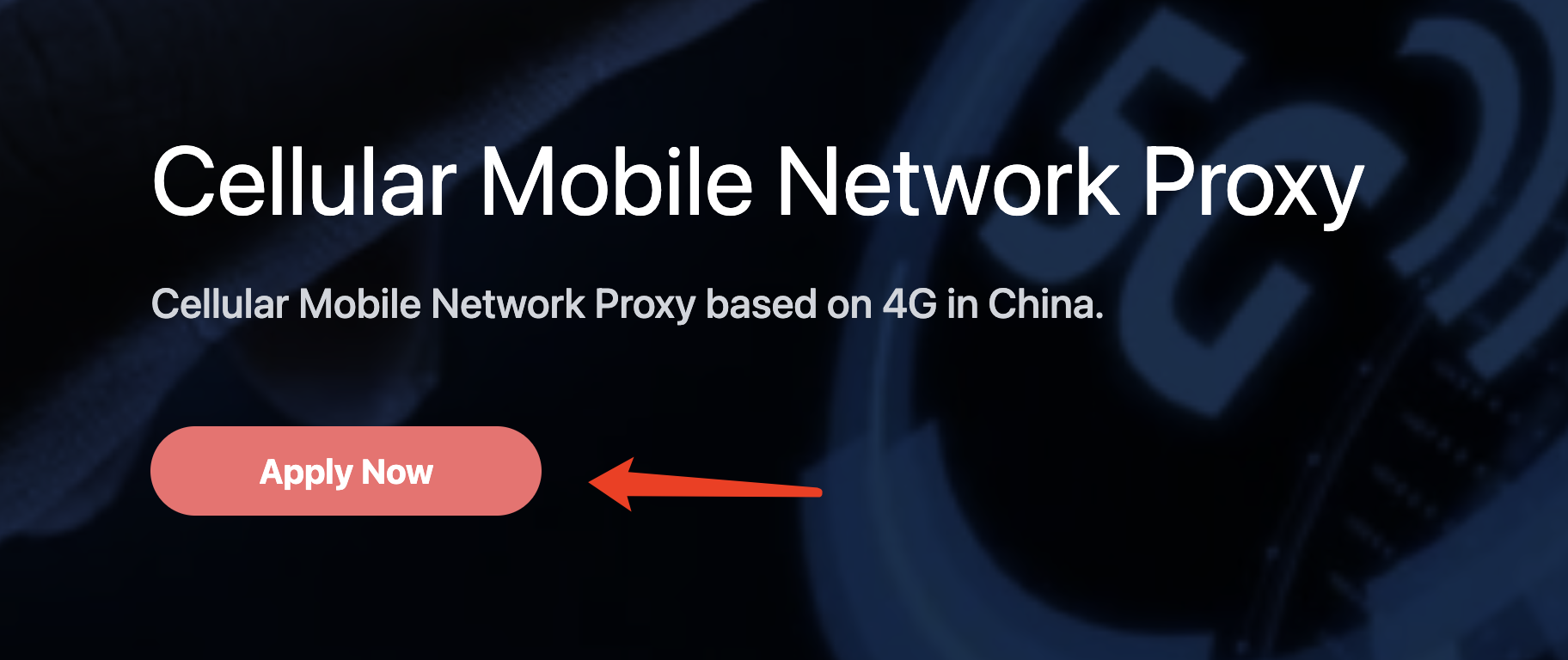
To use the cellular proxy service, you can first go to the “Application Page” to apply. The first application comes with a free quota of 1 point. If you are not logged in, you will be automatically redirected to the login page. After logging in, you can continue with the application.
Usage Method

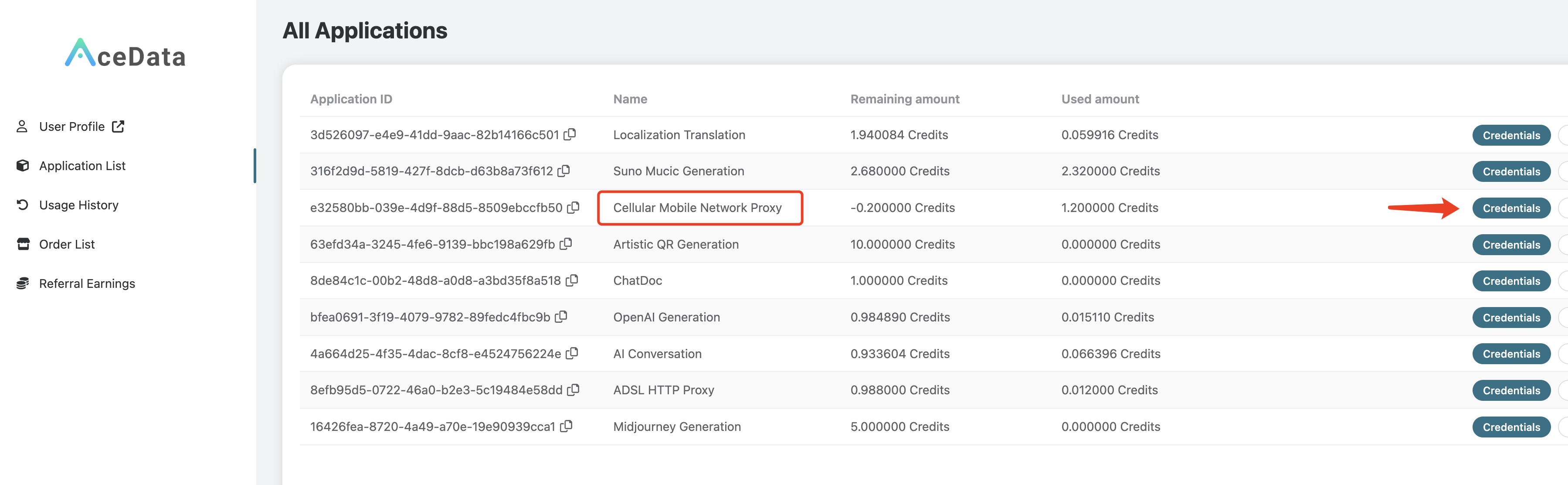
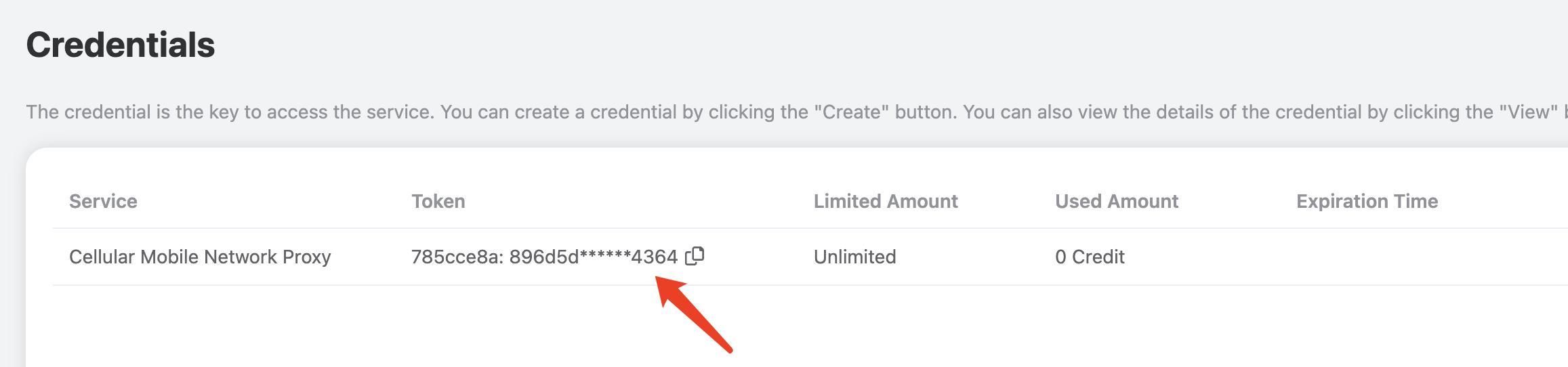
After the application is completed, you can check your application results in the “Console,” as shown in the figure: Click on “Credentials” to view the username and password for using the cellular proxy service, separated by a colon. The username is 8 characters long, and the password is 32 characters long, as shown in the figure: This mobile cellular proxy is a rotating proxy, so when using it, you only need to set a fixed proxy address and port. The proxy address and port are cellular.proxy.acedata.cloud and 30000, respectively. This proxy supports HTTP/HTTPS/SOCKS protocols and can be used to request websites using HTTP and HTTPS protocols.
Command Testing

Once you have the username and password for the proxy, the easiest way to test is through the curl command line. If you haven’t installed it yet, please refer to https://curl.se/ for installation. If the current proxy username and password are 1f78266a:eff0896726224fa2a99fe82dd1f07562, you can test it using the following curl command:
curl -x 1f78266a:eff0896726224fa2a99fe82dd1f07562@cellular.proxy.acedata.cloud:30000 https://ipinfo.io
Here, we use curl’s -x parameter to specify the proxy address. The default proxy protocol is HTTP/HTTPS, and the requested URL is https://ipinfo.io, which can return the real IP address and the location of the IP that requested the site.
Note: The above username and password may be invalid; please replace them with your own username and password.
The output result is as follows:
{
  "ip": "39.144.10.182",
  "city": "Shanghai",
  "region": "Shanghai",
  "country": "CN",
  "loc": "31.2222,121.4581",
  "org": "AS9808 China Mobile Communications Group Co., Ltd.",
  "postal": "200000",
  "timezone": "Asia/Shanghai",
  "readme": "https://ipinfo.io/missingauth"
}
As you can see, the returned result’s country is CN, representing China, and org is China Mobile, indicating the China Mobile network, confirming it is a cellular proxy exit. If you run it again, you can get different results; each request will have a random IP exit.

Code Integration

Below is an example in Python demonstrating how to set up the cellular rotating proxy:
import requests

proxy = 'http://{proxy_username}:{proxy_password}@cellular.proxy.acedata.cloud:30000'

proxies = {
    'http': proxy,
    'https': proxy
}

for _ in range(3):
    resp = requests.get('https://ipinfo.io', proxies=proxies)
    print(resp.text)

Here, we first declare the proxy URL and define it as the proxy variable, with the protocol being HTTP, followed by the rotating proxy’s username and password (i.e., the username and password displayed in the console, separated by a colon), followed by an @ symbol, and then the proxy address and port. Next, we declare a proxies variable, configuring two key-value pairs, with the keys being http and https, and both values being the proxy, indicating that for both HTTP and HTTPS websites, the requests will use the proxy defined in the proxy variable. Then, we define a loop to test the proxy three times, with the requested URL being https://ipinfo.io, which can return the real IP address and the location of the IP that requested the site. The output result is as follows:
{
  "ip": "39.144.18.26",
  "city": "Shanghai",
  "region": "Shanghai",
  "country": "CN",
  "loc": "31.2222,121.4581",
  "org": "AS9808 China Mobile Communications Group Co., Ltd.",
  "postal": "200000",
  "timezone": "Asia/Shanghai",
  "readme": "https://ipinfo.io/missingauth"
}
{
  "ip": "39.144.18.26",
  "city": "Shanghai",
  "region": "Shanghai",
  "country": "CN",
  "loc": "31.2222,121.4581",
  "org": "AS9808 China Mobile Communications Group Co., Ltd.",
  "postal": "200000",
  "timezone": "Asia/Shanghai",
  "readme": "https://ipinfo.io/missingauth"
}
{
  "ip": "39.144.182.55",
  "city": "Zhanjiang",
  "region": "Guangdong",
  "country": "CN",
  "loc": "21.2339,110.3875",
  "org": "AS24445 Henan Mobile Communications Co.,Ltd",
  "postal": "524000",
  "timezone": "Asia/Shanghai",
  "readme": "https://ipinfo.io/missingauth"
}
It can be seen that the proxy IP obtained from each run is random, and the location of the IP indeed comes from real mobile traffic. Of course, the above proxy setting method is actually a relatively simple setup. In fact, the above code is equivalent to setting an additional header - Proxy Authorization during the request, so the above code can also be rewritten as follows:
import requests
import base64

proxy_host = 'cellular.proxy.acedata.cloud'
proxy_port = '30000'
proxy_username = '{proxy_username}' # 8-character username
proxy_password = '{proxy_password}' # 32-character password

credentials = base64.b64encode(
    f'{proxy_username}:{proxy_password}'.encode()).decode()

proxies = {
    'http': f'http://{proxy_host}:{proxy_port}',
    'https': f'http://{proxy_host}:{proxy_port}'
}

headers = {
    'Proxy-Authorization': f'Basic {credentials}'
}

for _ in range(3):
    resp = requests.get('https://ipinfo.io',
                        proxies=proxies, headers=headers)
    print(resp.text)

It can be seen that here we set the proxy username and password through the Proxy-Authorization request header (which needs to be Base64 encoded), and the running effect of such code is the same. For other languages, such as JavaScript’s axios, a similar setting method can also be used:
const axios = require("axios");
const base64 = require("base64");

const proxy_host = "cellular.proxy.acedata.cloud";
const proxy_port = "30000";
const proxy_username = "{proxy_username}"; // 8-character username
const proxy_password = "{proxy_password}"; // 32-character password

const credentials = base64.encode(`${proxy_username}:${proxy_password}`);

const proxies = {
  http: `http://${proxy_host}:${proxy_port}`,
  https: `http://${proxy_host}:${proxy_port}`,
};

const headers = {
  "Proxy-Authorization": `Basic ${credentials}`,
};

for (let i = 0; i < 3; i++) {
  axios
    .get("https://ipinfo.io", { proxies, headers })
    .then((resp) => console.log(resp.data))
    .catch((err) => console.error(err));
}
The running effect is the same. For the setup methods of other languages, please refer to the above text for self-rewriting.

Purchase More

If your plan has been exhausted, you need to purchase more to continue using the proxy service. To purchase more, please go to the “Application Page” and directly click the “Purchase More” button to select, the more you purchase at once, the cheaper the unit price.