

Application Process
To use the hCaptcha protocol recognition API, first go to the Ace Data Cloud Console to obtain your API Token for future use.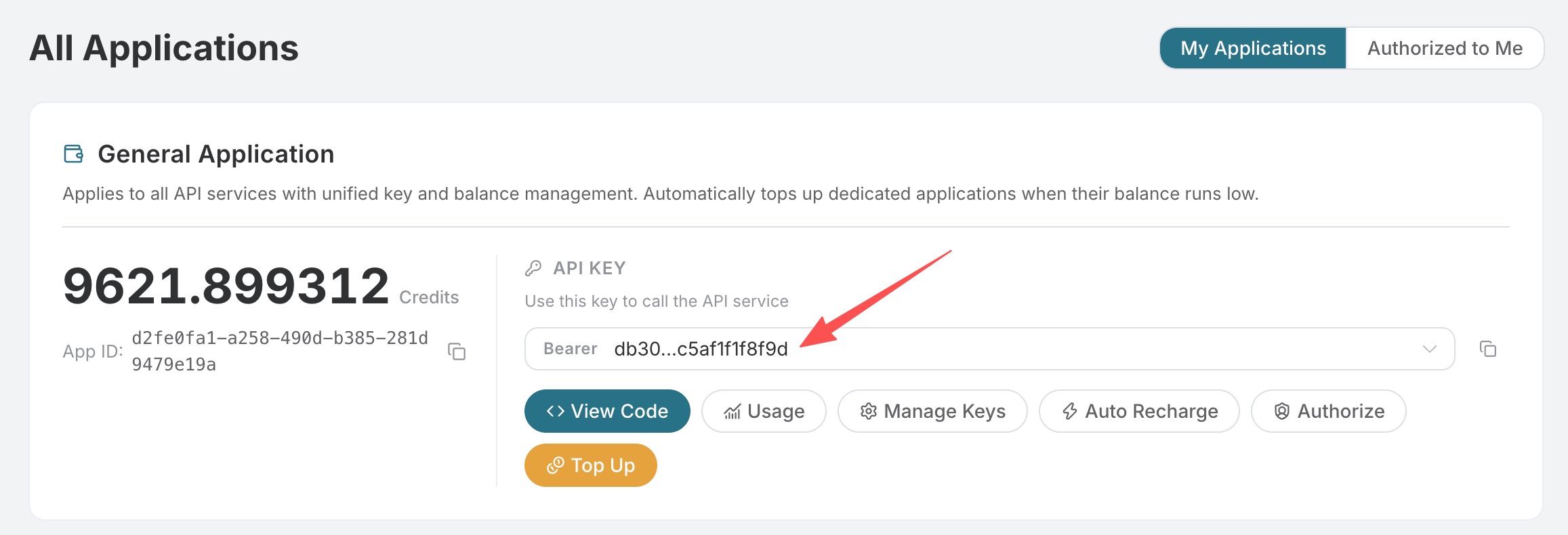 If you are not logged in or registered, you will be automatically redirected to the login page inviting you to register and log in, and after completing this, you will be automatically returned to the current page.
One API Token can call all services on the platform without needing to apply separately for each service. The first application will grant a free quota for a trial experience; when the quota is insufficient, you can recharge the general balance in the console.
If you are not logged in or registered, you will be automatically redirected to the login page inviting you to register and log in, and after completing this, you will be automatically returned to the current page.
One API Token can call all services on the platform without needing to apply separately for each service. The first application will grant a free quota for a trial experience; when the quota is insufficient, you can recharge the general balance in the console.
📘 Complete Documentation: hCaptcha Protocol Recognition API →
Basic Usage
First, understand the basic usage method, which is to input the URL of the website that needs to process the hCaptcha verification code to obtain the processed result. You first need to simply pass awebsite_url field. Our example website is: https://accounts.hcaptcha.com/demo, and we need to obtain the website_key from the website_url page. First, open this webpage, press F12 to enter the console, and then perform a global search for hcaptcha-demo on the Element page. We can obtain the following result:
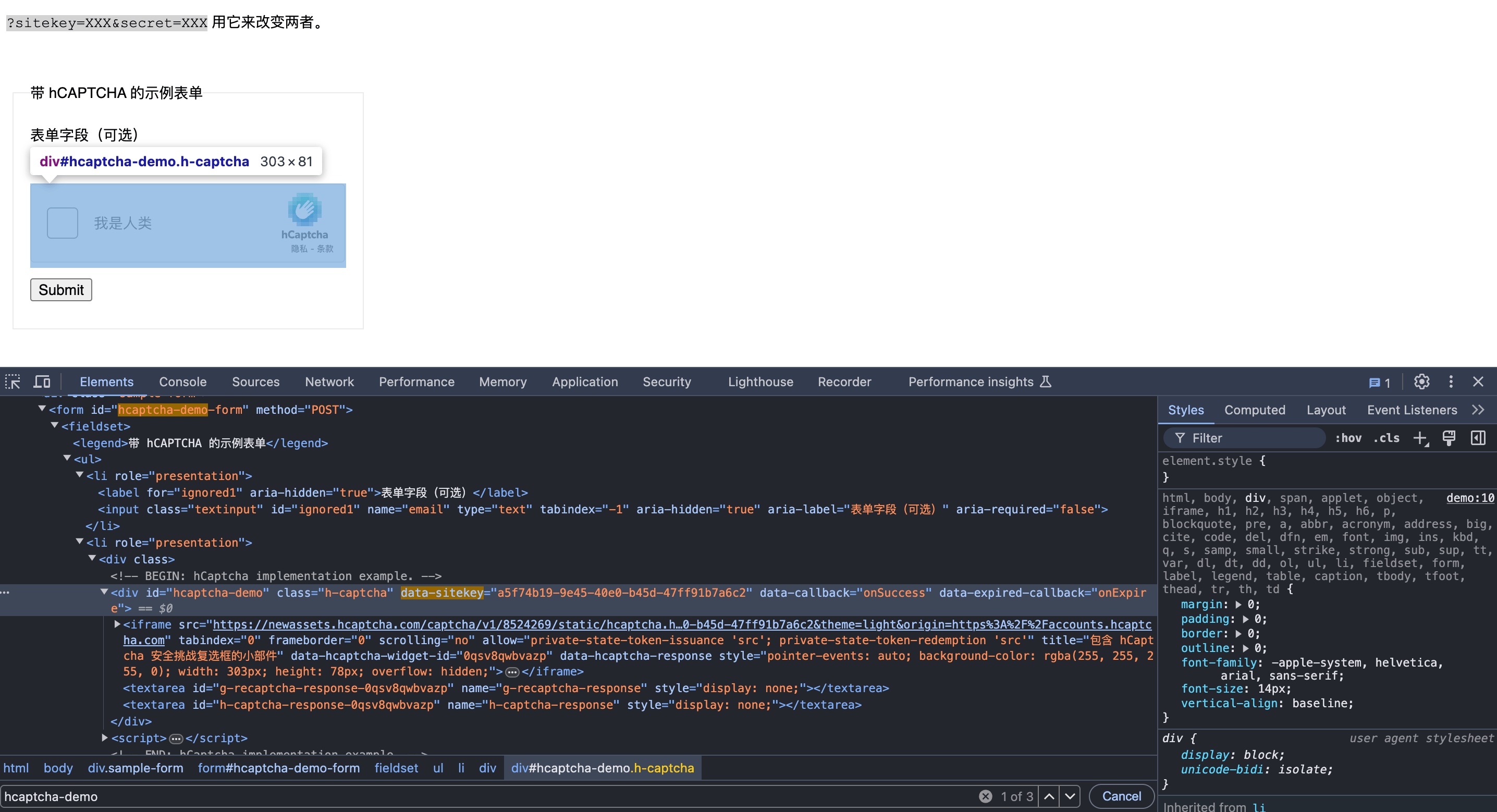
data-sitekey is the value of website_key. Below are the specific parameter results:
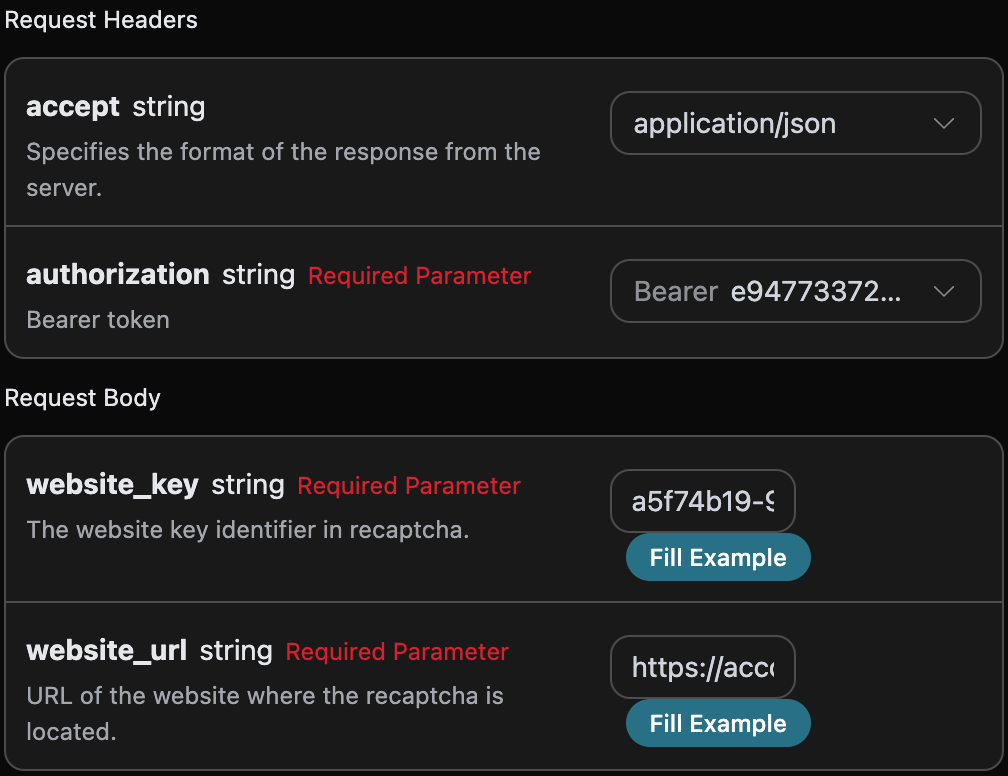
accept: the format of the response result you want to receive, here filled in asapplication/json, which is in JSON format.authorization: the key for calling the API, which can be directly selected after application.
website_url: the URL of the website that needs to process the verification code.website_key: the website key identifier in hCaptcha.rqdata: optional. The hCaptcha Enterprise challenge may providedata-rqdataon the page; when encountering such challenges, fill in its original value; ordinary hCaptcha does not need to be filled in.proxy: optional, Bring Your Own Proxy. After setting, the system will use the proxy IP you provide to solve the verification code, used to control the quality of the exit IP (for example, to avoid being blocked by the target site due to public proxy IPs returning410 Gone). The format isscheme://[user:pass@]host:port, whereschemesupportshttp/https/socks4/socks5, for example,http://user:pass@1.2.3.4:8080. If not filled, the platform’s default proxy will be used.
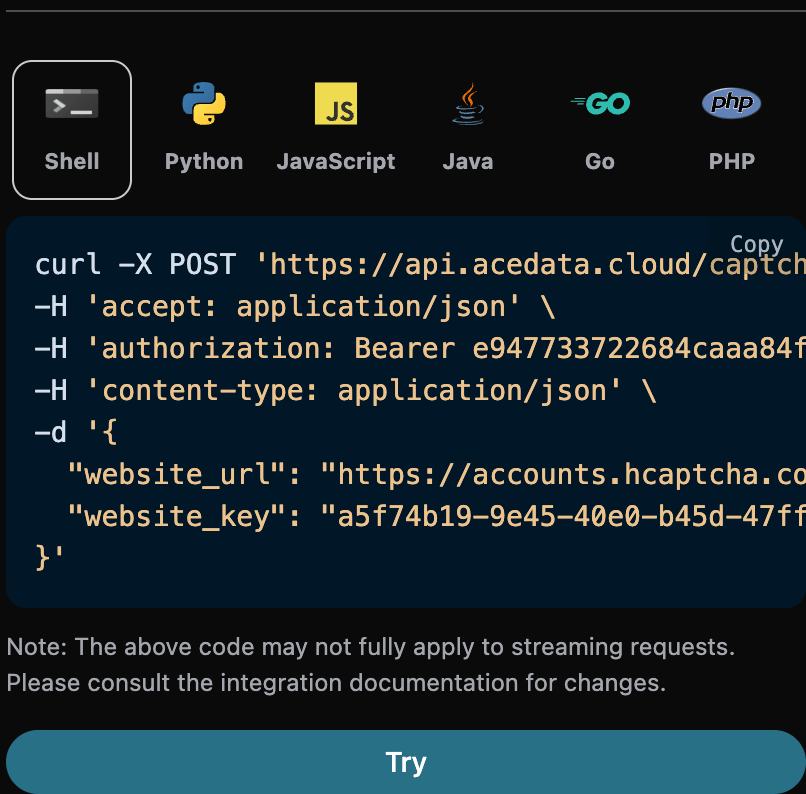
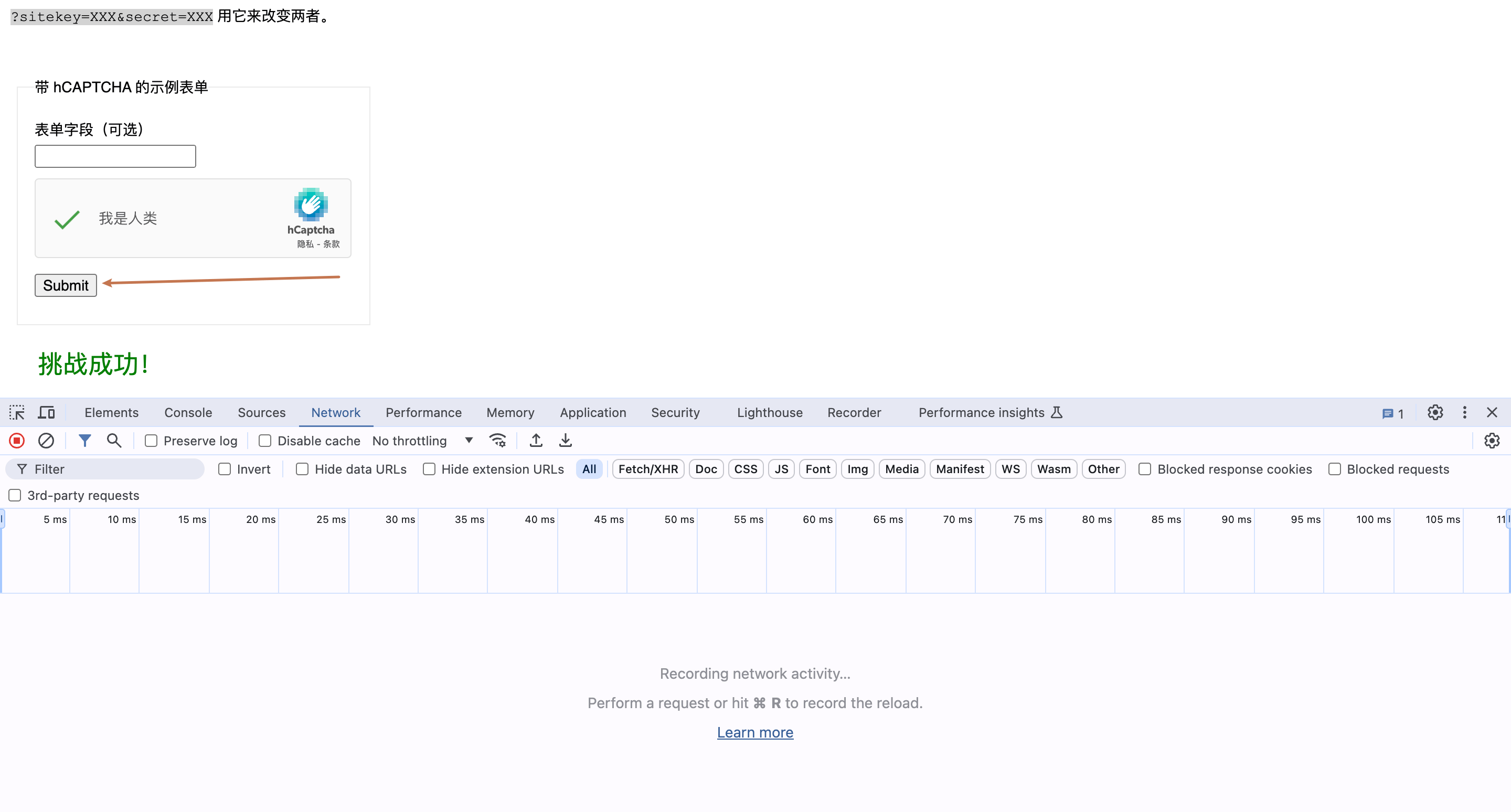
- First, manually go through the verification, as shown in the figure below:
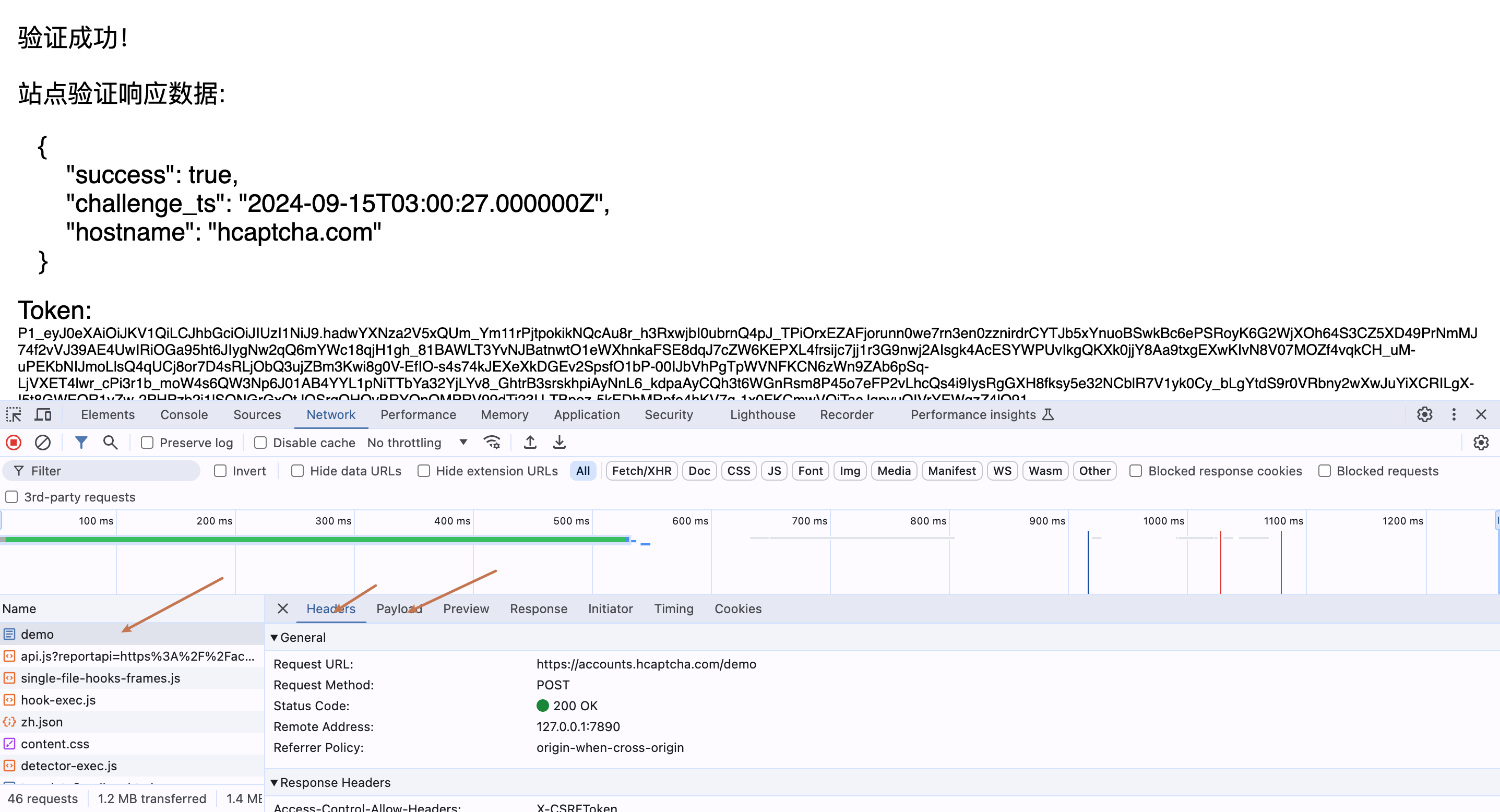
- Then click submit and watch the changes in the console’s network, as shown in the figure below:
- Analyze the construction of this submitted POST request, and finally right-click on the request to copy the CURL code, as shown in the figure below:
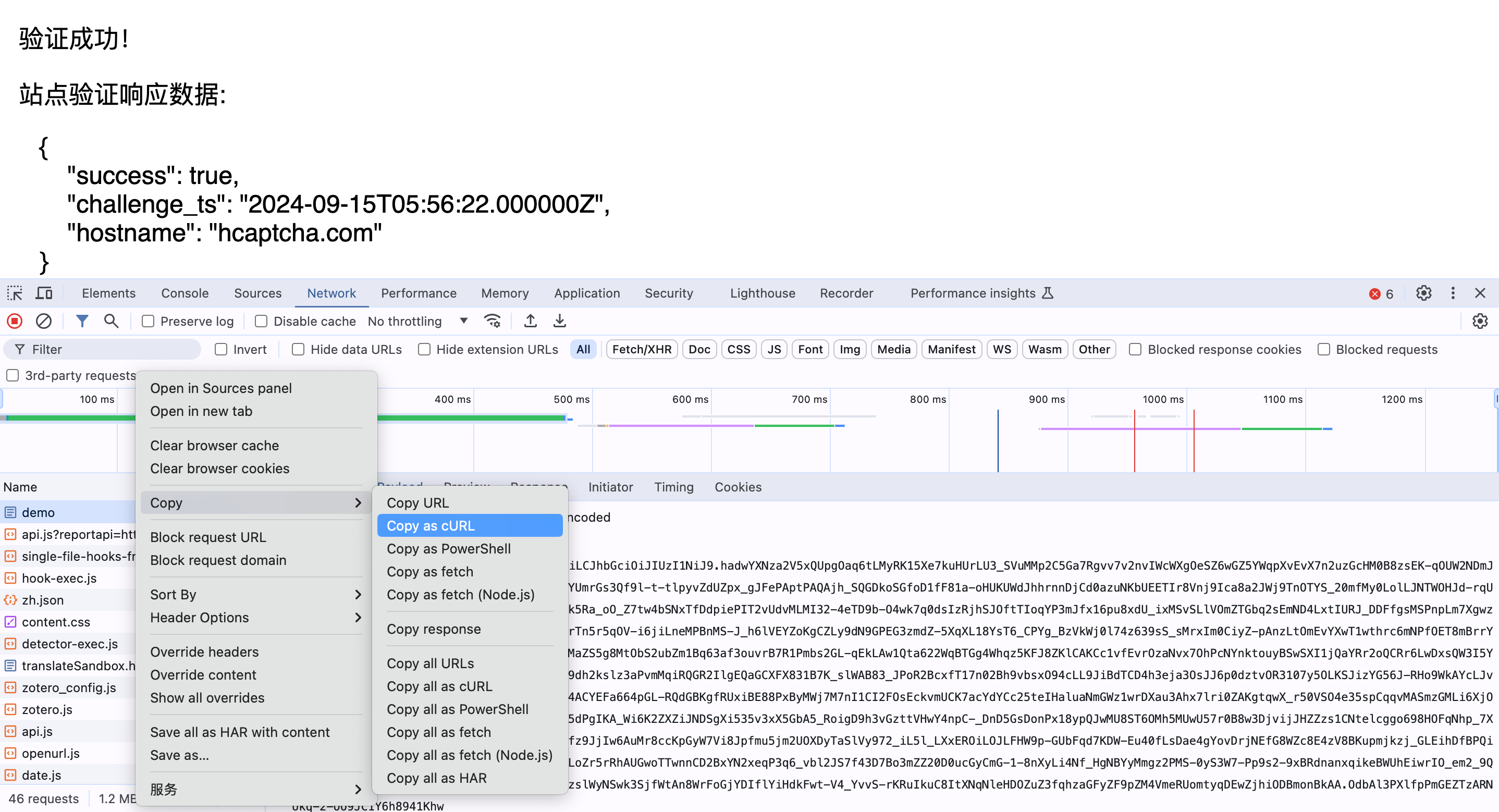
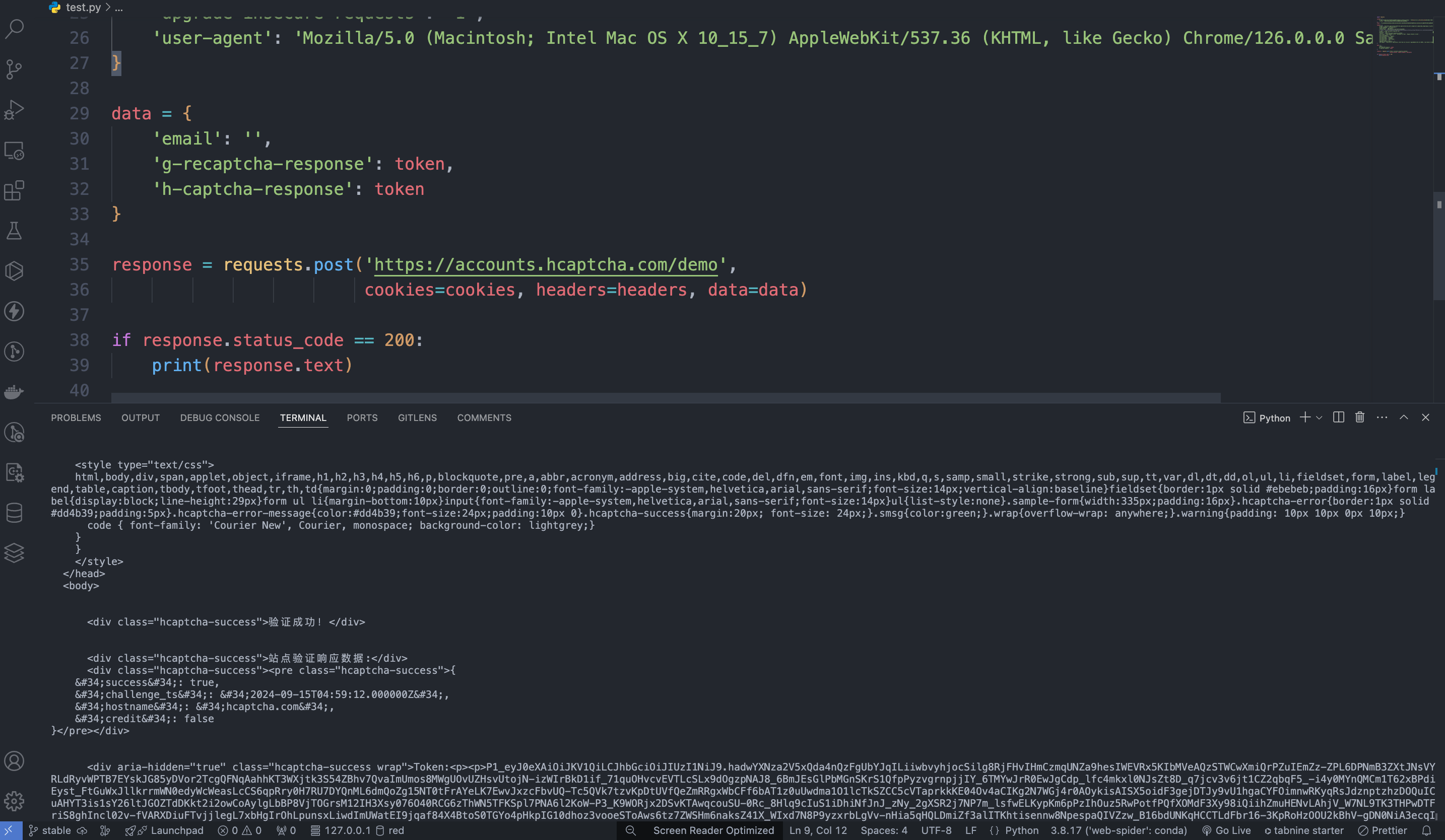
https://accounts.hcaptcha.com/demo. We only need to submit the parameters g-recaptcha-response, h-captcha-response, and email, and then we just need to pass the processed token into the data below. The corresponding CURL code for calling the token verification is as follows:
Asynchronous Mode (async)
By default, the API is synchronous and blocking: a request will wait until the token processing is complete before returning. If you are doing multi-solver rotation and want to “get the task_id immediately after submitting the task, schedule other solvers, and come back later to read the result,” you can passasync: true in the request body.
After passing async: true, the interface will immediately return a task_id without blocking:
task_id to query POST /captcha/tasks (it is recommended to do this every 3-5 seconds). This interface will not trigger or advance task processing; even if you do not query, lose network connection, or exit the client, the server will continue processing:
status: processing:
status: ready and the token:
timeout, and no charge will be incurred. /captcha/tasks does not advance the task.
Error Handling
When calling the API, if an error occurs, the API will return the corresponding error code and message. For example:400 token_mismatched: Bad request, possibly due to missing or invalid parameters.400 api_not_implemented: Bad request, possibly due to missing or invalid parameters.401 invalid_token: Unauthorized, invalid or missing authorization token.429 too_many_requests: Too many requests, you have exceeded the rate limit.500 api_error: Internal server error, something went wrong on the server.