

Application Process
To use the hCaptcha image recognition API, first go to the Ace Data Cloud Console to obtain your API Token for future use.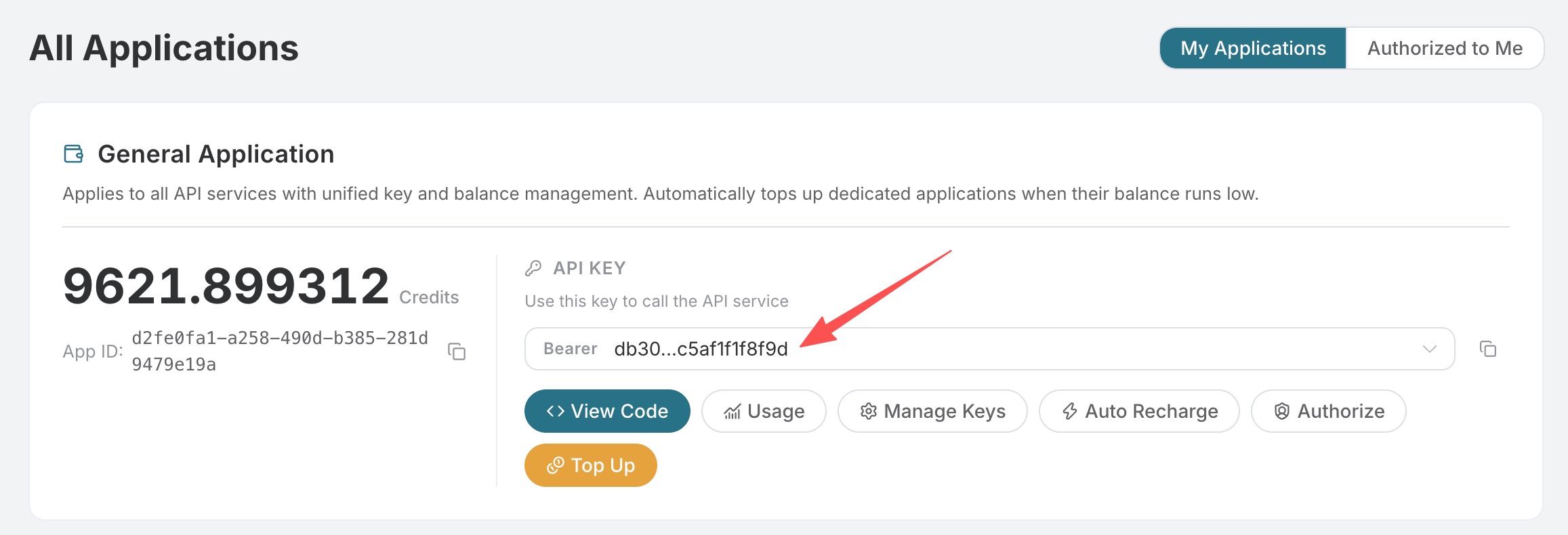 If you are not logged in or registered, you will be automatically redirected to the login page inviting you to register and log in, and after completion, you will be automatically returned to the current page.
One API Token can call all services on the platform without needing to apply separately for each service. The first application will grant a free quota for a trial experience; when the quota is insufficient, you can recharge the general balance in the console.
If you are not logged in or registered, you will be automatically redirected to the login page inviting you to register and log in, and after completion, you will be automatically returned to the current page.
One API Token can call all services on the platform without needing to apply separately for each service. The first application will grant a free quota for a trial experience; when the quota is insufficient, you can recharge the general balance in the console.
📘 Complete Documentation: hCaptcha Image Recognition API →
Basic Usage
First, understand the basic usage, which is to input the hCaptcha verification image that needs to be processed to obtain the processed result. You need to simply pass aqueries field, which is the specific hCaptcha verification image. We need to capture this verification image from a website with hCaptcha verification; an example website link is: https://democaptcha.com/demo-form-eng/hcaptcha.html. Click the checkbox to display the complete verification image, as shown below:
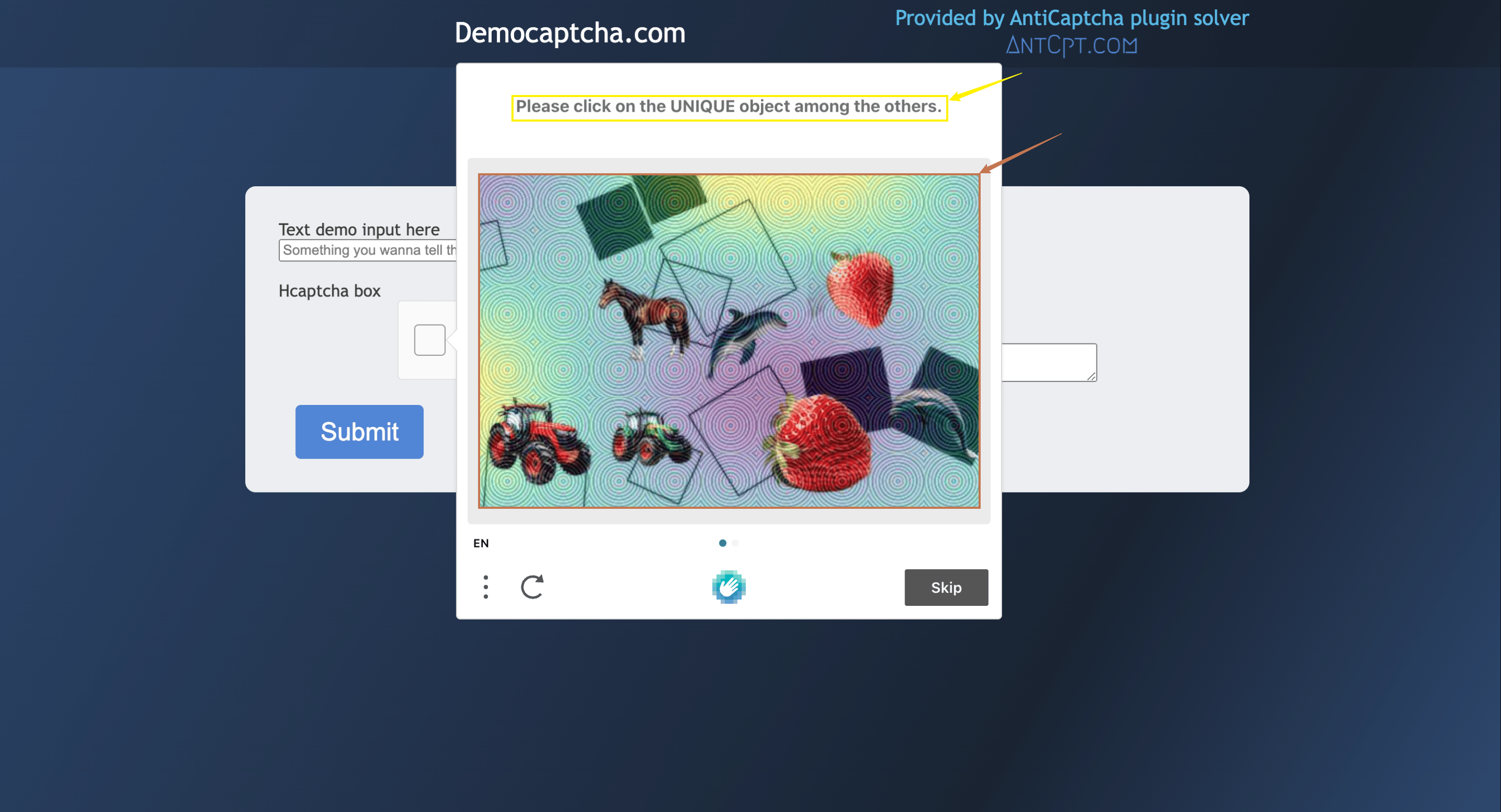
queries field is a screenshot of the verification image mentioned above. It is recommended that the image size does not exceed 100kb. You also need to take a screenshot of the area pointed to by the red arrow in the image above, compress the image size, and convert it to Base64 encoding, as shown in the image below:

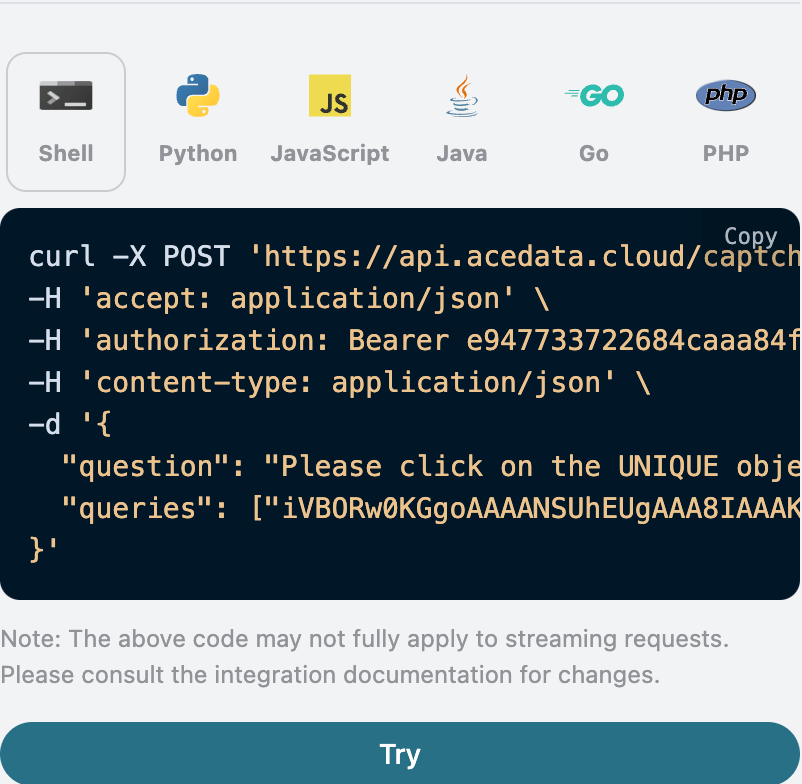
question related to the verification image, which supports translation in Chinese and English. You can directly input the relevant recognition content. From the content executed by the yellow arrow in the above webpage image, the question input should be Please click on the UNIQUE object among the others. The specific content is as follows:
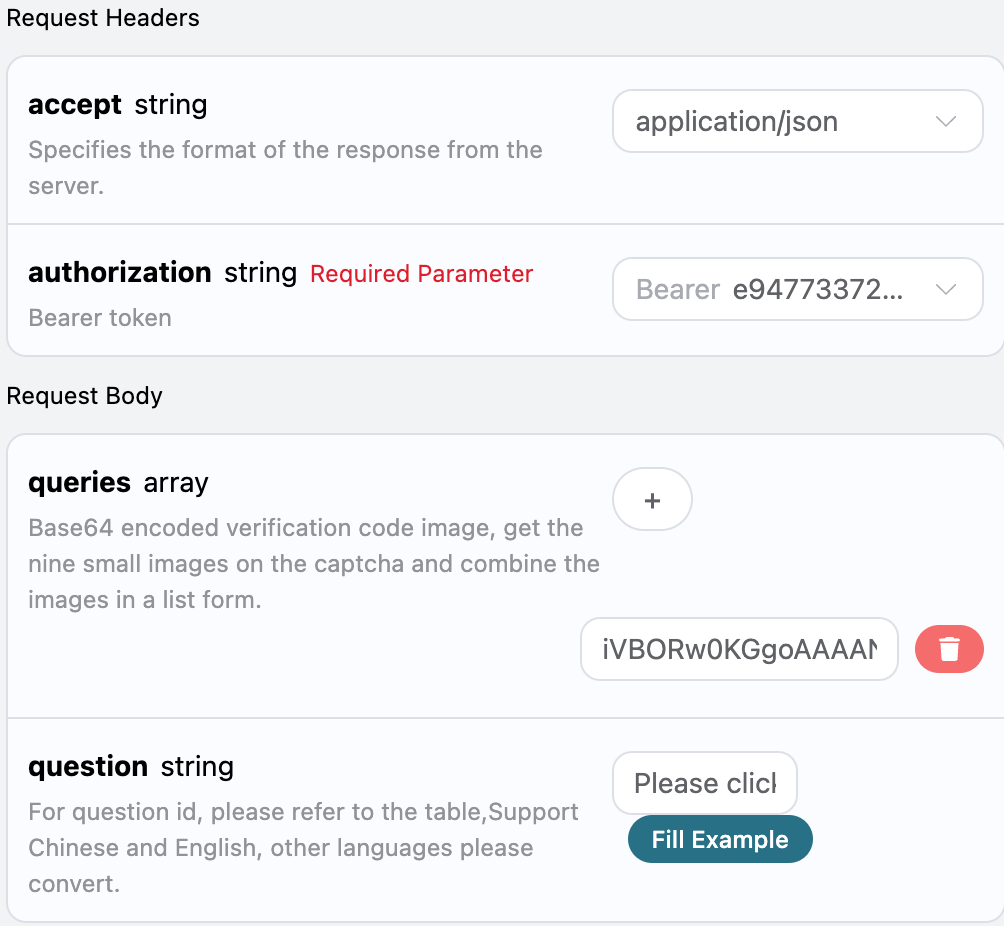
accept: the format of the response result you want to receive, filled in asapplication/json, which is JSON format.authorization: the key to call the API, which can be selected directly after application.
queries: a list of Base64 encoded verification images.question: the recognition content parameter related to the verification image, supporting direct input in Chinese and English.
solution, the verification result after processing the hCaptcha verification image task.label, the content recognized from the hCaptcha verification image.box, the location information of the recognition result of the hCaptcha verification image, which is composed of the coordinate information of the image.confidences, the confidence level of the recognition content satisfied after recognizing the hCaptcha verification image.
started_at,finished_at: the time when this request started processing and produced results, in Unix timestamp (seconds, floating point).elapsed: the total time taken for this processing (seconds).
box in the result to pass the verification.
Next, we will introduce how to click using the position information of the box in the result. First, establish a right-angle coordinate system for the uploaded verification image, with the center origin at the lower left corner of the image. The value 360 corresponds to the horizontal coordinate, and 276 corresponds to the vertical coordinate. We only need to simulate a click on the corresponding coordinates of the verification code, as shown in the image below:

Asynchronous Mode (async)
By default, the API is synchronous and blocking: a request will wait until the recognition result is processed before returning. If you are doing multi-solver rotation and want to “submit the task and immediately get the task_id, then schedule other solvers and come back later to read the result,” you can passasync: true in the request body.
By passing async: true, the interface will immediately return a task_id without blocking:
task_id to query POST /captcha/tasks (recommended every 3-5 seconds). This interface will not trigger or advance task processing; even if you do not query, lose connection, or exit the client, the server will continue processing:
status: processing:
status: ready and the recognition result solution (the field structure is completely consistent with synchronous mode):
timeout, and no charge will be incurred. /captcha/tasks is not responsible for advancing tasks.
Error Handling
When calling the API, if an error occurs, the API will return the corresponding error code and message. For example:400 token_mismatched: Bad request, possibly due to missing or invalid parameters.400 api_not_implemented: Bad request, possibly due to missing or invalid parameters.401 invalid_token: Unauthorized, invalid or missing authorization token.429 too_many_requests: Too many requests, you have exceeded the rate limit.500 api_error: Internal server error, something went wrong on the server.