The main function of the Artistic QR Tasks API is to query the execution status of a task by inputting the task ID generated by the Artistic QR Generation API. This document will provide detailed integration instructions for the Artistic QR Tasks API, helping you easily integrate and fully utilize the powerful features of this API. With the Artistic QR Tasks API, you can easily query the execution status of tasks from the Artistic QR Generation API.

Application Process

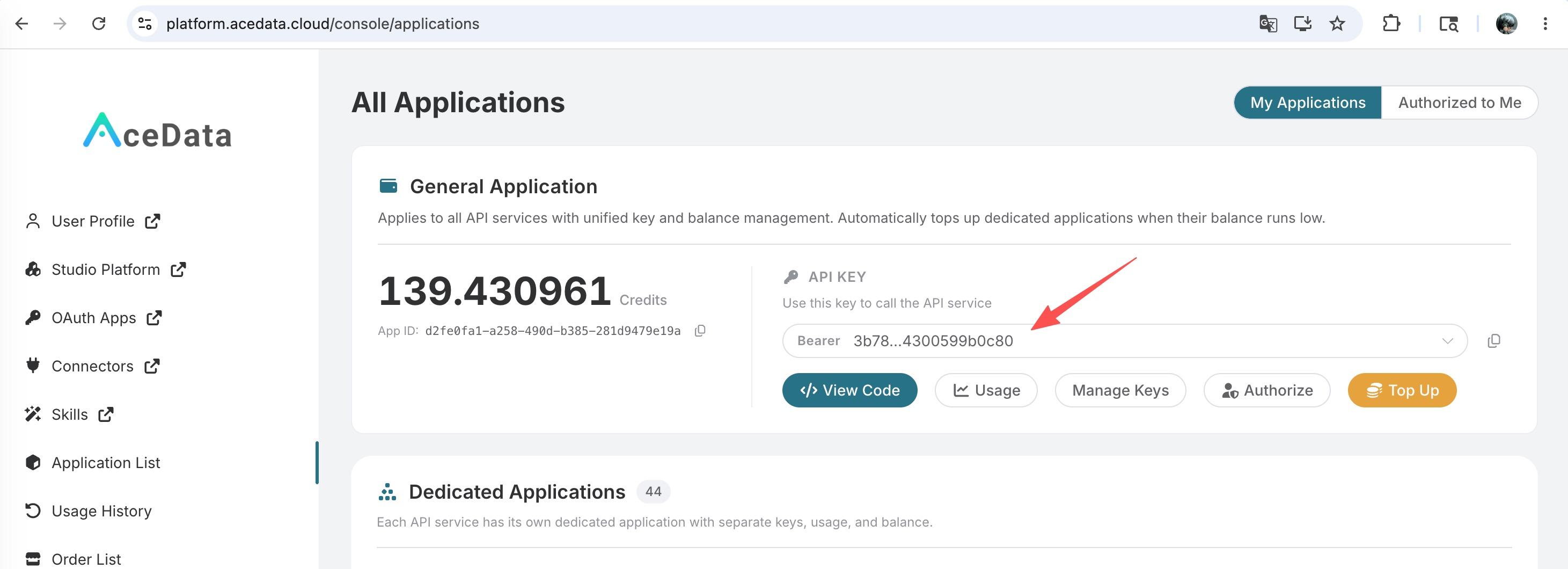
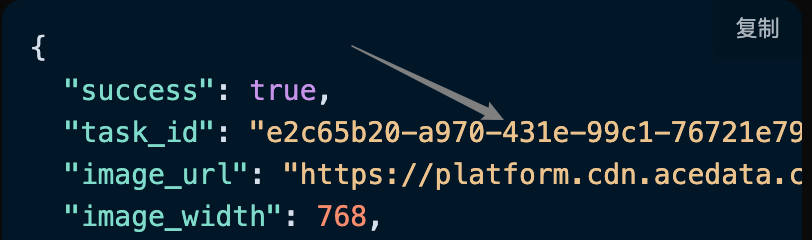
To use the Artistic QR Tasks API, you first need to apply for the corresponding service on the application page Artistic QR Generation API, and then copy the task ID from the Artistic QR Generation API, as shown in the image below:

Finally, go to the Artistic QR Tasks API page Artistic QR Tasks API to apply for the corresponding service. After entering the page, click the “Acquire” button, as shown in the image below: Application Page If you are not logged in or registered, you will be automatically redirected to the login page inviting you to register and log in. After logging in or registering, you will be automatically returned to the current page. There is a free quota available for first-time applicants, allowing you to use this API for free.

Request Example

The Artistic QR Tasks API can be used to query the results of an API from the Artistic QR Generation API. For information on how to use the Artistic QR Generation API, please refer to the document Artistic QR Generation API. We will take an example of a task ID returned by the Artistic QR Generation API to demonstrate how to use this API. Suppose we have a task ID: e2c65b20-a970-431e-99c1-76721e799df8, and we will demonstrate how to pass in a task ID.

Task Example Image

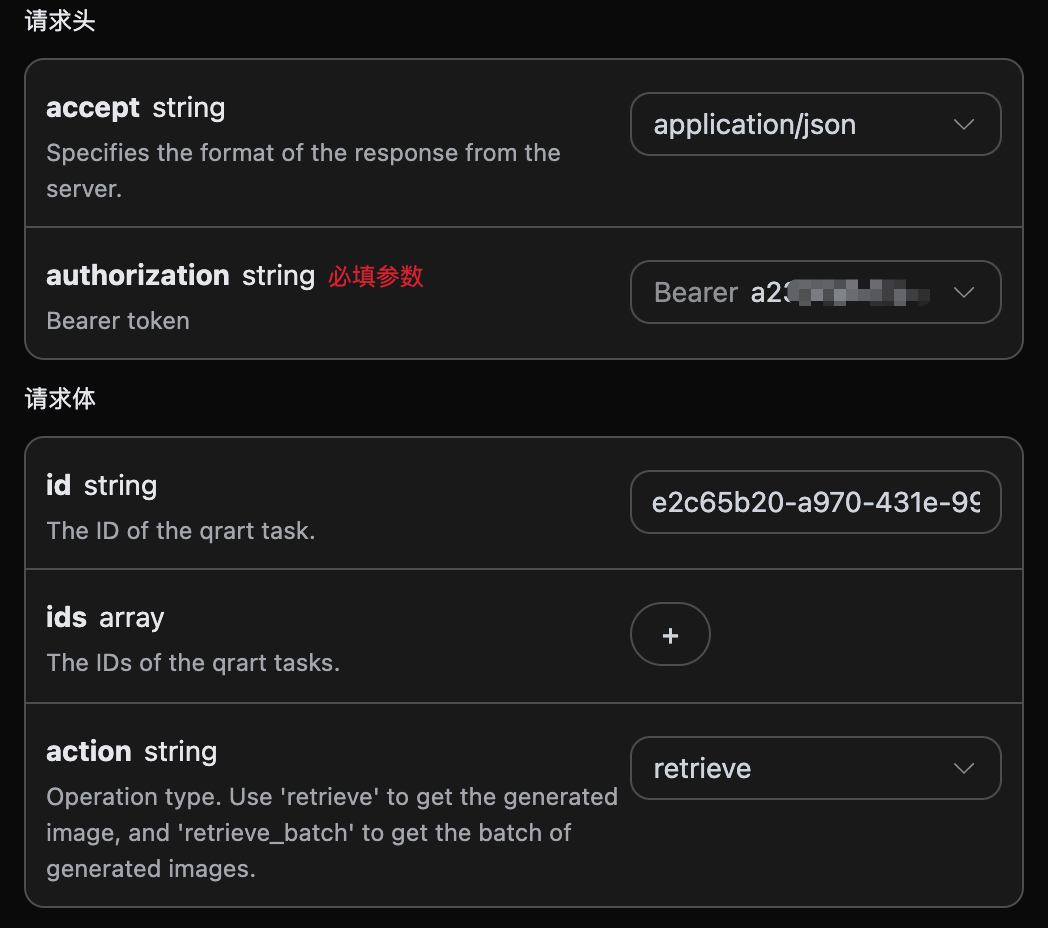
Setting Request Headers and Request Body

Request Headers include:
  • accept: Specifies that the response should be in JSON format, set to application/json.
  • authorization: The key to call the API, which can be selected directly after application.
Request Body includes:
  • id: The uploaded task ID.
  • action: The operation method for the task.
Set as shown in the image below:

Code Example

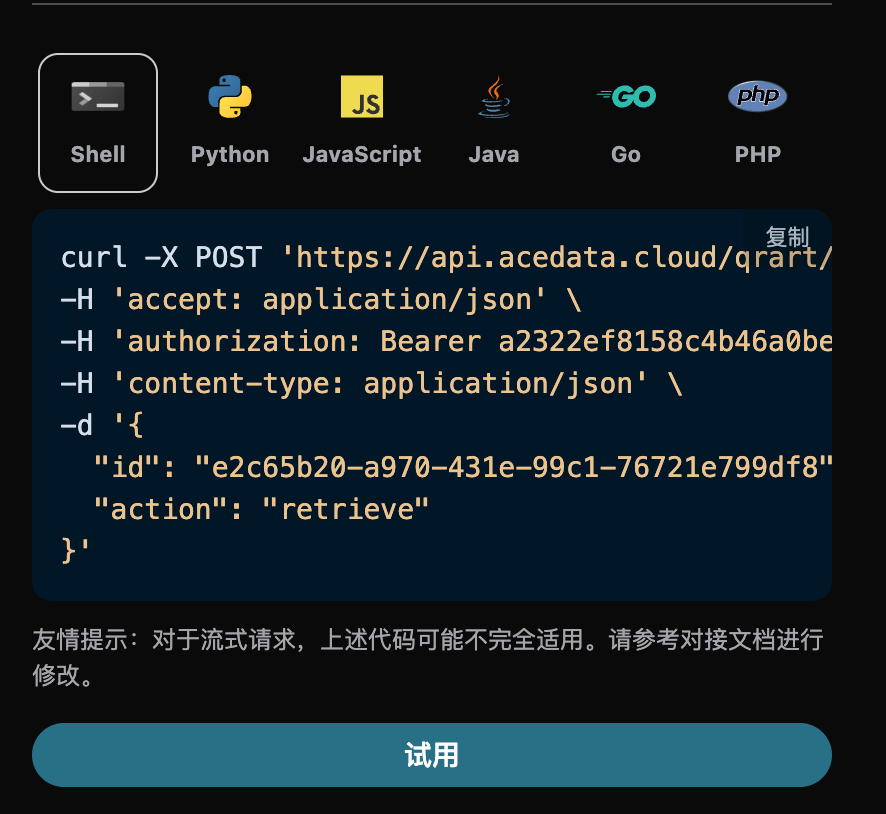
You can see that various language codes have been automatically generated on the right side of the page, as shown in the image below:

Some code examples are as follows:

CURL

curl -X POST 'https://api.acedata.cloud/qrart/tasks' \
-H 'accept: application/json' \
-H 'authorization: Bearer {token}' \
-H 'content-type: application/json' \
-d '{
  "id": "e2c65b20-a970-431e-99c1-76721e799df8",
  "action": "retrieve"
}'

Python

import requests

url = "https://api.acedata.cloud/qrart/tasks"

headers = {
    "accept": "application/json",
    "authorization": "Bearer {token}",
    "content-type": "application/json"
}

payload = {
    "id": "e2c65b20-a970-431e-99c1-76721e799df8",
    "action": "retrieve"
}

response = requests.post(url, json=payload, headers=headers)
print(response.text)

Response Example

Upon successful request, the API will return the detailed information of the QR code task here. For example:
{
  "_id": "668cb62c550a4144a582e372",
  "id": "e2c65b20-a970-431e-99c1-76721e799df8",
  "application_id": "3d25be99-4676-44d3-90bb-23086bc25300",
  "created_at": 1720497708.318,
  "credential_id": "6e80fca1-9a49-4507-ae8e-601dbd0ab3ca",
  "request": {
    "aspect_ratio": "1:1",
    "callback_url": null,
    "content": "https://platform.acedata.cloud",
    "content_image_url": null,
    "ecl": "H",
    "image_origin": null,
    "marker_shape": "square",
    "negative_prompt": null,
    "padding_level": 5,
    "padding_noise": 0,
    "pattern": "custom",
    "pixel_style": "square",
    "position": "center",
    "preset": "",
    "prompt": "mexican tacos",
    "qrw": 2,
    "ratio": null,
    "rotate": 0,
    "seed": null,
    "steps": 20,
    "sub_marker": "square",
    "timeout": null,
    "trace_id": "a99ecc24-eda0-45c6-bb5f-98060c30b490",
    "type": "link"
  },
  "response": {
    "image_url": "https://platform.cdn.acedata.cloud/qrart/e2c65b20-a970-431e-99c1-76721e799df8.png",
    "image_width": 768,
    "image_height": 768,
    "seed": 5324369603686616,
    "success": true
  }
}
The returned result contains multiple fields, with the request field being the request body when the task was initiated, while the response field is the response body returned after the task is completed, consistent with the requests and returns of the Artistic QR Generation API. The field descriptions are as follows.
  • id: The ID of the QR code task generated, used to uniquely identify this QR code generation task.
  • request: The request information in the QR code task.
  • response: The return information in the QR code task.

Batch Query Operation

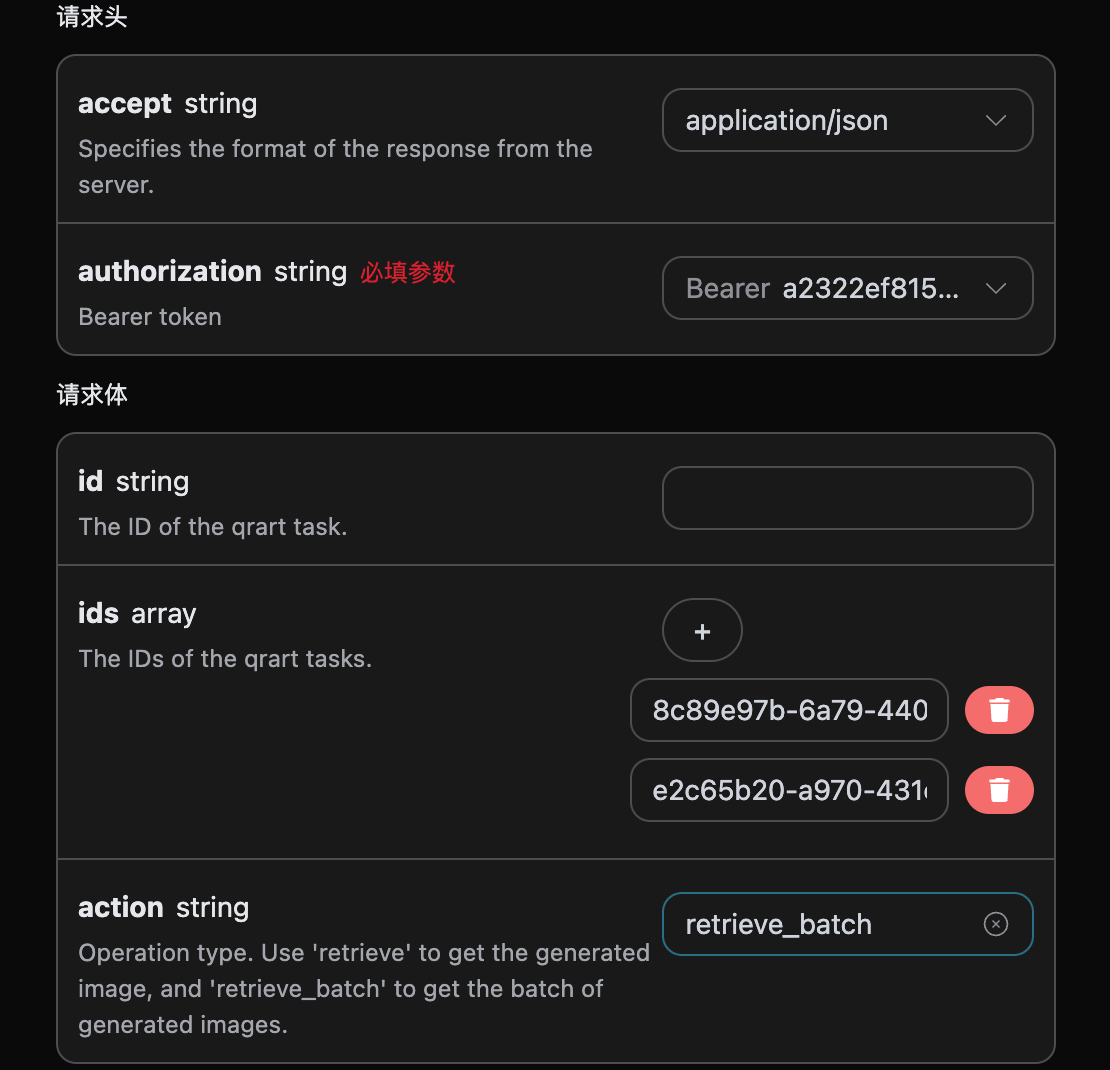
This is for querying the details of multiple QR code task IDs, and unlike the above, the action needs to be selected as retrieve_batch. Request Body includes:
  • ids: The array of uploaded task IDs.
  • action: The operation method for the task.
Set as shown in the image below:

Code Example

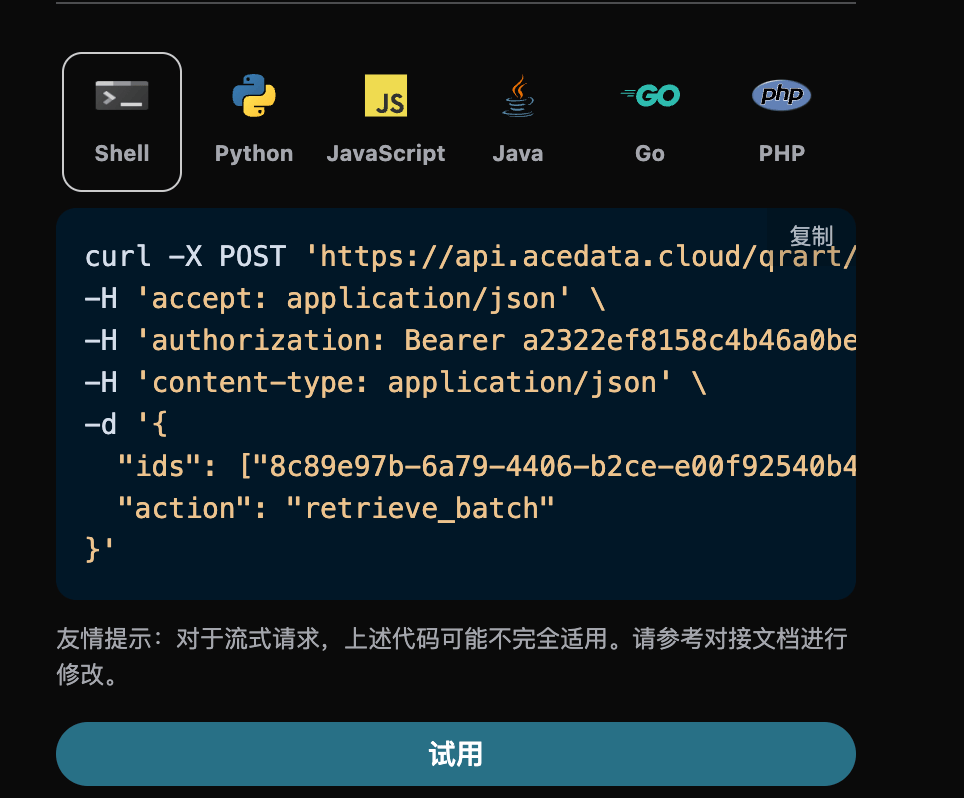
You can see that various language codes have been automatically generated on the right side of the page, as shown in the image below:

Some code examples are as follows:

Response Example

Upon successful request, the API will return the specific details of all batch QR code tasks. For example:
{
  "items": [
    {
      "_id": "668cb90e550a4144a5834557",
      "id": "8c89e97b-6a79-4406-b2ce-e00f92540b4e",
      "application_id": "3d25be99-4676-44d3-90bb-23086bc25300",
      "created_at": 1720498446.039,
      "credential_id": "b7f9aaa1-43d8-471f-a826-cd0f4733fec5",
      "request": {
        "aspect_ratio": "1:1",
        "callback_url": null,
        "content": "https://huyinfu.space",
        "content_image_url": null,
        "ecl": "H",
        "image_origin": null,
        "marker_shape": "square",
        "negative_prompt": null,
        "padding_level": 5,
        "padding_noise": 0,
        "pattern": "custom",
        "pixel_style": "square",
        "position": "center",
        "preset": "",
        "prompt": "mexican tacos",
        "qrw": 2,
        "ratio": null,
        "rotate": 0,
        "seed": null,
        "steps": 20,
        "sub_marker": "square",
        "timeout": null,
        "trace_id": "44d33486-0527-451f-afc2-df11aab7e049",
        "type": "link"
      },
      "response": {
        "image_url": "https://platform.cdn.acedata.cloud/qrart/8c89e97b-6a79-4406-b2ce-e00f92540b4e.png",
        "image_width": 768,
        "image_height": 768,
        "seed": 2701847236953402,
        "success": true
      }
    },
    {
      "_id": "668cb62c550a4144a582e372",
      "id": "e2c65b20-a970-431e-99c1-76721e799df8",
      "application_id": "3d25be99-4676-44d3-90bb-23086bc25300",
      "created_at": 1720497708.318,
      "credential_id": "6e80fca1-9a49-4507-ae8e-601dbd0ab3ca",
      "request": {
        "aspect_ratio": "1:1",
        "callback_url": null,
        "content": "https://platform.acedata.cloud",
        "content_image_url": null,
        "ecl": "H",
        "image_origin": null,
        "marker_shape": "square",
        "negative_prompt": null,
        "padding_level": 5,
        "padding_noise": 0,
        "pattern": "custom",
        "pixel_style": "square",
        "position": "center",
        "preset": "",
        "prompt": "mexican tacos",
        "qrw": 2,
        "ratio": null,
        "rotate": 0,
        "seed": null,
        "steps": 20,
        "sub_marker": "square",
        "timeout": null,
        "trace_id": "a99ecc24-eda0-45c6-bb5f-98060c30b490",
        "type": "link"
      },
      "response": {
        "image_url": "https://platform.cdn.acedata.cloud/qrart/e2c65b20-a970-431e-99c1-76721e799df8.png",
        "image_width": 768,
        "image_height": 768,
        "seed": 5324369603686616,
        "success": true
      }
    }
  ],
  "count": 2
}

CURL

curl -X POST 'https://api.acedata.cloud/qrart/tasks' \
-H 'accept: application/json' \
-H 'authorization: Bearer {token}' \
-H 'content-type: application/json' \
-d '{
  "ids": ["8c89e97b-6a79-4406-b2ce-e00f92540b4e","e2c65b20-a970-431e-99c1-76721e799df8"],
  "action": "retrieve_batch"
}'

Python

import requests

url = "https://api.acedata.cloud/qrart/tasks"

headers = {
    "accept": "application/json",
    "authorization": "Bearer {token}",
    "content-type": "application/json"
}

payload = {
    "ids": ["8c89e97b-6a79-4406-b2ce-e00f92540b4e","e2c65b20-a970-431e-99c1-76721e799df8"],
    "action": "retrieve_batch"
}

response = requests.post(url, json=payload, headers=headers)
print(response.text)

Error Handling

When calling the API, if an error occurs, the API will return the corresponding error code and message. For example:
  • 400 token_mismatched: Bad request, possibly due to missing or invalid parameters.
  • 400 api_not_implemented: Bad request, possibly due to missing or invalid parameters.
  • 401 invalid_token: Unauthorized, invalid or missing authorization token.
  • 429 too_many_requests: Too many requests, you have exceeded the rate limit.
  • 500 api_error: Internal server error, something went wrong on the server.

Error Response Example

{
  "success": false,
  "error": {
    "code": "api_error",
    "message": "fetch failed"
  },
  "trace_id": "2cf86e86-22a4-46e1-ac2f-032c0f2a4e89"
}

Conclusion

Through this document, you have learned how to use the Artistic QR Tasks API to query all specific detail information of single or batch QR code tasks. We hope this document can help you better integrate and use the API. If you have any questions, please feel free to contact our technical support team.