

Application and Usage
To use the Luma Videos Generation API, first go to the Ace Data Cloud Console to obtain your API Token and keep it for later use.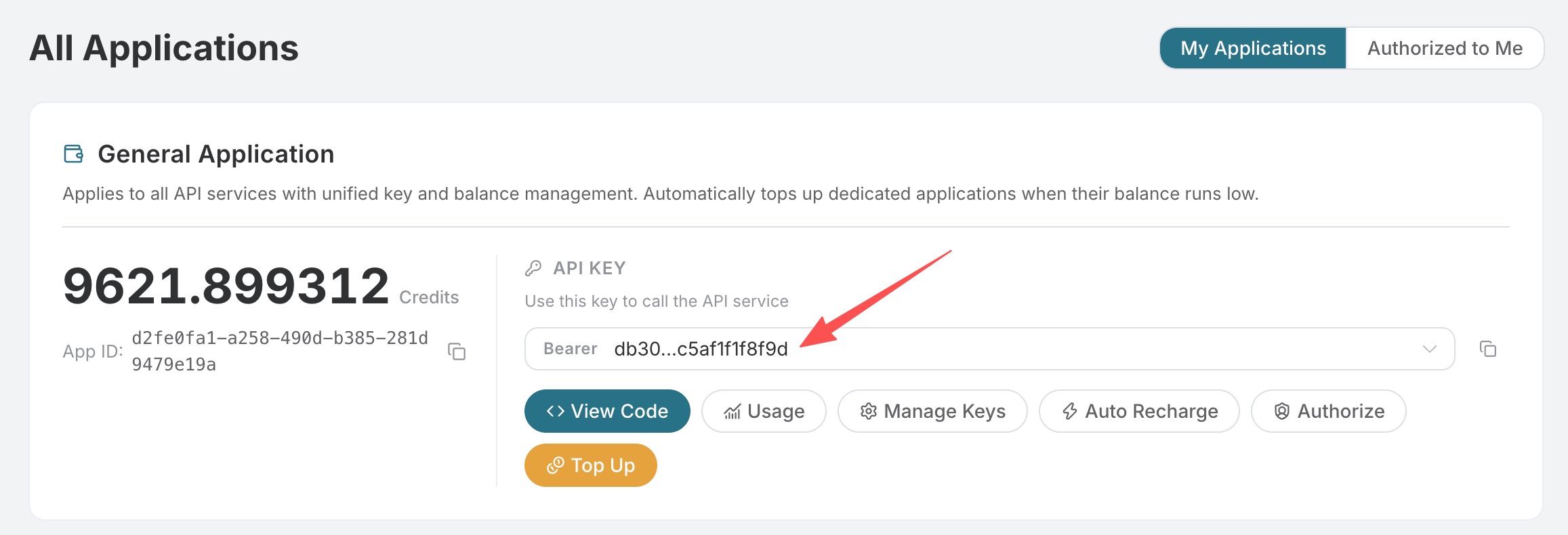 If you have not yet logged in or registered, you will be automatically redirected to the login page to register and log in. After completion, you will automatically return to the current page.
One API Token can call all platform services; there is no need to apply separately for each service. Your first application will include free credits for a free trial; when credits are insufficient, you can recharge your general balance in the console.
If you have not yet logged in or registered, you will be automatically redirected to the login page to register and log in. After completion, you will automatically return to the current page.
One API Token can call all platform services; there is no need to apply separately for each service. Your first application will include free credits for a free trial; when credits are insufficient, you can recharge your general balance in the console.
📘 Full documentation: Luma Videos Generation API →
Basic Usage
For the video you want to generate, you can enter any text. For example, if I want to generate a video about astronauts traveling between space and a volcano, I can enterAstronauts shuttle from space to volcano, as shown below:
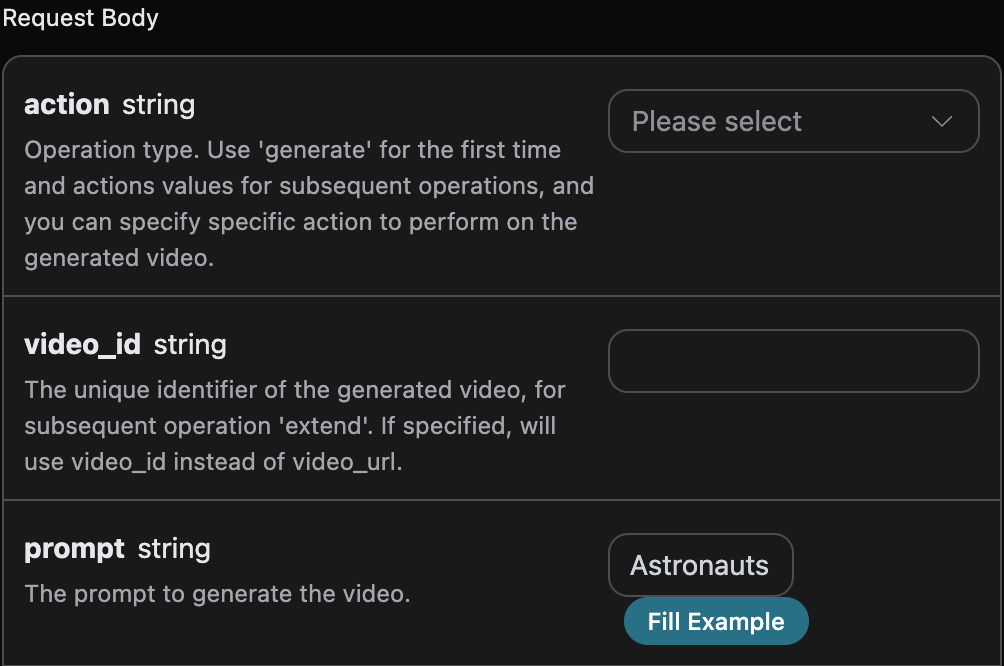
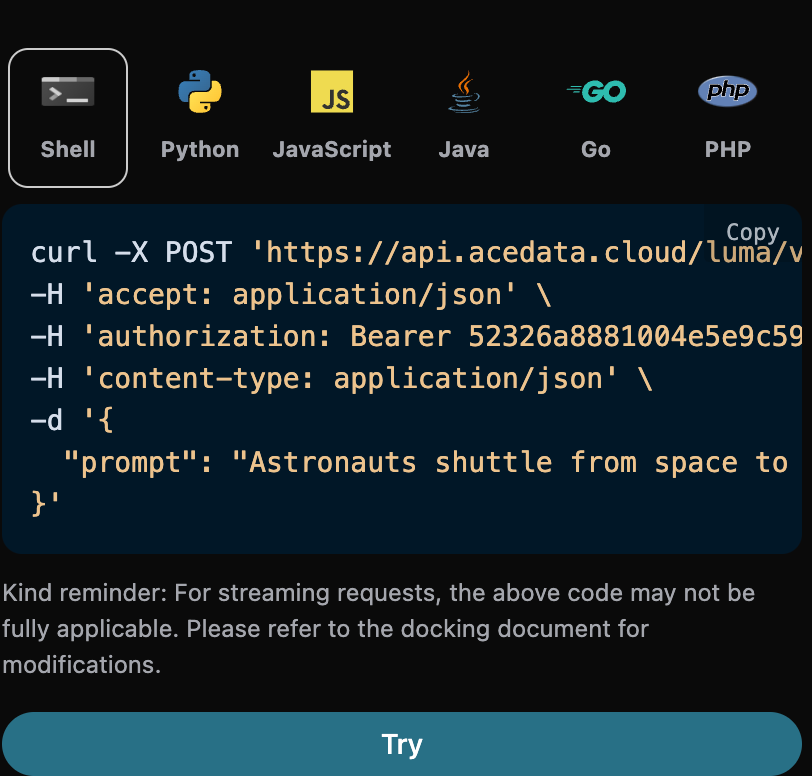
prompt: The prompt for generating the video.aspect_ratio: The video aspect ratio, default is 16:9.end_image_url: Optional, specifies the end frame.enhancement: Optional, clarity enhancement switch.loop: Whether to generate a looping video, default is false.timeout: Optional, timeout in seconds.callback_url: Asynchronous callback URL.async: Optional. When set totrue, the API immediately returnstask_id; there is no need to providecallback_url, and the result can then be obtained by polling through the corresponding task query API.
- success: Whether generation was successful. If successful, it is
true; otherwise, it isfalse. - task_id: The unique ID of the video generation task here.
- video_id: The unique ID of the video produced by the video generation task here.
- prompt: The keywords of the video generation task here.
- video_url: The result video link of the video generation task here.
- video_height: The height of the generated video cover image.
- video_width: The width of the generated video cover image.
- state: The status of the video generation task here. If the task is completed, it is
completed. - thumbnail_url: The link to the generated video cover image.
- thumbnail_width: The width of the generated video cover image.
- thumbnail_height: The height of the generated video cover image.
Generate with Custom Start and End Frames
If you want to generate a video through custom start and end frames, you can enter the image links for the start and end frames: At this point, the video start framestart_image_url field can pass in the following image as the video start frame:
 Next, if we want to customize the video generation based on the start and end frames and keywords, we can specify the following content:
- action: The behavior of the video generation task, usually normal generation
generateand extended generationextend, with the default beinggenerate. - start_image_url: Specifies the start frame of the generated video.
- end_image_url: Specifies the end frame of the generated video.
- prompt: The keyword content for generating the video.
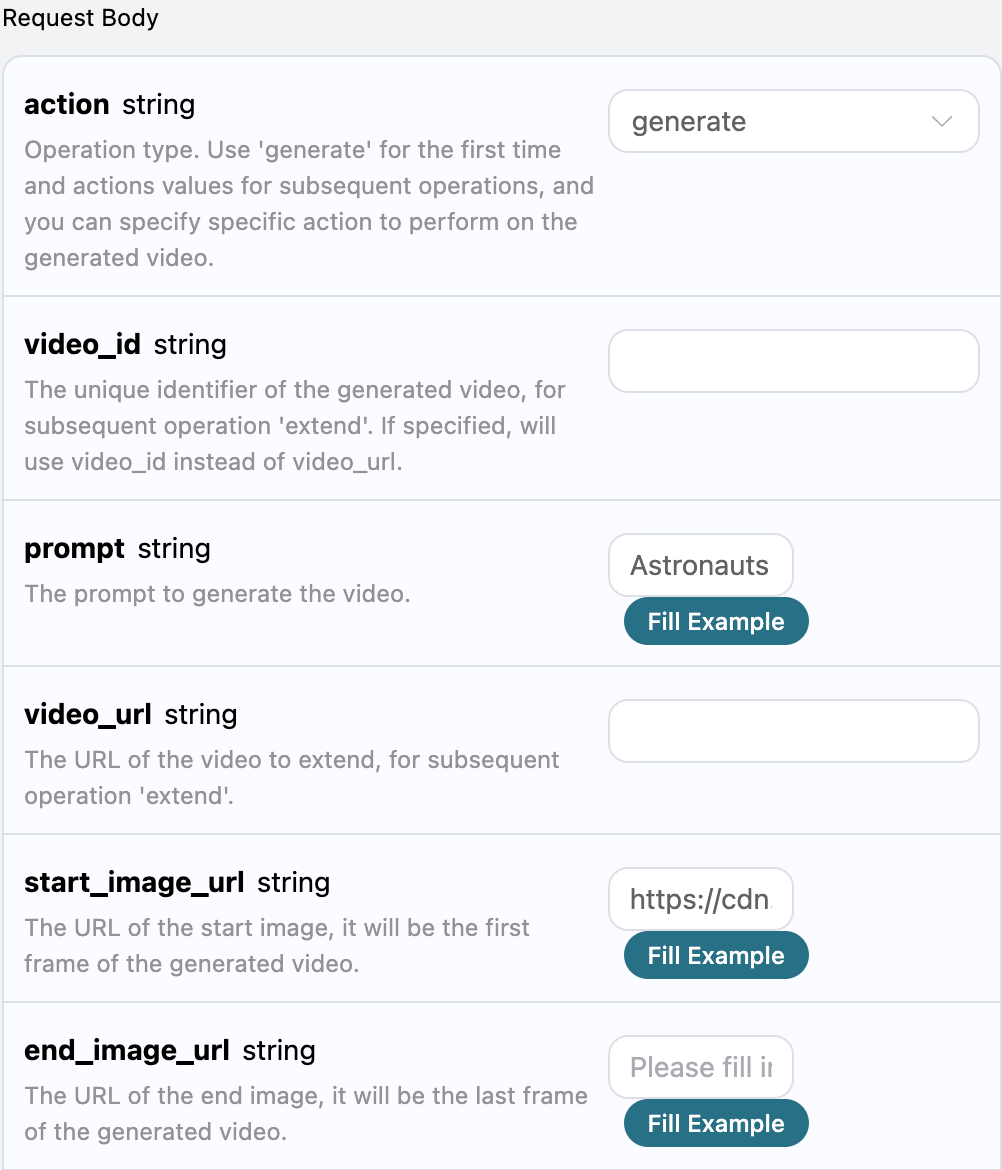
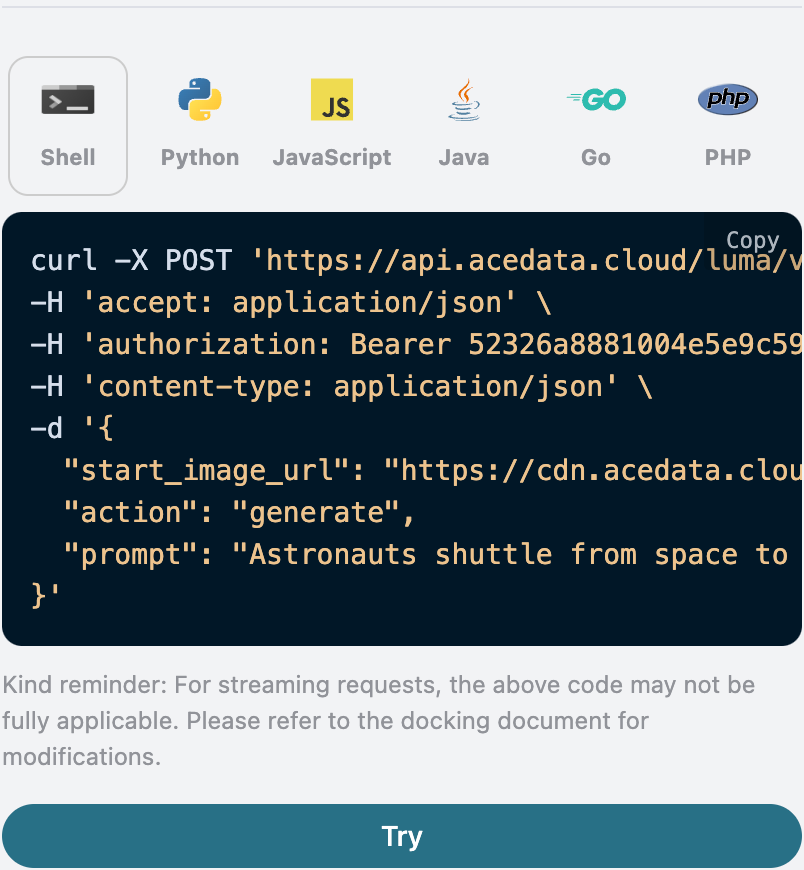
 The filling example is as follows:
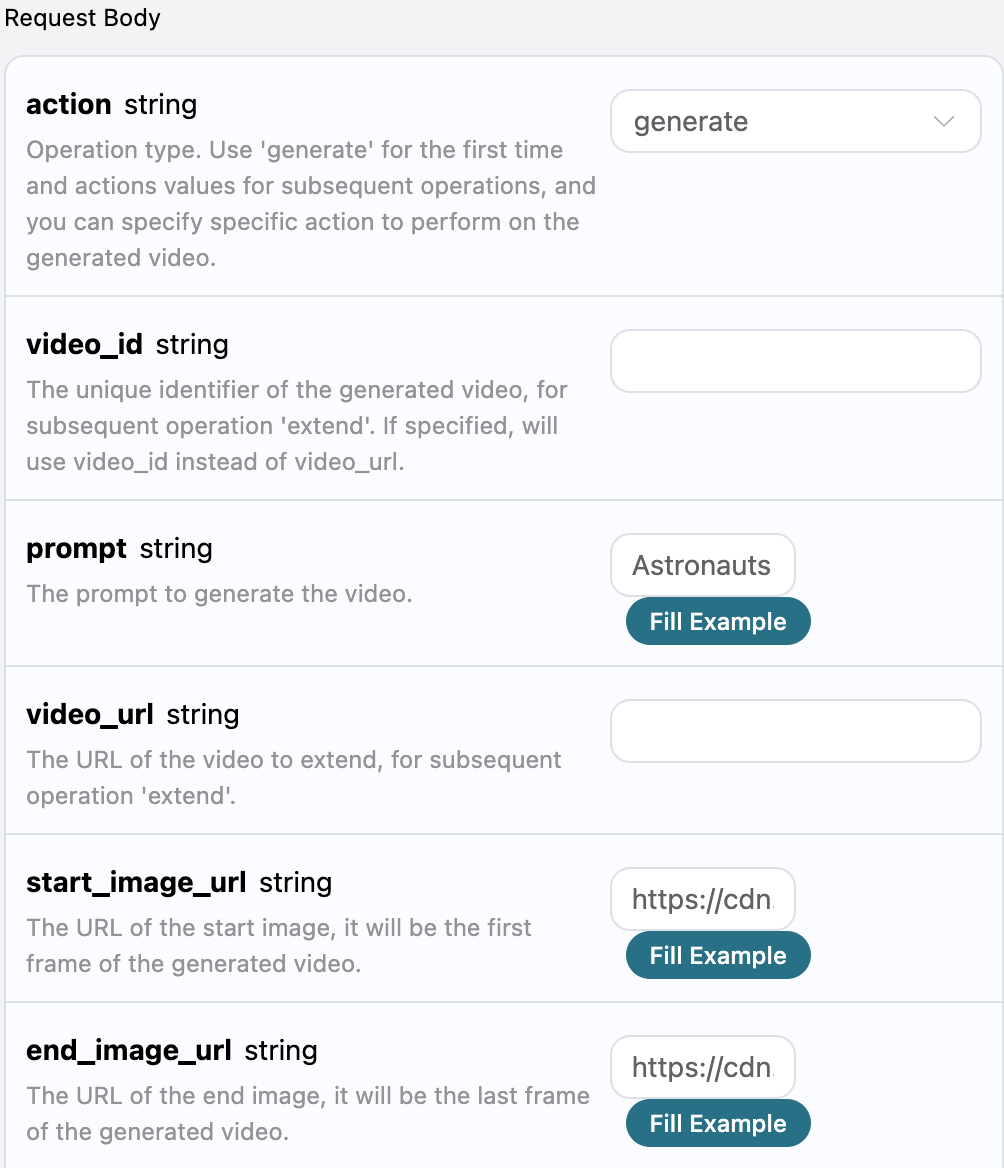
Video Extension Feature
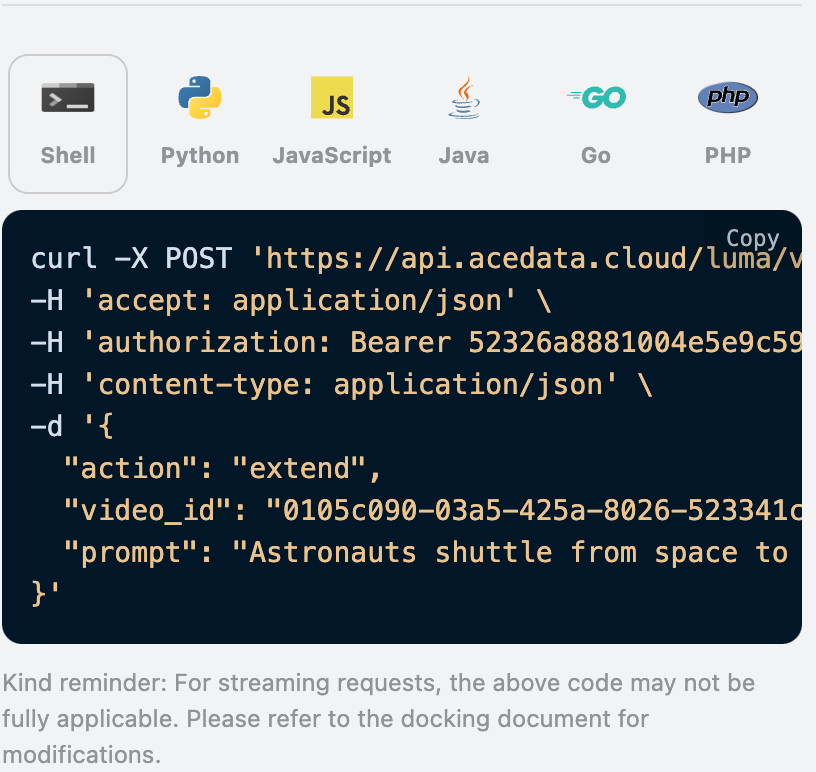
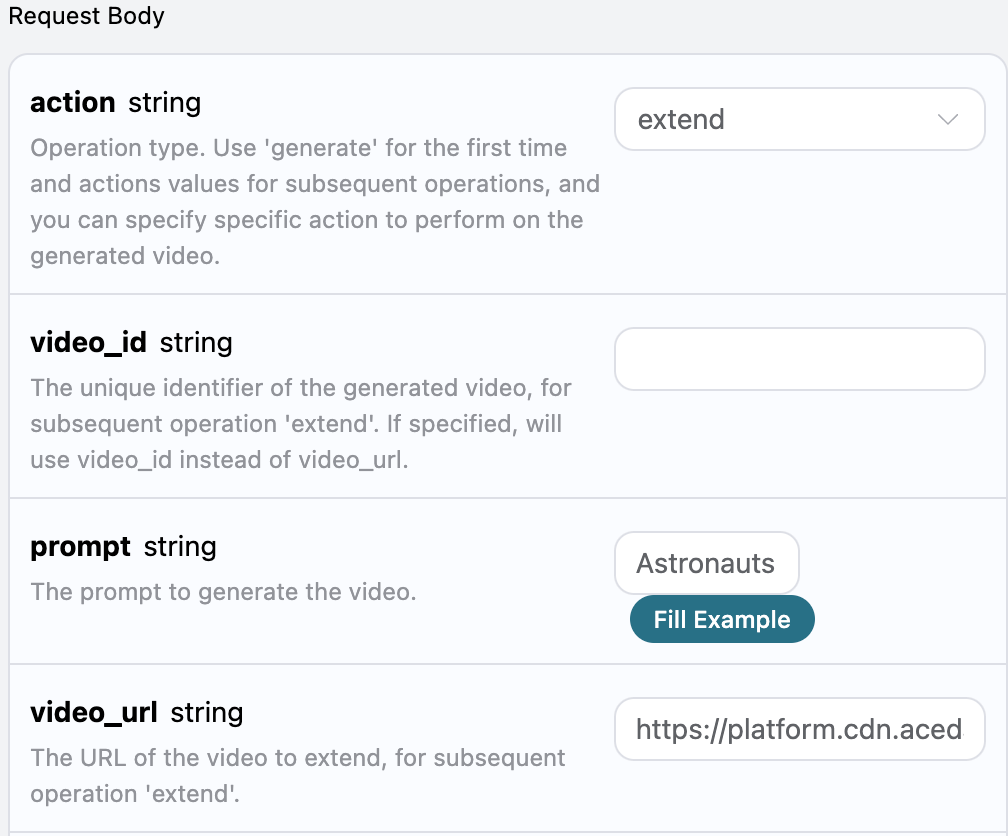
If you want to continue generating the generated video, you can set the parameteraction to extend, and enter the ID or video link of the video that needs to be continued. The video ID and video link are obtained according to the basic usage, as shown in the figure below:
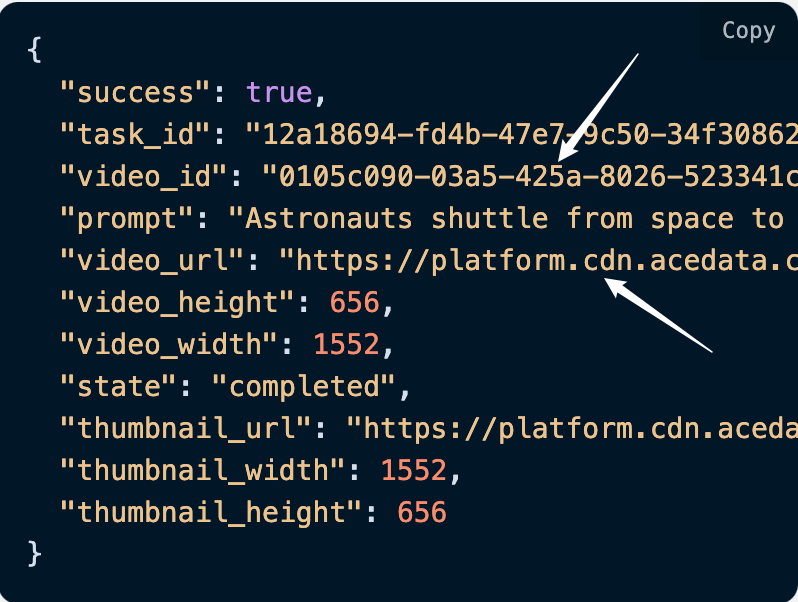
Note that theTo continue generating a video, you must upload the video link or the video ID. The following demonstrates using the video ID for extension. Next, we must enter keywords to customize the generated video, and the following content can be specified:video_idandvideo_urlhere are the ID and video link of the generated video. If you do not know how to generate a video, you can refer to the basic usage above to generate a video.
- action: The behavior of extending the video at this time, which should be
extendhere. - prompt: The keywords for the video that needs to be extended.
- video_url: The link of the video that needs to be extended.
- video_id: The unique ID of the video that needs to be extended.
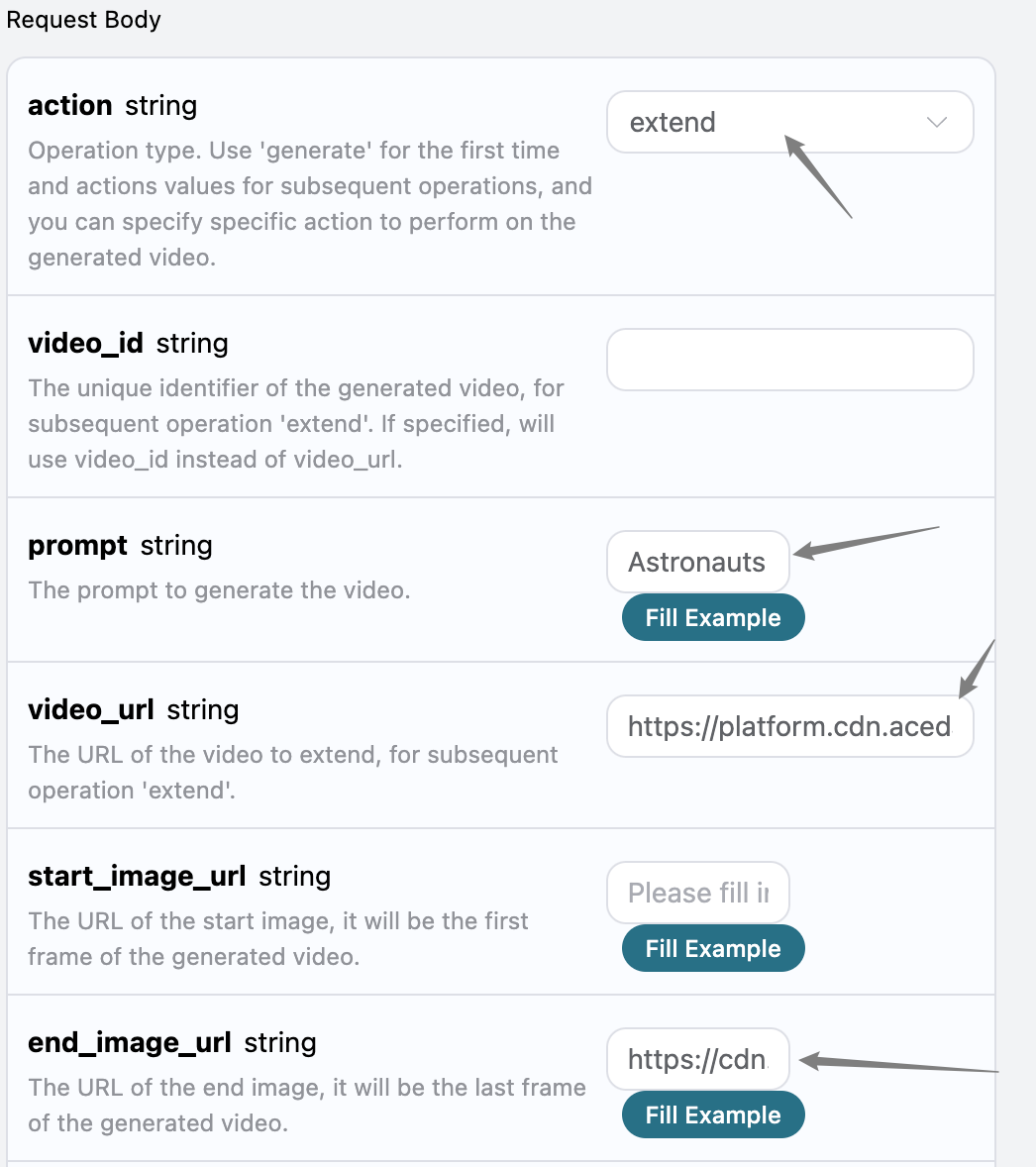
- end_image_url: The image link of the last frame that can be specified for the extended video, an optional parameter.
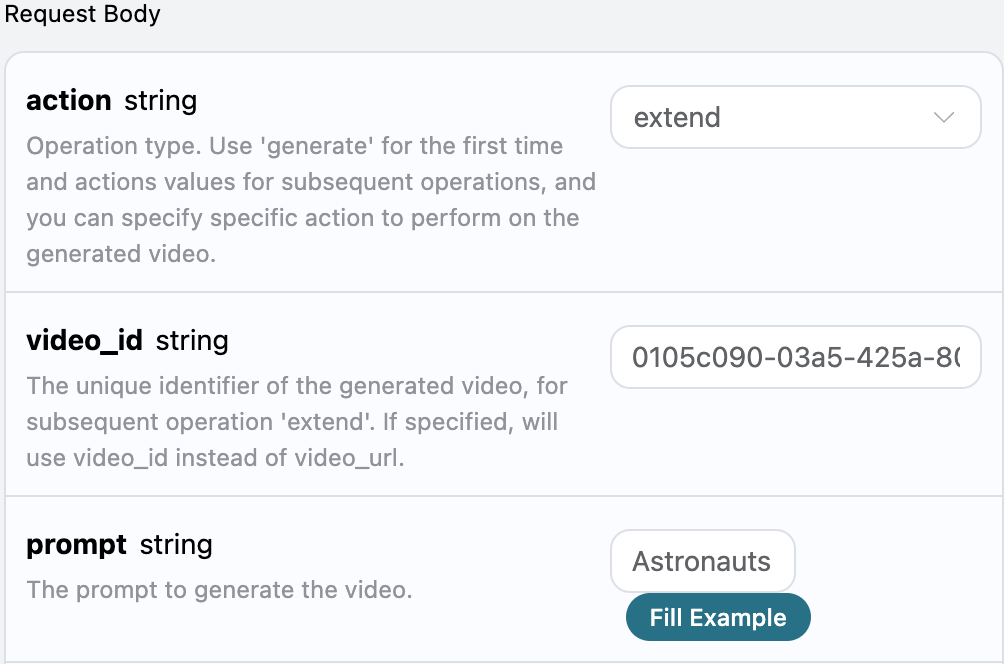
Next, add the last-frame image information based on the above. The details are as follows:
Asynchronous Callback
Since Luma takes a relatively long time to generate videos, approximately 1–2 minutes, if the API does not respond for a long time, the HTTP request will remain connected, resulting in additional system resource consumption. Therefore, this API also provides support for asynchronous callbacks. The overall process is: when the client initiates a request, it additionally specifies acallback_url field. After the client initiates the API request, the API will immediately return a result containing a task_id field, which represents the current task ID. When the task is completed, the result of the generated music will be sent via POST JSON to the callback_url specified by the client, which also includes the task_id field, so the task result can be associated through the ID.
Below, we will learn how to operate it specifically through an example.
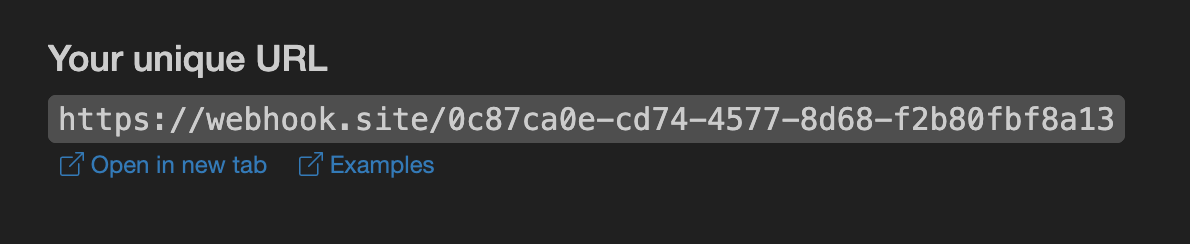
First, a Webhook callback is a service that can receive HTTP requests. Developers should replace it with the URL of their own HTTP server. For convenience of demonstration, we use a public Webhook sample website https://webhook.site/. Opening this website will provide a Webhook URL, as shown in the figure:
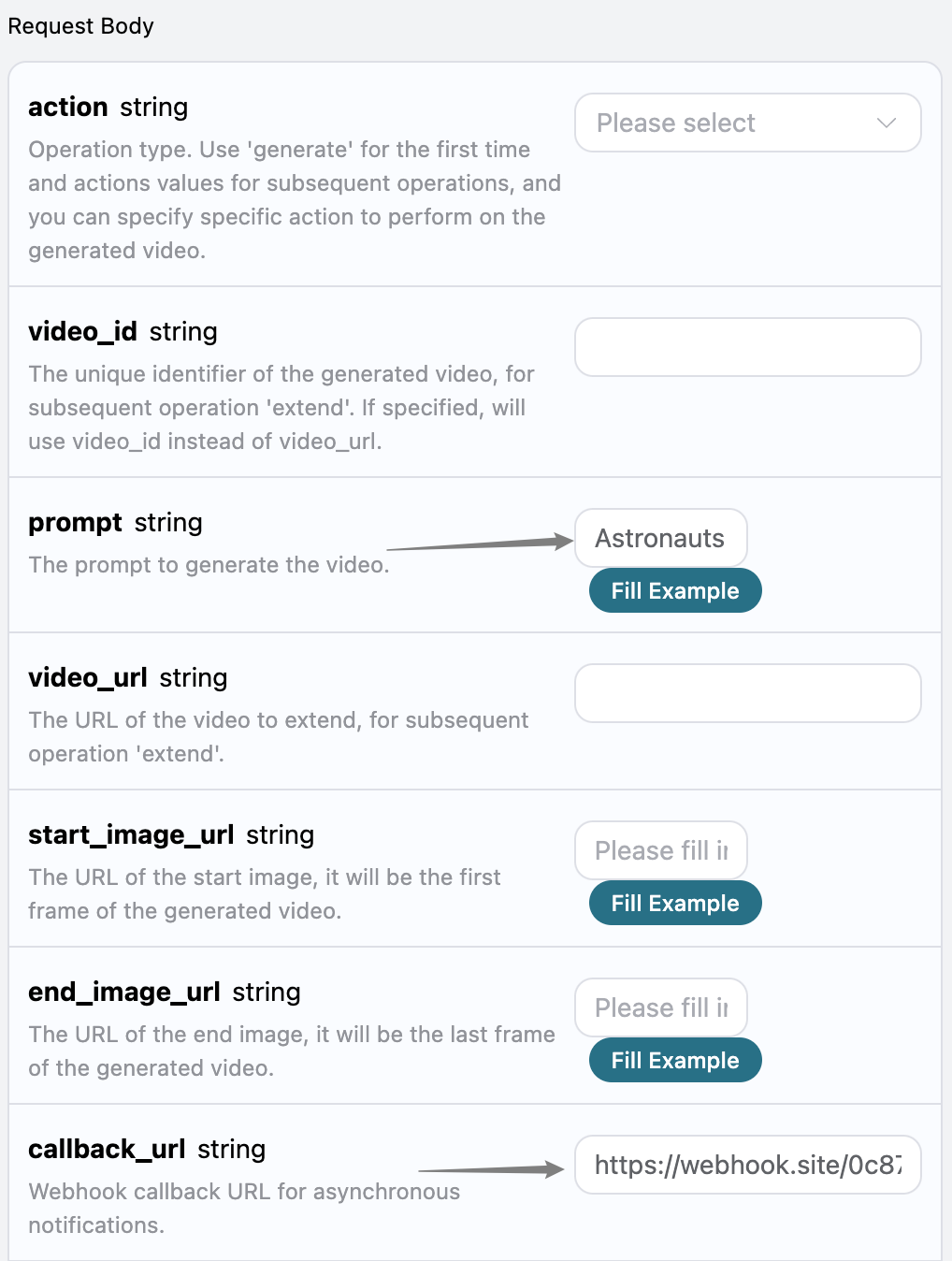
callback_url to the Webhook URL above, and fill in prompt at the same time, as shown in the figure:
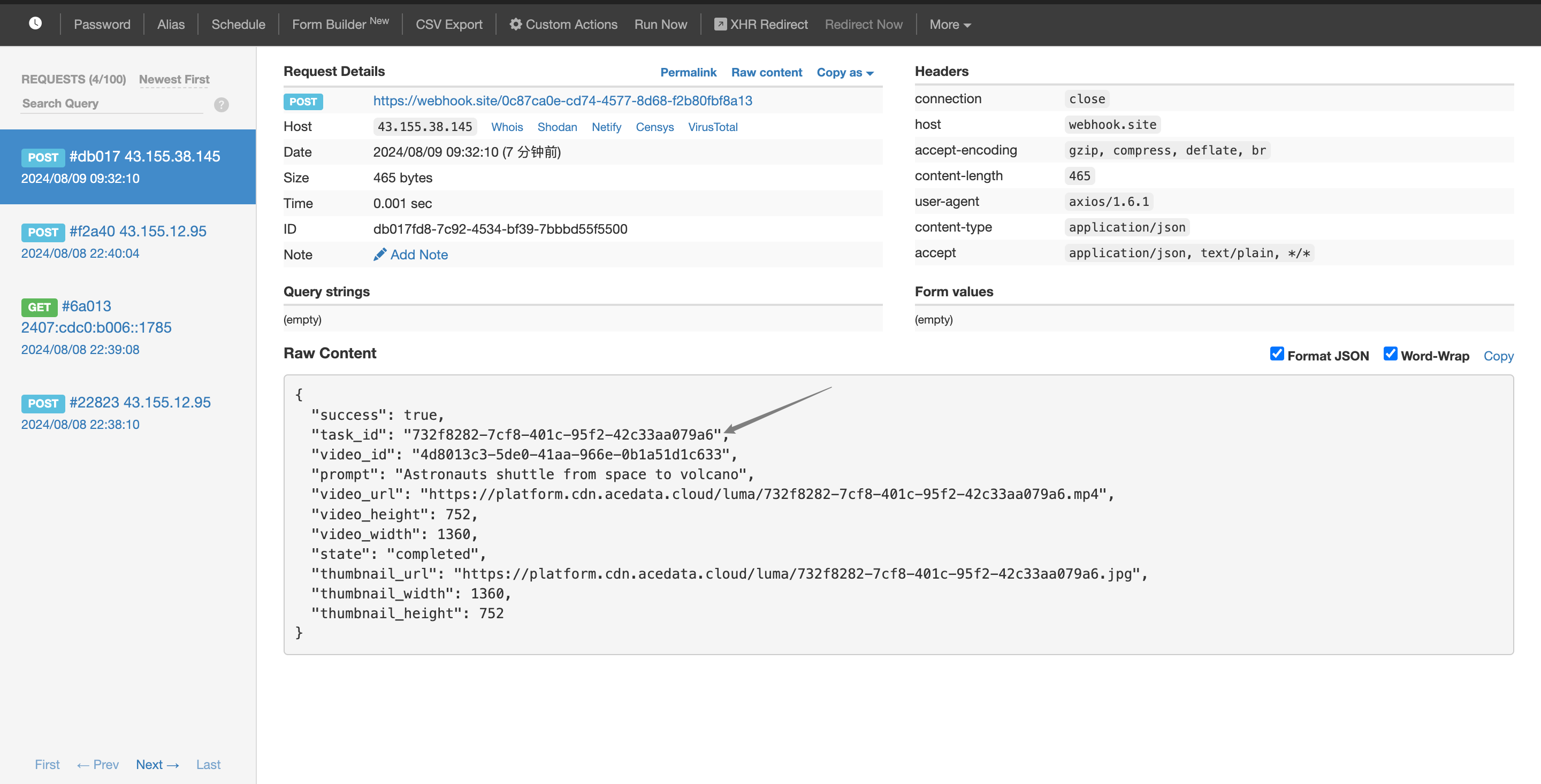 The content is as follows:
task_id field in the result. The other fields are similar to those above, and task association can be achieved through this field.