

Application Process
To use the Flux Images Generation API, first go to the Ace Data Cloud Console to obtain your API Token and keep it for later use.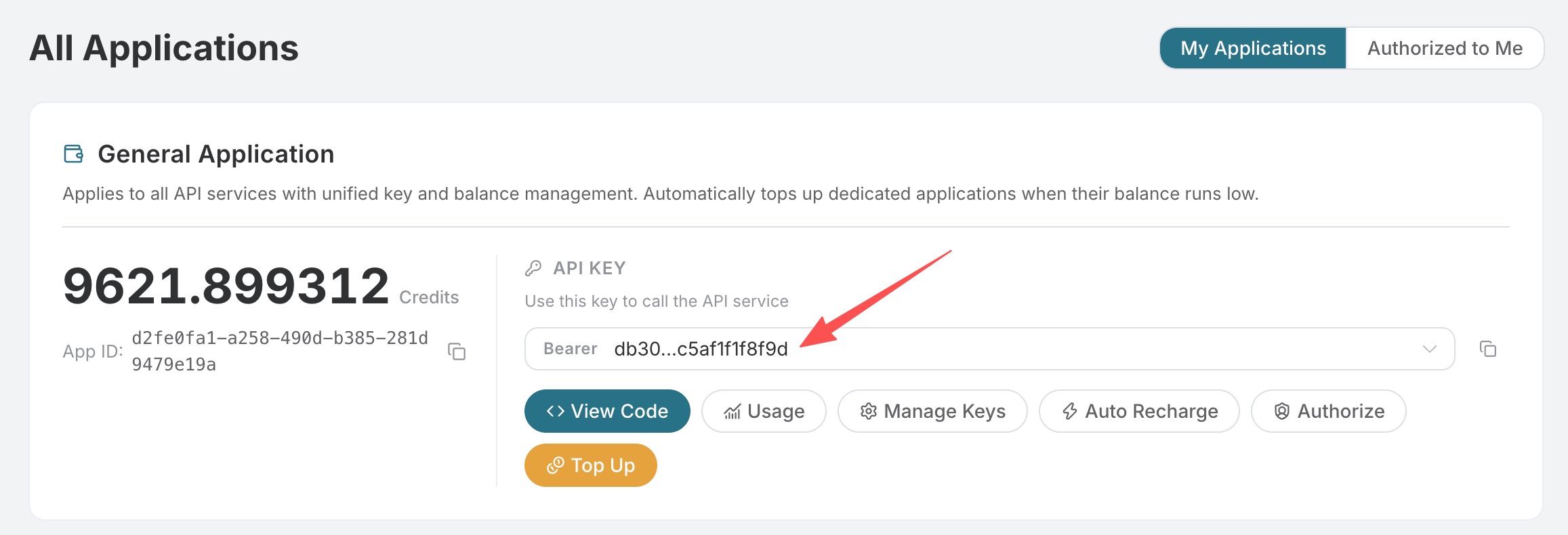 If you have not logged in or registered yet, you will be automatically redirected to the login page and invited to register and log in. After completion, you will automatically return to the current page.
One API Token can call all services on the platform; there is no need to apply separately for each service. Your first application will include free credits for a free trial; when credits are insufficient, you can top up your general balance in the Console.
If you have not logged in or registered yet, you will be automatically redirected to the login page and invited to register and log in. After completion, you will automatically return to the current page.
One API Token can call all services on the platform; there is no need to apply separately for each service. Your first application will include free credits for a free trial; when credits are insufficient, you can top up your general balance in the Console.
📘 Full documentation: Flux Images Generation API →
Basic Usage
First, let’s understand the basic usage method: enter the promptprompt, generation action action, and image size size, and you can obtain the processed result. First, you need to simply pass an action field with the value generate, and then we also need to enter a prompt. The specific content is as follows:
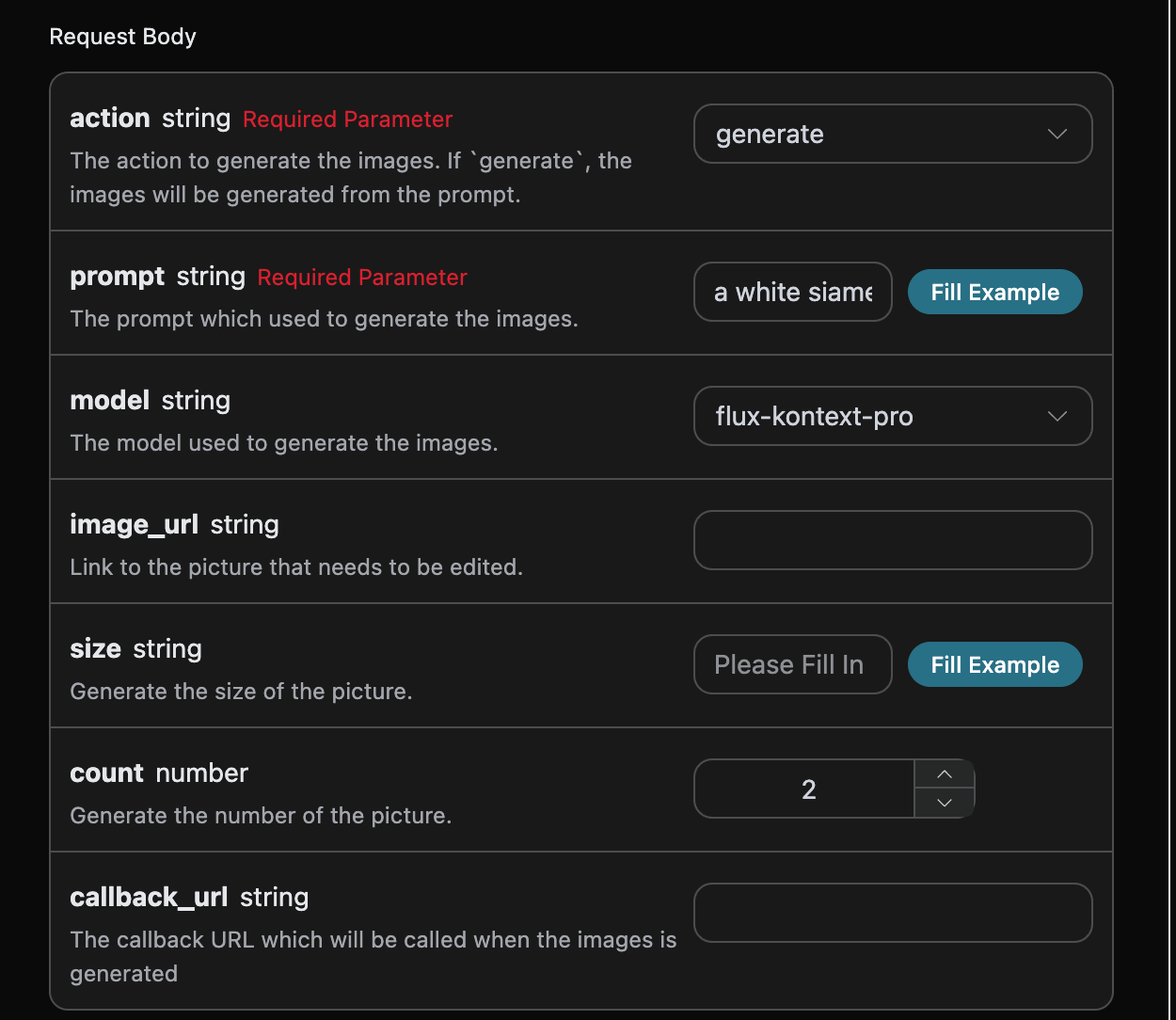
accept: The format of the response result you want to receive. Enterapplication/jsonhere, which is JSON format.authorization: The key for calling the API. After applying, you can directly select it from the dropdown.
action: The action for this image generation task.size: The size of the image generation result. Theflux-2-flex/flux-2-pro/flux-2-maxseries must pass an image aspect ratio (such as1:1,16:9), and do not accept pixel dimensions such as1024x1024; omitting it will return 400.count: The number of images to generate. The default value is 1. This parameter is only valid for image generation tasks and is invalid for editing tasks.prompt: Prompt.model: Generation model, defaulting toflux-dev; the latest flagships areflux-2-proandflux-2-max(higher image quality, requires image aspect ratiosize).callback_url: The URL that needs to receive callback results.async: Optional. When set totrue, the API immediately returnstask_id; there is no need to providecallback_url, and results can then be obtained by polling through the corresponding task query API.
size parameter has some special restrictions, mainly divided into two types: width x height aspect ratio and x:y image aspect ratio. The specifics are as follows:
Reference image aspect ratios: “21:9”, “16:9”, “4:3”, “3:2”, “1:1”, “2:3”, “3:4”, “9:16”, “9:21”.
After selecting parameters, the corresponding code will be automatically generated on the right. Before copying, please confirm that the authorization header uses your own API Key, and real credentials should not appear in the documentation or screenshots.
Click the “Try” button to test. Here, we get the following result:
success, the status of the video generation task at this time.task_id, the ID of the video generation task at this time.trace_id, the tracking ID of the video generation at this time.data, the result list of the image generation task at this time.image_url, the link for the image generation task at this time.prompt, the prompt.
data in the result.
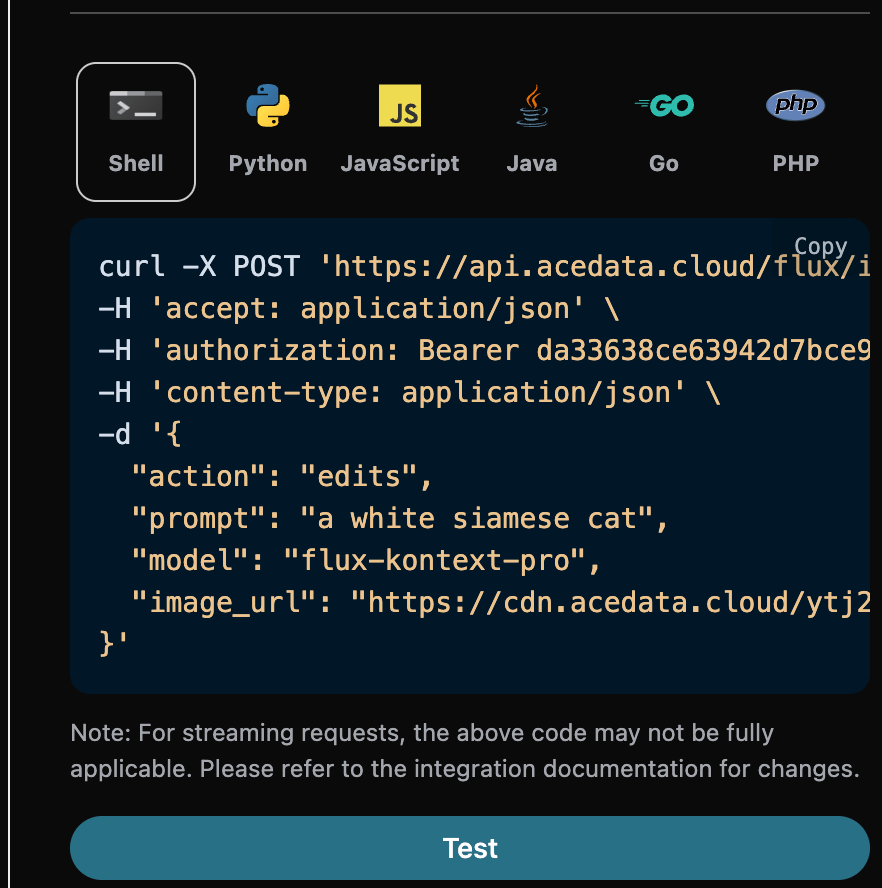
Additionally, if you want to generate corresponding integration code, you can directly copy the generated code. For example, the CURL code is as follows:
Image Editing Task
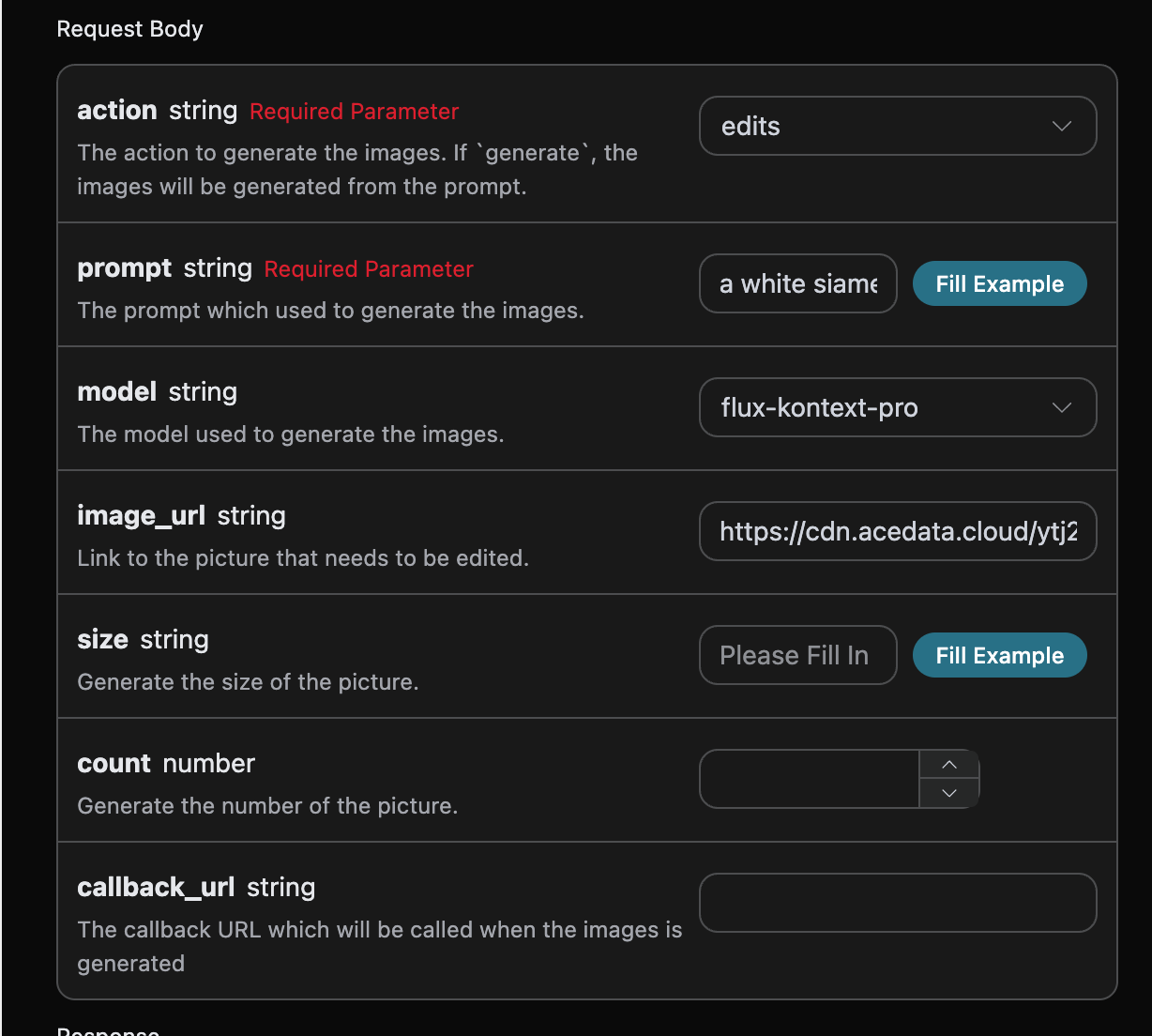
If you want to edit an image, first, theimage_url parameter must pass the link to the image that needs to be edited. At this time, action only supports edit, and you can specify the following content:
- model: The model used for this image editing task. Supports
flux-dev,flux-pro,flux-kontext-pro,flux-kontext-max,flux-2-flex,flux-2-pro, andflux-2-max. - image_url: Upload the image that needs to be edited.
Asynchronous Callback
Since the Flux Images Generation API takes relatively long to generate, approximately 1–2 minutes, if the API does not respond for a long time, the HTTP request will remain connected, resulting in additional system resource consumption. Therefore, this API also provides support for asynchronous callbacks. The overall process is: when the client initiates a request, it additionally specifies acallback_url field. After the client initiates the API request, the API will immediately return a result containing a task_id field, representing the current task ID. When the task is completed, the result of the generated image will be sent in POST JSON format to the callback_url specified by the client, which also includes the task_id field, so that task results can be associated through the ID.
Next, we will use an example to understand how to operate it specifically.
First, a Webhook callback is a service that can receive HTTP requests. Developers should replace it with the URL of their own deployed HTTP server. For convenience of demonstration, a public Webhook sample website https://webhook.site/ is used here. Opening this website will provide a Webhook URL, as shown in the figure:
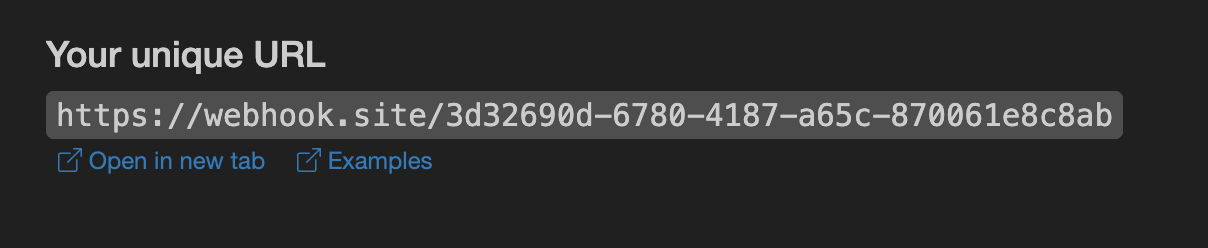 Copy this URL, and it can be used as a Webhook. The example here is
 https://webhook.site/3d32690d-6780-4187-a65c-870061e8c8ab.
Next, we can set the field callback_url to the above Webhook URL and fill in the corresponding parameters at the same time. The specific content is shown in the figure:
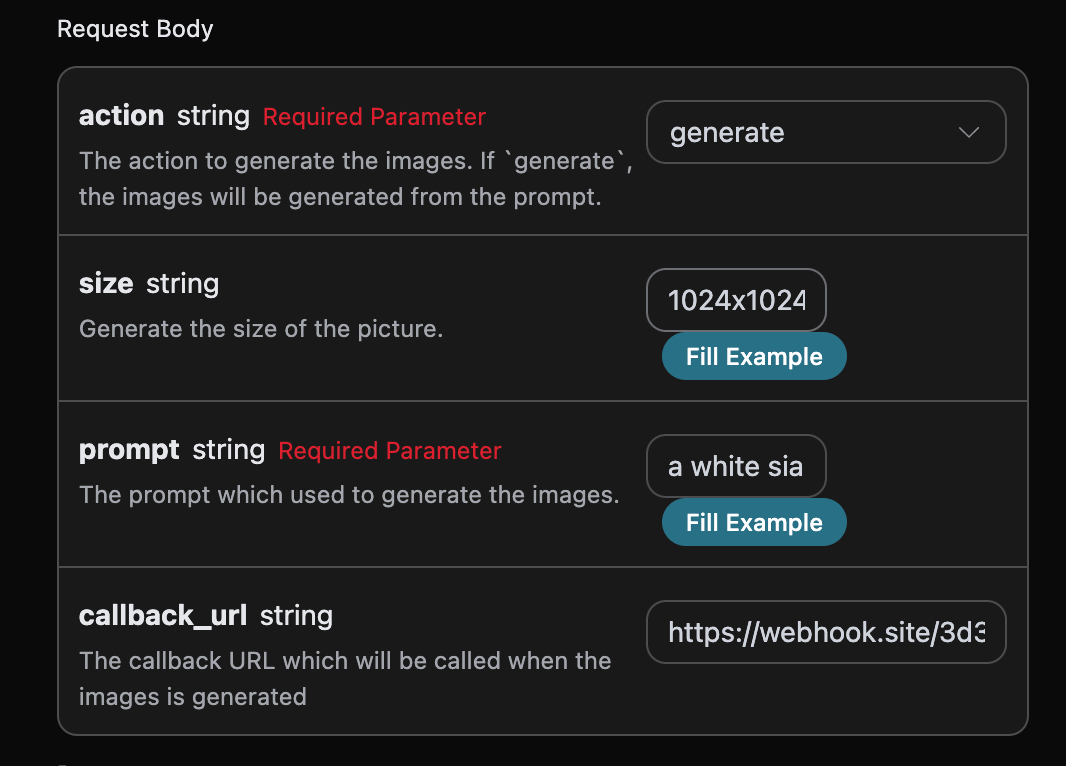
https://webhook.site/3d32690d-6780-4187-a65c-870061e8c8ab, as shown in the figure:
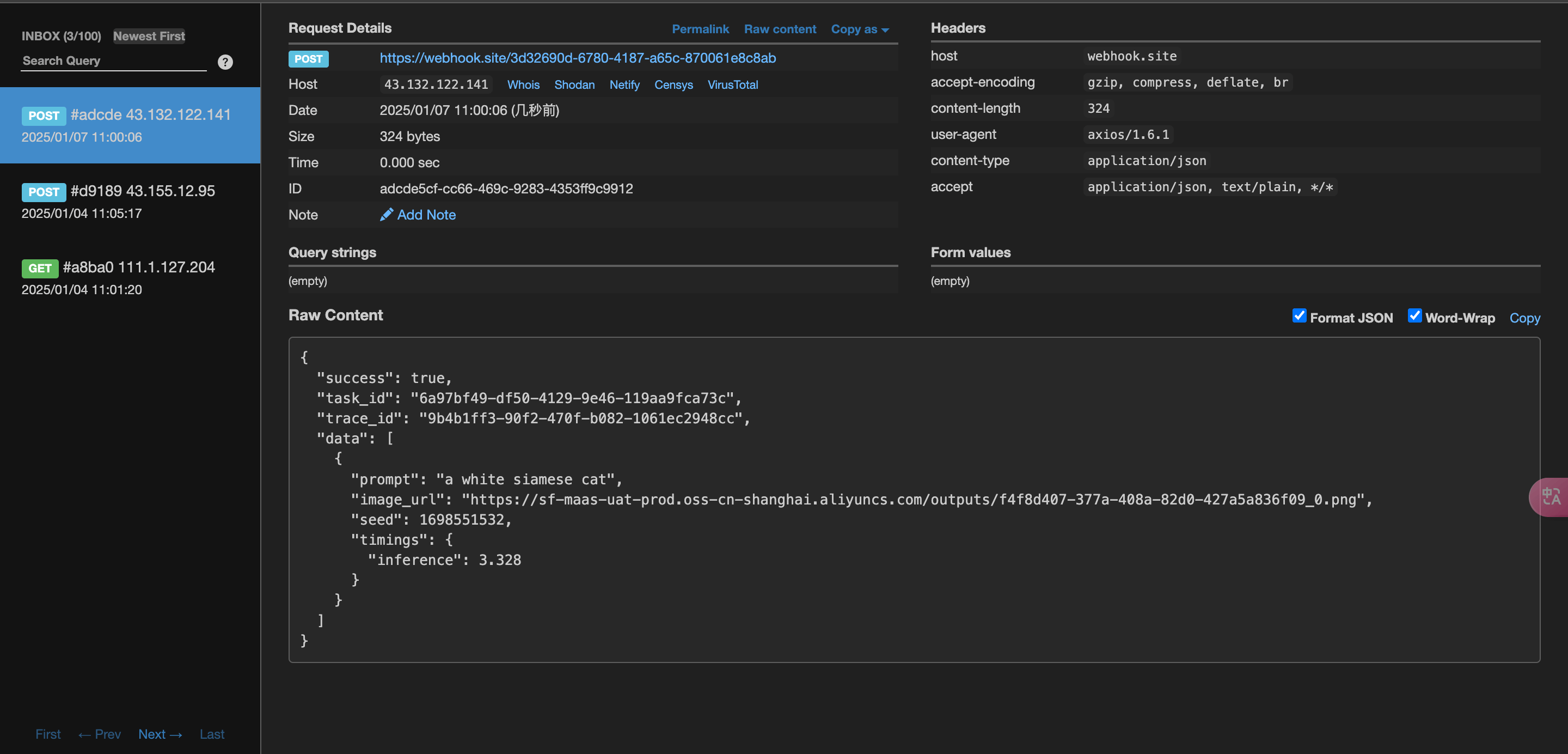 The content is as follows:
task_id field in the result, and the other fields are similar to those above. Task association can be achieved through this field.
Error Handling
When calling the API, if an error occurs, the API will return the corresponding error code and message. For example:400 token_mismatched: Bad request, possibly due to missing or invalid parameters.400 api_not_implemented: Bad request, possibly due to missing or invalid parameters.401 invalid_token: Unauthorized, invalid or missing authorization token.429 too_many_requests: Too many requests, you have exceeded the rate limit.500 api_error: Internal server error, something went wrong on the server.