> ## Documentation Index
> Fetch the complete documentation index at: https://docs.acedata.cloud/llms.txt
> Use this file to discover all available pages before exploring further.
# Luma Video Generation API Integration Instructions
> Luma Video Generation integration guide - Ace Data Cloud
With the widespread application of AI, various AI programs have gradually become popular. AI has gradually penetrated all aspects of people's work and life. The industries involved in AI are also increasing, from the initial writing, to medical education, and now to video.
Luma is a professional high-quality video generation platform where users only need to upload materials to automatically generate high-quality videos based on different styles and effects. This AI video generator is developed by team members from well-known technology companies, aiming to allow everyone to easily create outstanding videos without complex editing tools.
However, Luma does not officially provide an API. AceDataCloud offers a set of Luma APIs that simulate the integration with Suno's official API, making it convenient and quick to generate the desired videos.
## Application and Usage
To use Luma Videos Generation API, first open the [Ace Data Cloud Console](https://platform.acedata.cloud/console/applications) and copy your API Token.
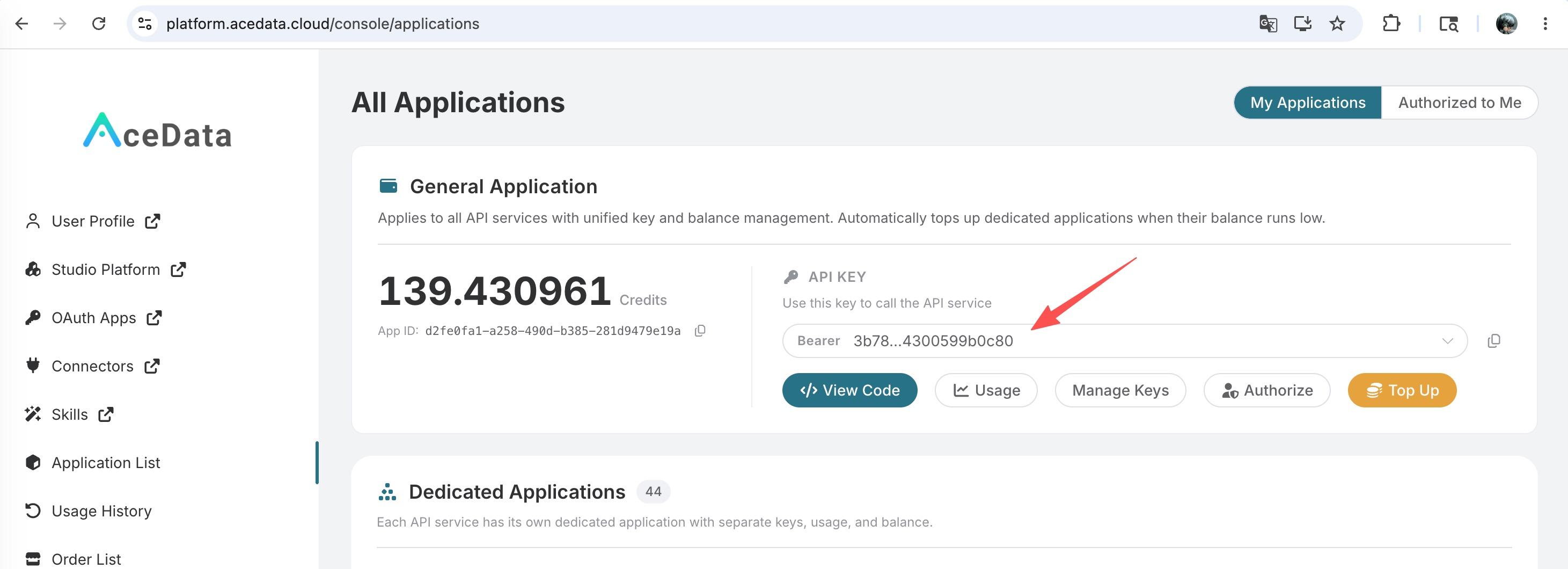
If you are not logged in, you will be redirected to sign in and brought back to this page automatically.
**A single API Token works across every service on the platform — no need to subscribe per service.** New accounts receive free starter credit; when it runs low you can top up your shared balance in the [console](https://platform.acedata.cloud/console/coin).
> 📘 Full documentation: [Luma Videos Generation API →](https://platform.acedata.cloud/documents/luma-videos)
## Basic Usage
To generate a video, you can input any text. For example, if I want to generate a video about astronauts shuttling between space and volcanoes, I can input `Astronauts shuttle from space to volcano`, as shown in the image:
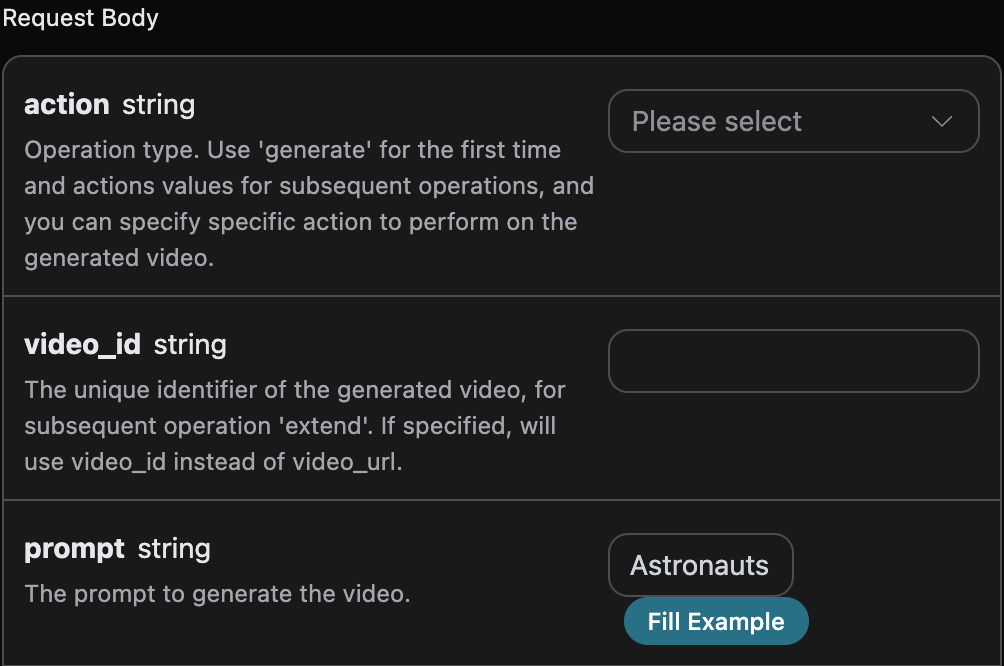
The generated code is as follows:
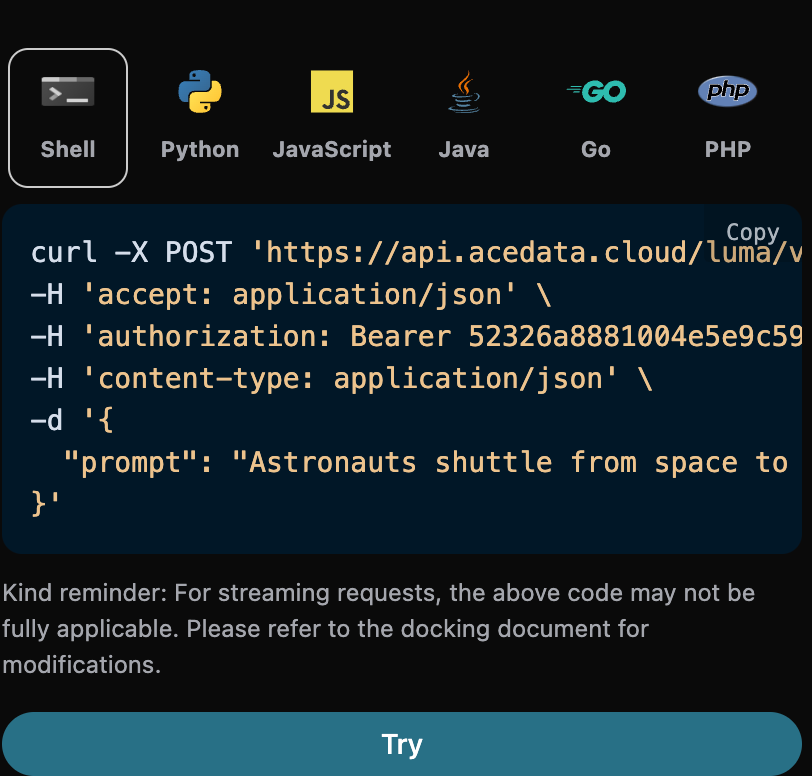
Main request parameters:
* `prompt`: The prompt for generating the video.
* `aspect_ratio`: The aspect ratio of the video, default is 16:9.
* `end_image_url`: Optional, specifies the end frame.
* `enhancement`: Optional, clarity enhancement switch.
* `loop`: Whether to generate a looping video, default is false.
* `timeout`: Optional, timeout in seconds.
* `callback_url`: Asynchronous callback address.
You can click the "Try" button to directly test the API. After waiting for 1-2 minutes, the result is as follows:
```json theme={null}
{
"success": true,
"task_id": "e4018a99-1522-4f24-9330-62c2a9b50b59",
"video_id": "155838f8-7f1e-44d8-b387-192f3b4b509d",
"prompt": "Astronauts shuttle from space to volcano",
"video_url": "https://storage.cdn-luma.com/dream_machine/af94e7ca-da35-4b5f-a636-2d7254184d0d/watermarked_video0585de3737db946e5a0ac895384ecd180.mp4",
"video_height": 752,
"video_width": 1360,
"state": "completed",
"thumbnail_url": "https://platform.cdn.acedata.cloud/luma/e4018a99-1522-4f24-9330-62c2a9b50b59.jpg",
"thumbnail_width": 1360,
"thumbnail_height": 752
}
```
At this point, we can see the relevant information of the video, including video ID, video link, video thumbnail, and other content.
Field descriptions are as follows:
* success: Whether the generation was successful; if successful, it is `true`, otherwise it is `false`.
* task\_id: The unique ID of this video generation task.
* video\_id: The unique ID of the video generated from this task.
* prompt: The keywords for this video generation task.
* video\_url: The result video link of this video generation task.
* video\_height: The height of the generated video thumbnail image.
* video\_width: The width of the generated video thumbnail image.
* state: The status of this video generation task; if the task is completed, it is `completed`.
* thumbnail\_url: The link to the generated video thumbnail image.
* thumbnail\_width: The width of the generated video thumbnail image.
* thumbnail\_height: The height of the generated video thumbnail image.
## Custom Start and End Frame Generation
If you want to generate a video by customizing the start and end frames, you can input the image links for the start and end frames:
At this point, the video start frame `start_image_url` field can accept the following image as the start frame of the video:

Next, we need to customize the video generation based on the start and end frames and keywords, specifying the following content:
* action: The action of the video generation task, usually normal generation `generate` and extended generation `extend`, default is `generate`.
* start\_image\_url: Specifies the start frame of the generated video.
* end\_image\_url: Specifies the end frame of the generated video.
* prompt: The keyword content for generating the video.
An example of the input is as follows:
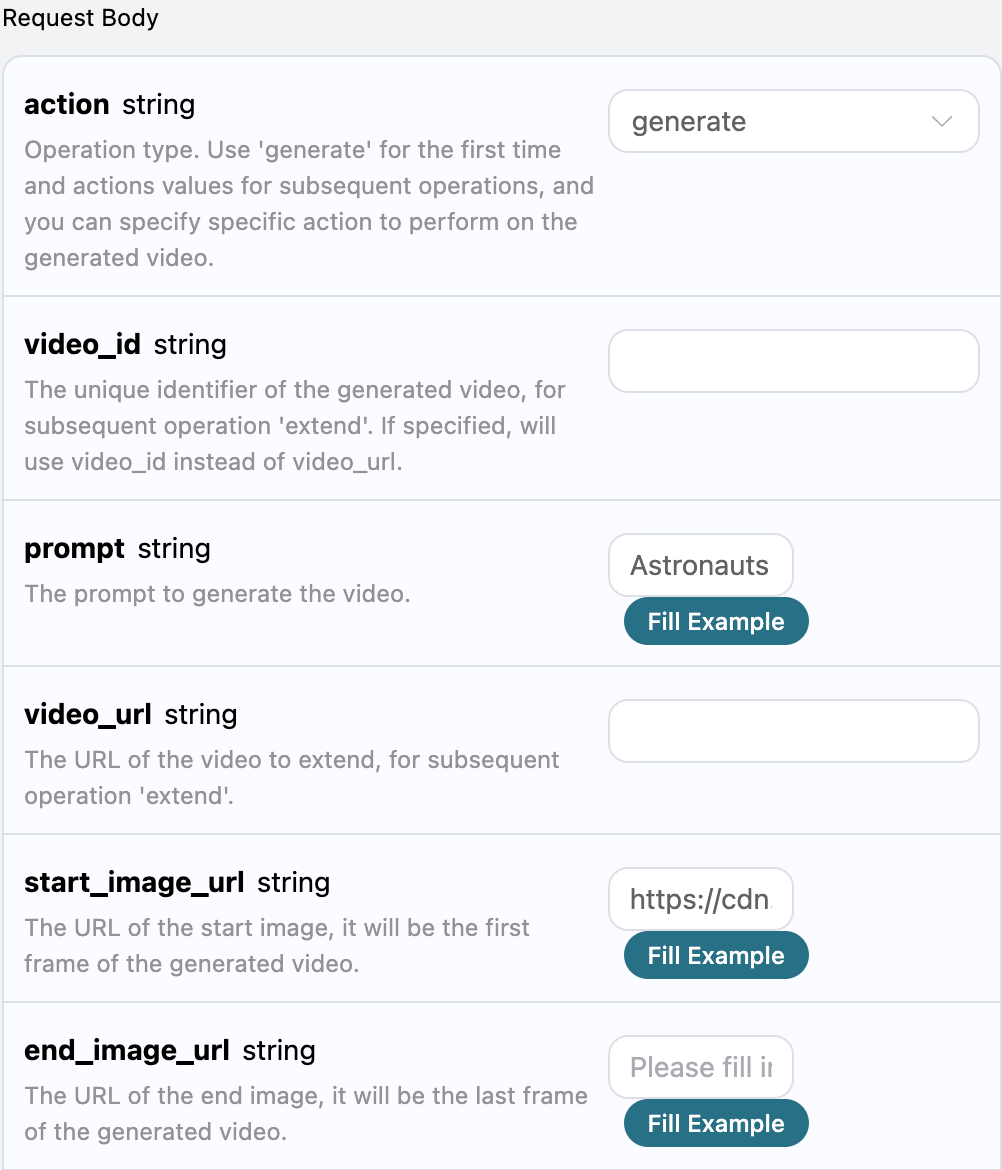
After filling in, the generated code is as follows:
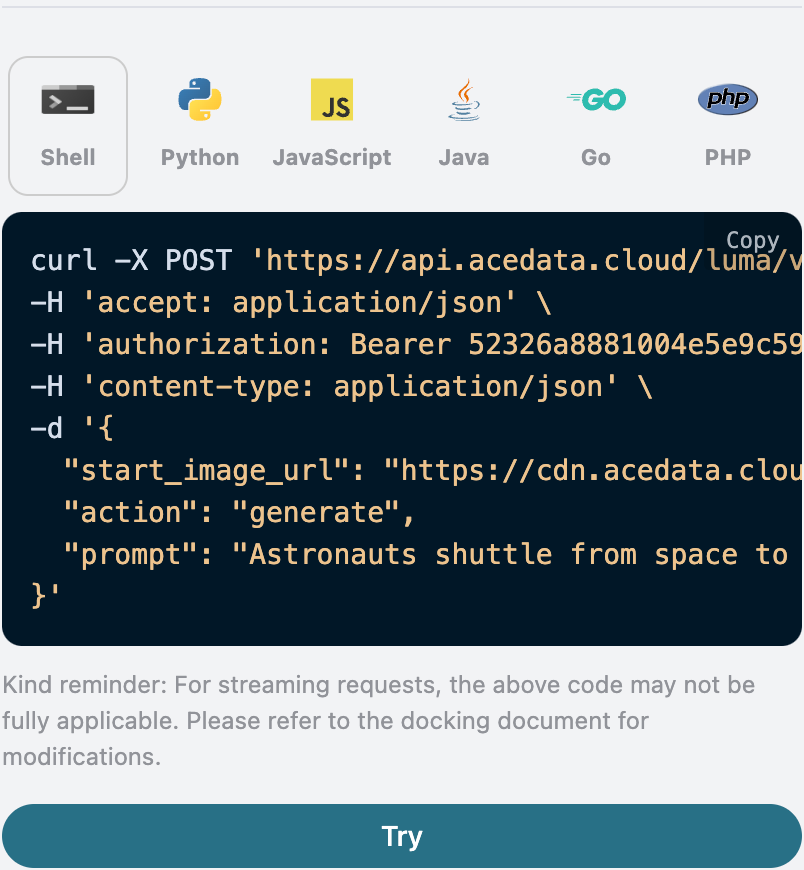
Corresponding code:
```python theme={null}
import requests
url = "https://api.acedata.cloud/luma/videos"
headers = {
"accept": "application/json",
"authorization": "Bearer {token}",
"content-type": "application/json"
}
payload = {
"start_image_url": "https://cdn.acedata.cloud/r9vsv9.png",
"action": "generate",
"prompt": "Astronauts shuttle from space to volcano"
}
response = requests.post(url, json=payload, headers=headers)
print(response.text)
```
The result obtained is as follows:
```json theme={null}
{
"success": true,
"task_id": "12a18694-fd4b-47e7-9c50-34f30862cff6",
"video_id": "0105c090-03a5-425a-8026-523341cd575b",
"prompt": "Astronauts shuttle from space to volcano",
"video_url": "https://platform.cdn.acedata.cloud/luma/12a18694-fd4b-47e7-9c50-34f30862cff6.mp4",
"video_height": 656,
"video_width": 1552,
"state": "completed",
"thumbnail_url": "https://platform.cdn.acedata.cloud/luma/12a18694-fd4b-47e7-9c50-34f30862cff6.jpg",
"thumbnail_width": 1552,
"thumbnail_height": 656
}
```
The final result is similar to the previous one, with the generated video start frame containing the image we provided. Of course, you can also provide both start and end frame image links to generate the video; you just need to add an end frame image based on the above. The information for the end frame image is as follows:

An example of the input is as follows:
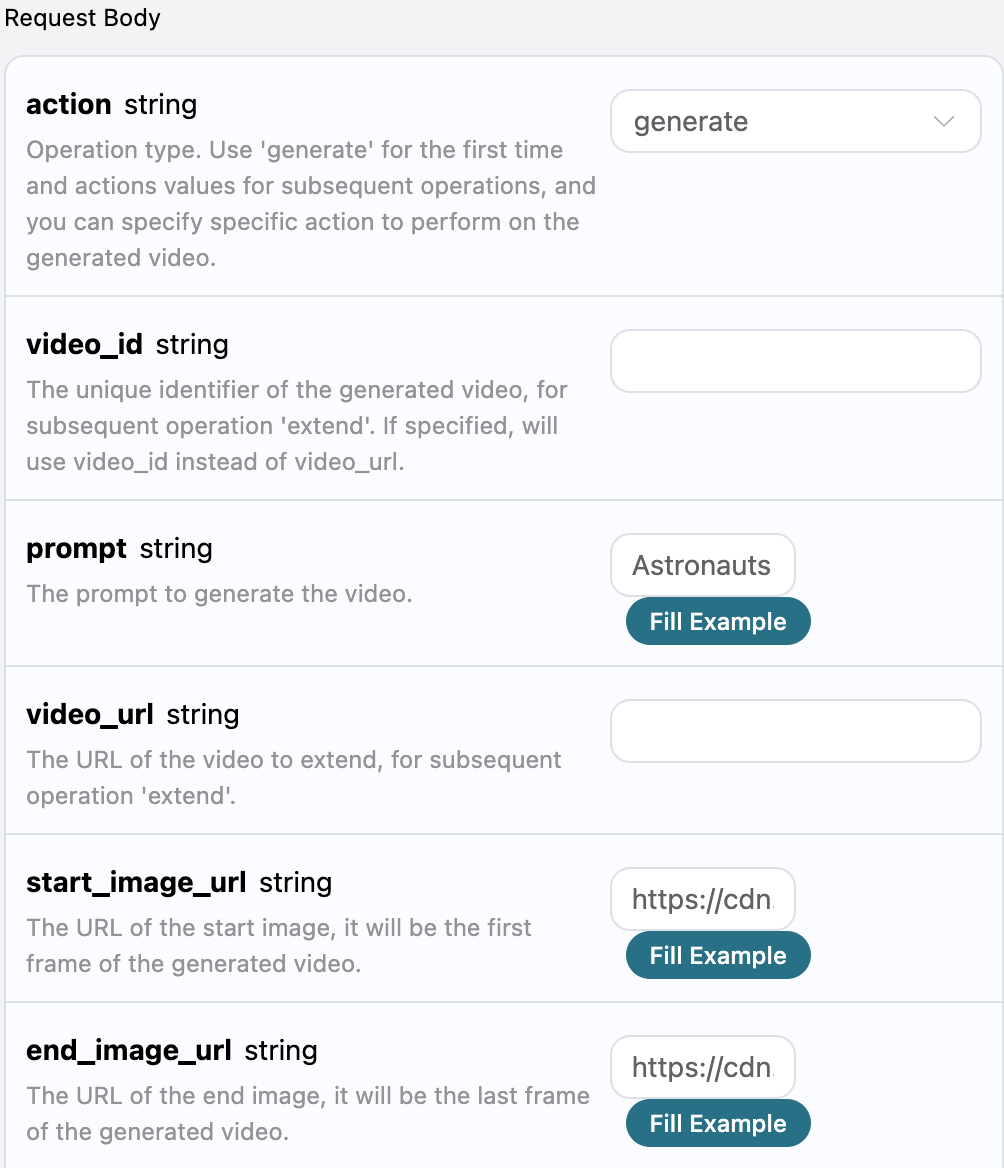
Finally, the result is as follows:
```json theme={null}
{
"success": true,
"task_id": "d1cb723a-e554-4775-94a4-bb6ae8c7ea67",
"video_id": "6bebd0d2-f793-472e-9326-38528a9273bb",
"prompt": "Astronauts shuttle from space to volcano",
"video_url": "https://platform.cdn.acedata.cloud/luma/d1cb723a-e554-4775-94a4-bb6ae8c7ea67.mp4",
"video_height": 656,
"video_width": 1552,
"state": "completed",
"thumbnail_url": "https://platform.cdn.acedata.cloud/luma/d1cb723a-e554-4775-94a4-bb6ae8c7ea67.jpg",
"thumbnail_width": 1552,
"thumbnail_height": 656
}
```
The result is similar to the above, and the generated video contains images of both the first and last frames, thus completing the custom first and last frame generation for the video.
## Video Extension Functionality
If you want to continue generating the video, you can set the parameter `action` to `extend`, and input the ID or video link of the video you want to continue generating. The video ID and video link can be obtained based on the basic usage, as shown in the image below:
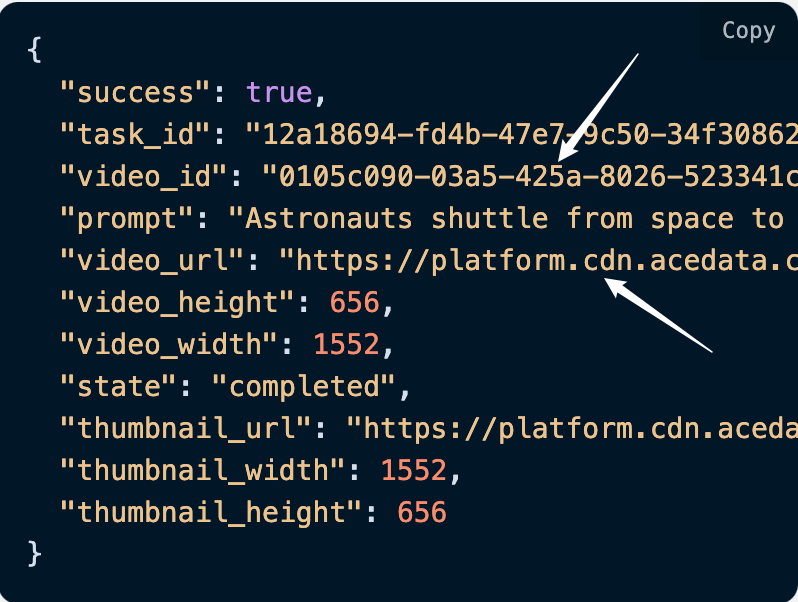
At this point, you can see that the video ID is:
```
"video_id": "0105c090-03a5-425a-8026-523341cd575b",
"video_url": "https://platform.cdn.acedata.cloud/luma/12a18694-fd4b-47e7-9c50-34f30862cff6.mp4"
```
> Note that the `video_id` and `video_url` here are the ID and link of the generated video. If you do not know how to generate a video, you can refer to the basic usage above to generate a video.
To continue generating the video, you must upload the video link or video ID. Below is a demonstration of using the video ID to extend it. Next, we must fill in the keywords to customize the video generation, specifying the following content:
* action: The action for extending the video, which should be `extend`.
* prompt: The keywords for extending the video.
* video\_url: The link to the video that needs to be extended.
* video\_id: The unique ID of the video that needs to be extended.
* end\_image\_url: The link to the image for the last frame of the extended video, optional parameter.
An example of the filled form is as follows:
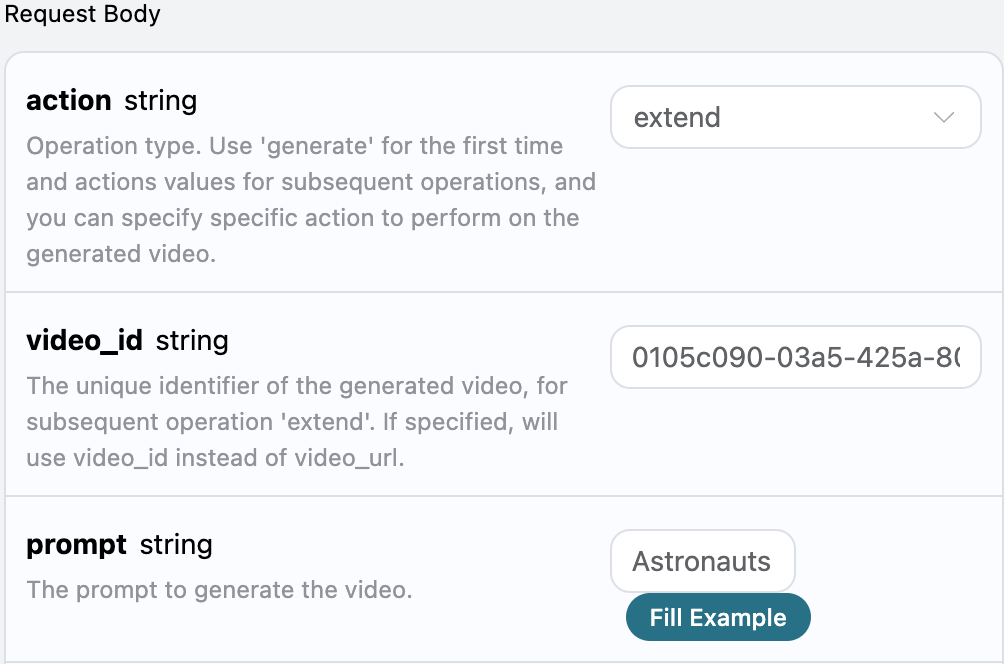
After filling it out, the code is automatically generated as follows:
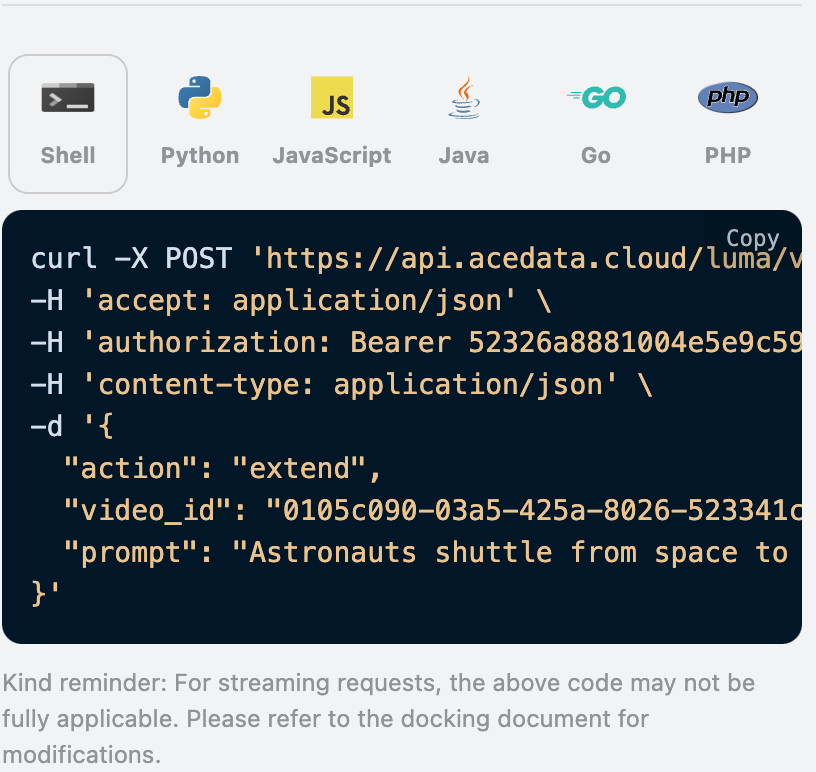
The corresponding Python code:
```python theme={null}
import requests
url = "https://api.acedata.cloud/luma/videos"
headers = {
"accept": "application/json",
"authorization": "Bearer {token}",
"content-type": "application/json"
}
payload = {
"action": "extend",
"video_id": "0105c090-03a5-425a-8026-523341cd575b",
"prompt": "Astronauts shuttle from space to volcano"
}
response = requests.post(url, json=payload, headers=headers)
print(response.text)
```
Clicking run, you can find that a result is obtained as follows:
```json theme={null}
{
"success": true,
"task_id": "c6e529d1-a06d-4c12-91b2-c855135131c3",
"video_id": "36908c49-c2bb-4a11-bd5a-b8512b004818",
"prompt": "Astronauts shuttle from space to volcano",
"video_url": "https://platform.cdn.acedata.cloud/luma/c6e529d1-a06d-4c12-91b2-c855135131c3.mp4",
"video_height": 656,
"video_width": 1552,
"state": "completed",
"thumbnail_url": "https://platform.cdn.acedata.cloud/luma/c6e529d1-a06d-4c12-91b2-c855135131c3.jpg",
"thumbnail_width": 1552,
"thumbnail_height": 656
}
```
It can be seen that this video is an extension based on the video that needs to be extended, and the result content is consistent with the above, thus achieving the function of continuing the song generation.
Of course, we can also specify the video link to perform the extension generation by filling in the following information:
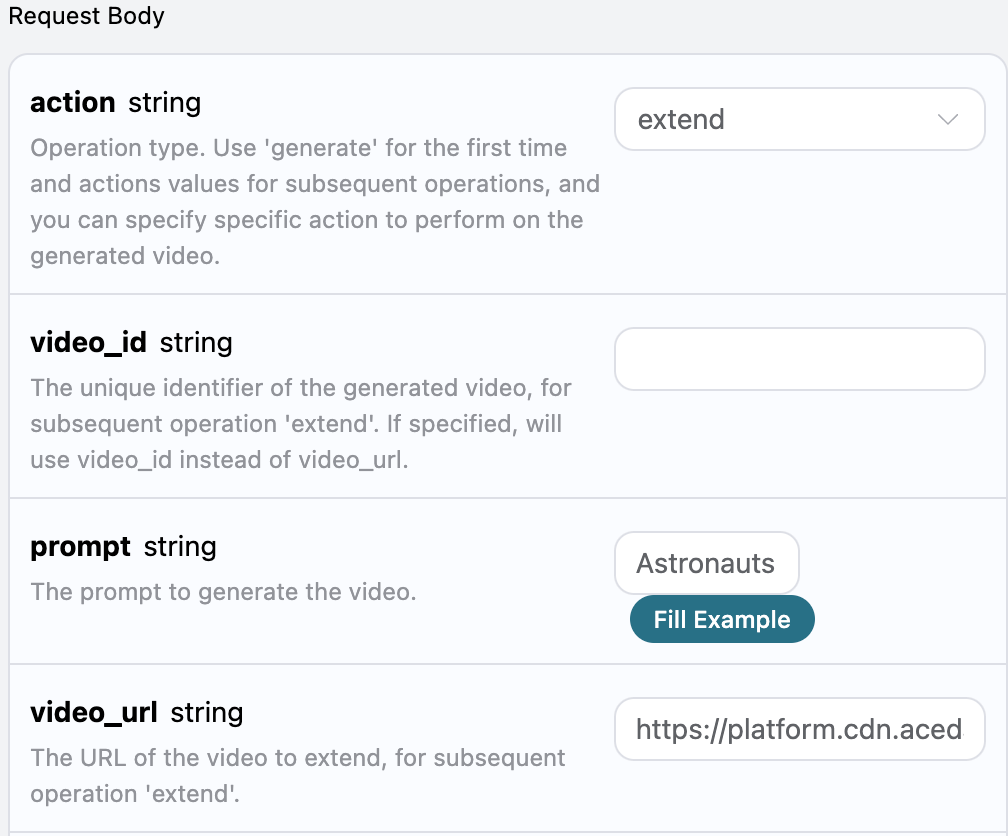
After running, the following result is obtained:
```json theme={null}
{
"success": true,
"task_id": "1dcb5902-a7be-4b77-ba5d-dd8ec82b26ca",
"video_id": "f0187dc2-339f-4a08-a435-c3a3341f620a",
"prompt": "Astronauts shuttle from space to volcano",
"video_url": "https://platform.cdn.acedata.cloud/luma/1dcb5902-a7be-4b77-ba5d-dd8ec82b26ca.mp4",
"video_height": 656,
"video_width": 1552,
"state": "completed",
"thumbnail_url": "https://platform.cdn.acedata.cloud/luma/1dcb5902-a7be-4b77-ba5d-dd8ec82b26ca.jpg",
"thumbnail_width": 1552,
"thumbnail_height": 656
}
```
According to the result, it can be seen that the video extension function can also be achieved based on the video link.
Finally, we can also specify an image for the last frame in the extended video. Below is the information for the last frame image:

Next, we will add the last frame image information based on the above, as shown below:
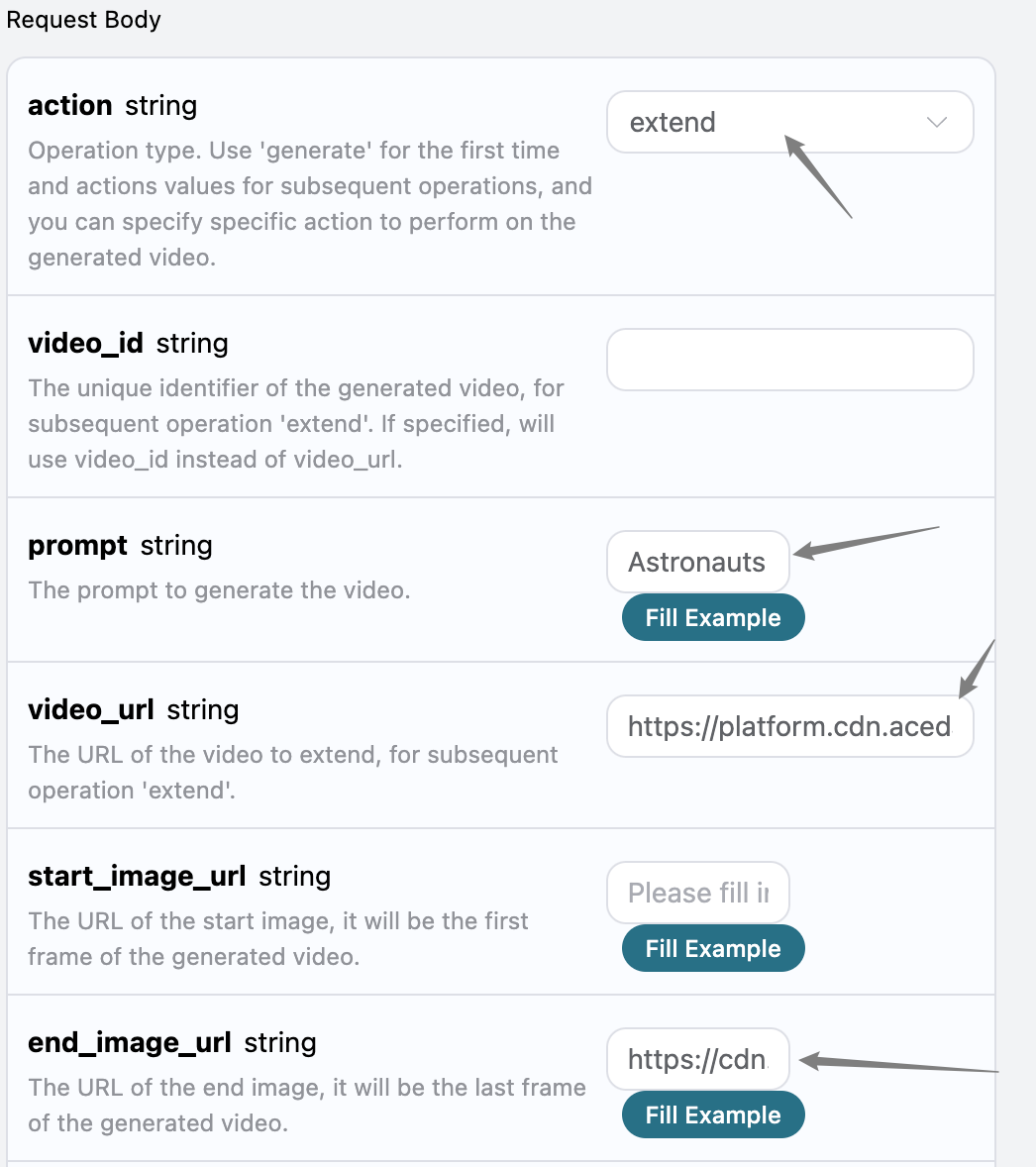
After clicking run, the following information is obtained:
```json theme={null}
{
"success": true,
"task_id": "b816b2b4-c345-4673-9e19-83e91f91b643",
"video_id": "c5400053-63e6-4206-8082-31cf9dd1e7ed",
"prompt": "Astronauts shuttle from space to volcano",
"video_url": "https://platform.cdn.acedata.cloud/luma/b816b2b4-c345-4673-9e19-83e91f91b643.mp4",
"video_height": 656,
"video_width": 1552,
"state": "completed",
"thumbnail_url": "https://platform.cdn.acedata.cloud/luma/b816b2b4-c345-4673-9e19-83e91f91b643.jpg",
"thumbnail_width": 1552,
"thumbnail_height": 656
}
```
It can be seen that, based on the extended video above, a last frame image can also be specified for the extension.
## Asynchronous Callback
Since the time for Luma to generate videos is relatively long, approximately 1-2 minutes, if the API does not respond for a long time, the HTTP request will keep the connection open, leading to additional system resource consumption. Therefore, this API also provides support for asynchronous callbacks.
The overall process is: when the client initiates a request, an additional `callback_url` field is specified. After the client makes the API request, the API will immediately return a result containing a `task_id` field, representing the current task ID. When the task is completed, the generated music result will be sent to the client-specified `callback_url` in the form of a POST JSON, which also includes the `task_id` field, allowing the task result to be associated by ID.
Next, let's understand how to operate specifically through an example.
First, the Webhook callback is a service that can receive HTTP requests, and developers should replace it with the URL of their own HTTP server. For demonstration purposes, we will use a public Webhook sample site [https://webhook.site/](https://webhook.site/), and opening this site will provide a Webhook URL, as shown in the image:
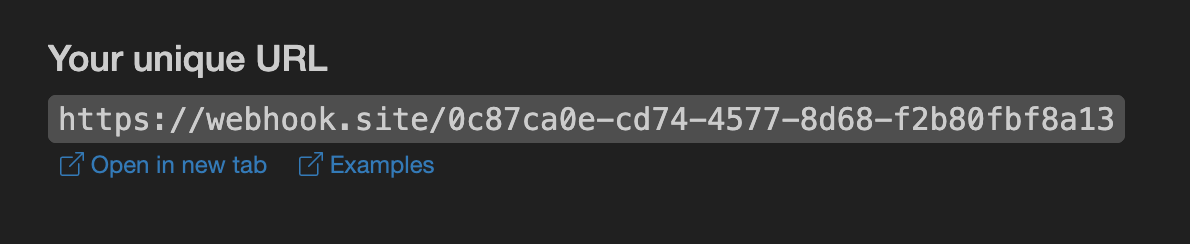
Copy this URL, and it can be used as a Webhook. The sample here is [https://webhook.site/0c87ca0e-cd74-4577-8d68-f2b80fbf8a13](https://webhook.site/0c87ca0e-cd74-4577-8d68-f2b80fbf8a13).
Next, we can set the `callback_url` field to the above Webhook URL and fill in the `prompt`, as shown in the image:
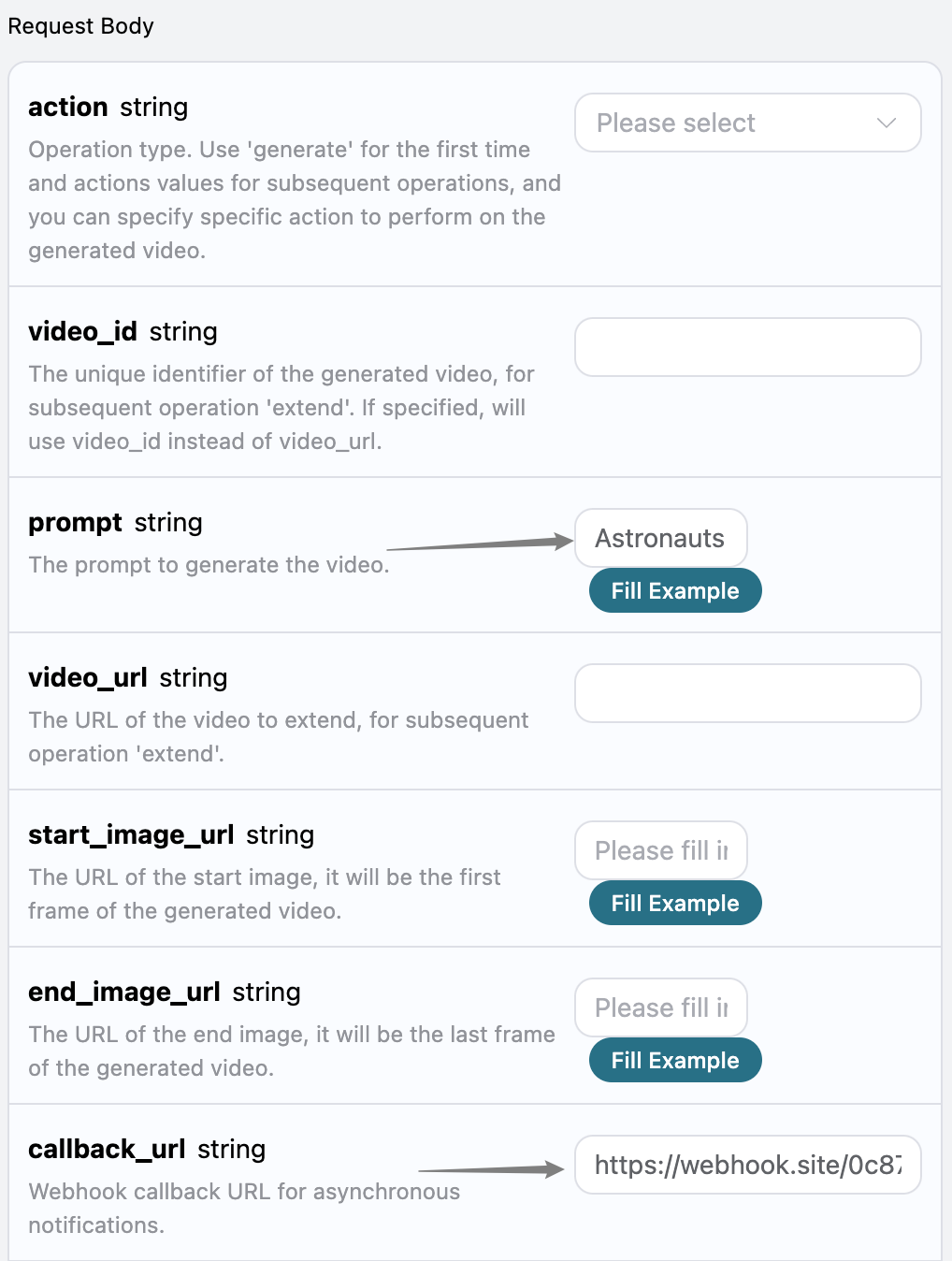
Clicking run, we can find that a result is immediately obtained, as follows:
```json theme={null}
{
"task_id": "732f8282-7cf8-401c-95f2-42c33aa079a6"
}
```
After a moment, we can observe the generated song result at [https://webhook.site/0c87ca0e-cd74-4577-8d68-f2b80fbf8a13](https://webhook.site/0c87ca0e-cd74-4577-8d68-f2b80fbf8a13), as shown in the image:
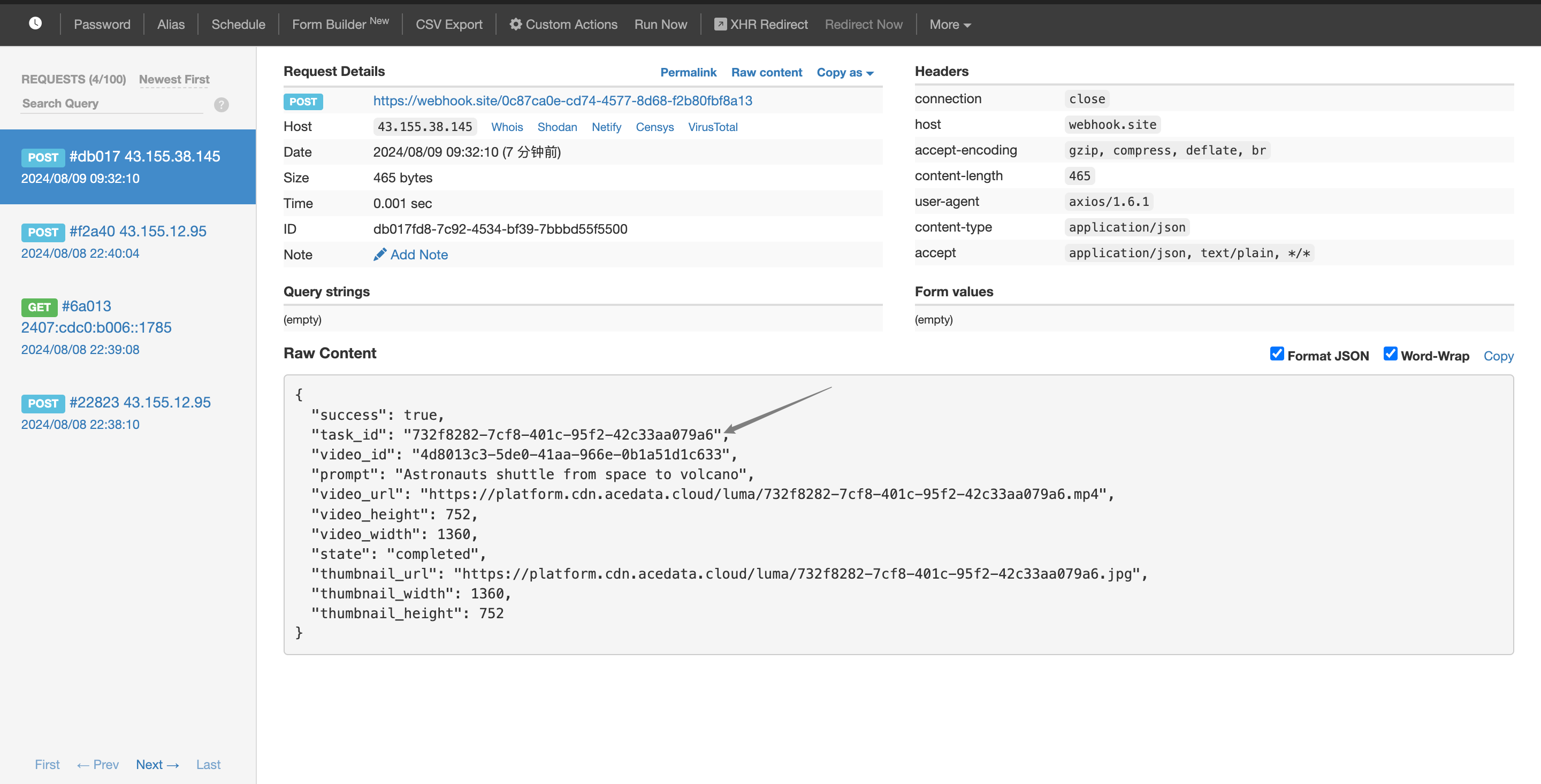
The content is as follows:
```json theme={null}
{
"success": true,
"task_id": "732f8282-7cf8-401c-95f2-42c33aa079a6",
"video_id": "4d8013c3-5de0-41aa-966e-0b1a51d1c633",
"prompt": "Astronauts shuttle from space to volcano",
"video_url": "https://platform.cdn.acedata.cloud/luma/732f8282-7cf8-401c-95f2-42c33aa079a6.mp4",
"video_height": 752,
"video_width": 1360,
"state": "completed",
"thumbnail_url": "https://platform.cdn.acedata.cloud/luma/732f8282-7cf8-401c-95f2-42c33aa079a6.jpg",
"thumbnail_width": 1360,
"thumbnail_height": 752
}
```
It can be seen that the result contains a `task_id` field, and the other fields are similar to those mentioned above, allowing the task to be associated through this field.